WristedWatch User Guide
Wristory! One watch at a time.
Discover · Curate · Preserve
What's in this guide
Getting started
- What WristedWatch is
- The collecting journey
- Create an account & sign in
- Premium & pricing
- Finding your way around
Discover
Curate & track
Stay informed
Your account
What WristedWatch is
WristedWatch is a home for everything about the watches you own, want, and wonder about. It brings four things into one place: discovery across thousands of brands, a private collection record, honest wear tracking, and market alerts so you never miss a price drop or a restock.
It runs as a native iOS app iOS and as a web app in any browser Web — Android, iPhone, Mac, or PC. Your data lives in the cloud and syncs across both, so you can start on your phone and pick up on your laptop. Throughout this guide, badges show where each feature lives:
- iOS — in the iPhone/iPad app only
- Web — in the browser app only
- Both — available on both, working the same way
The collecting journey
Every screen in WristedWatch maps to a stage of a watch's life, so nothing gets lost between "someday" and "mine." When you're deciding where something belongs, this is the arc to follow:
- Radar — watches you're keeping an eye on, no commitment.
- Wishlist — the ones you intend to buy, ranked, with a target price.
- Waitlist — you're on a dealer's list; track your position and expected date.
- Collection — watches you own, with specs, photos, and acquisition details.
- Wear — what's actually on your wrist, logged over time.
- Service — repairs and maintenance so a mechanical piece stays healthy.
Create an account & sign in Both
Your collection is private to you and synced to your account, so the first step is signing in. The same account works on the app and the web.
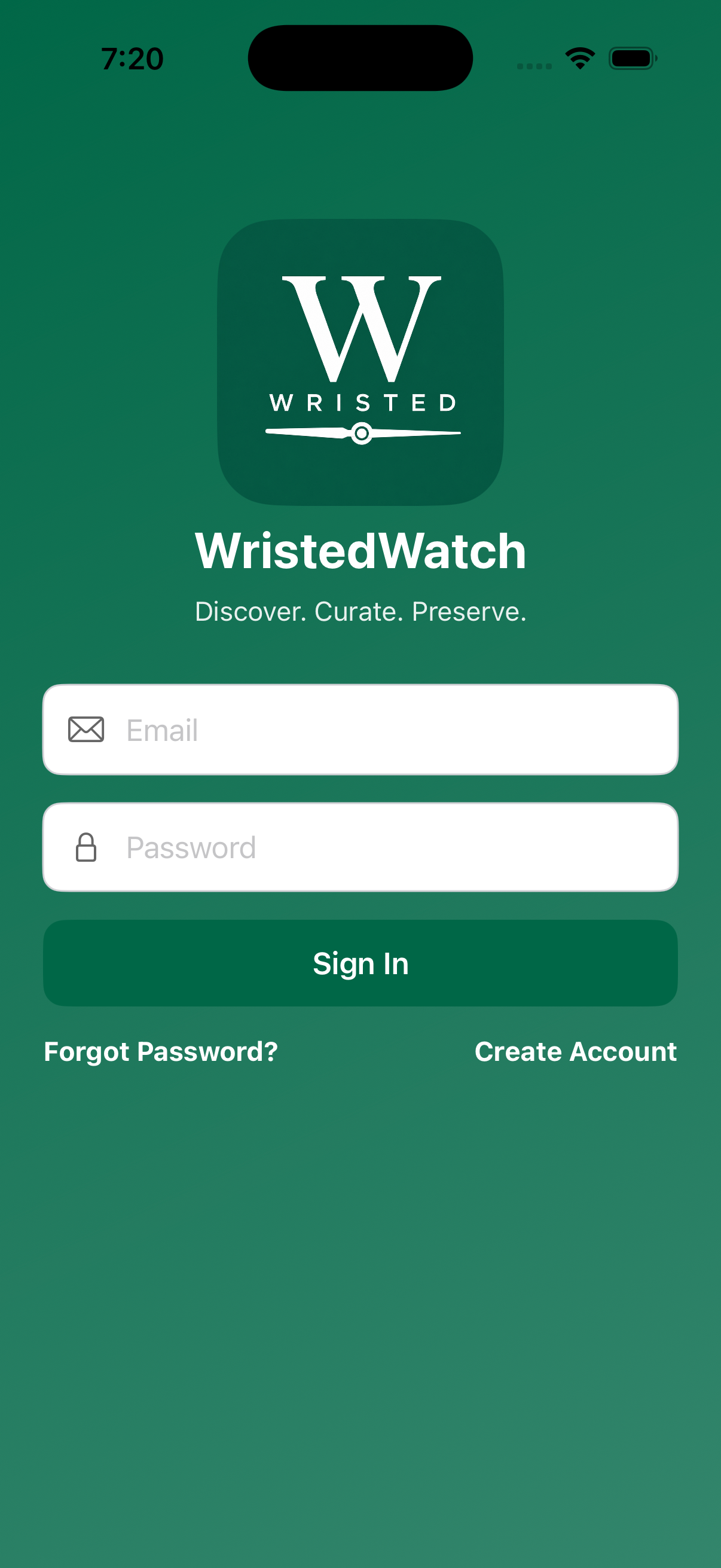
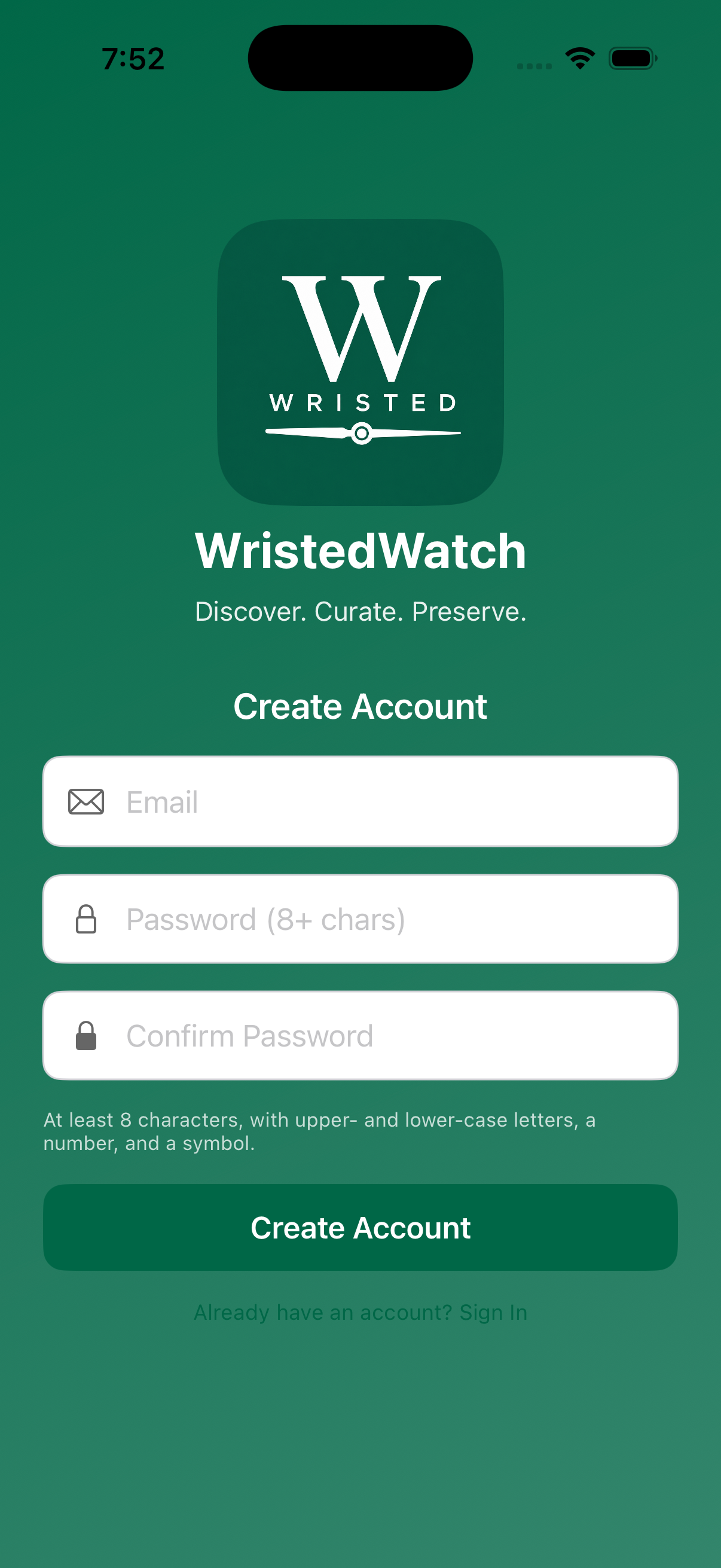
- Open the iOS app or go to the web app in your browser. First-time users see a short welcome tour outlining Discover, Collect, and alerts — swipe through it or skip.
- Returning user? On the Sign In screen, enter your email and password and tap Sign In. Forgot it? Use Forgot Password? to reset by email.
- New here? Tap Create Account, enter your email and a password, and confirm it. Passwords need at least 8 characters, with upper- and lower-case letters, a number, and a symbol. The two screens toggle back and forth via the Sign In / Create Account links at the bottom.
- (Optional, recommended) Turn on multi-factor authentication (MFA) from Settings for an extra layer of security on your account.
- You're in. Because everything is cloud-synced, signing in on a second device brings your whole collection with you.
Premium & pricing Both
WristedWatch Premium unlocks full access to discovery, alerts, AI and photo search, the full collection lifecycle, and cross-device sync — all in one membership.
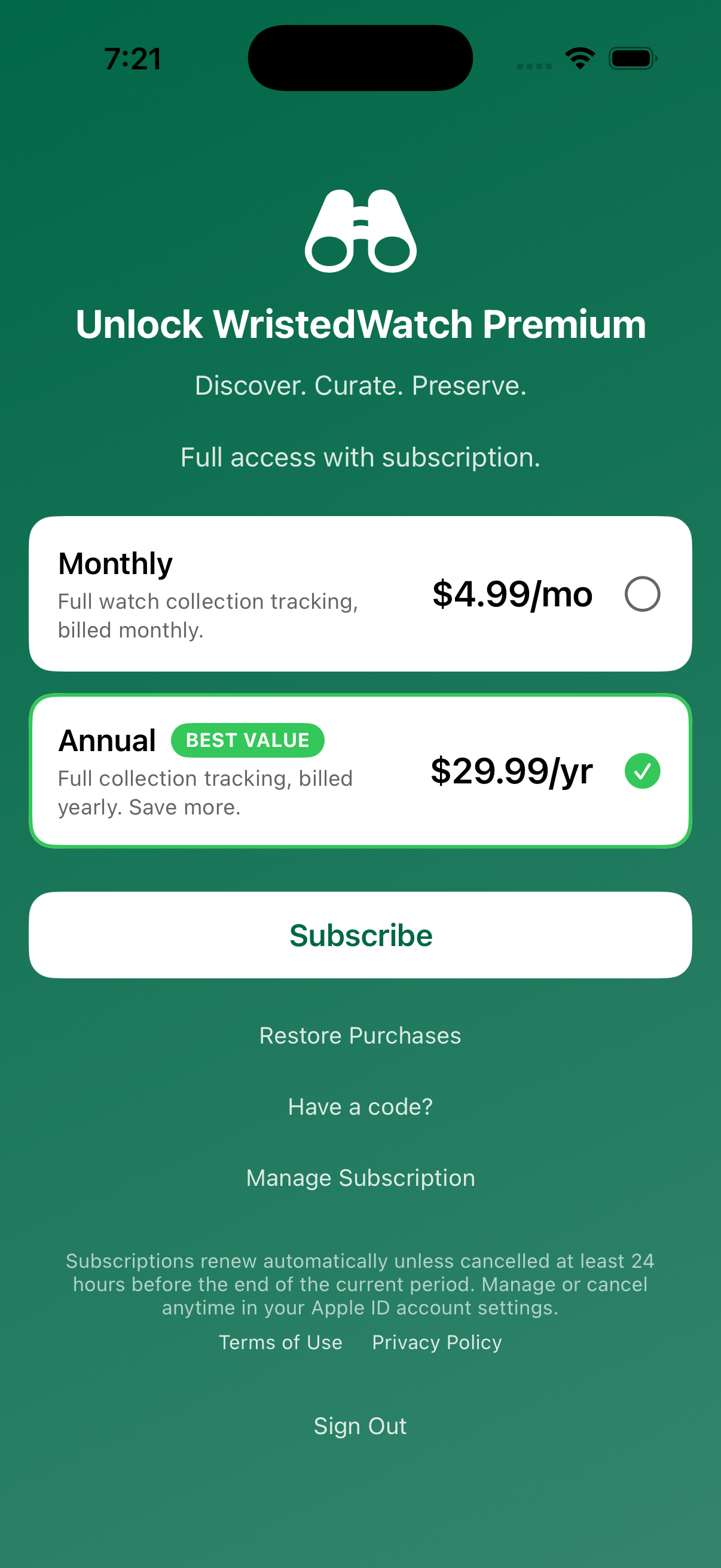
- Monthly — $4.99 / month, billed monthly.
- Annual — $29.99 / year (flagged Best Value), billed yearly — roughly half the monthly rate over a year.
- Open the Unlock Premium screen (the paywall) from the app or web.
- Tap Monthly or Annual to select it, then tap Subscribe. On iOS the purchase goes through your Apple ID.
- Already subscribed on another device? Tap Restore Purchases. Have a promo code? Tap Have a code? to redeem it.
- Manage Subscription opens your plan; on iOS, manage or cancel anytime in your Apple ID settings.
Subscriptions renew automatically unless cancelled at least 24 hours before the end of the current period. Cancelling keeps your access through the end of the paid period. Terms of Use and Privacy Policy are linked on the screen.
Finding your way around
The two platforms share the same features but organize them slightly differently.
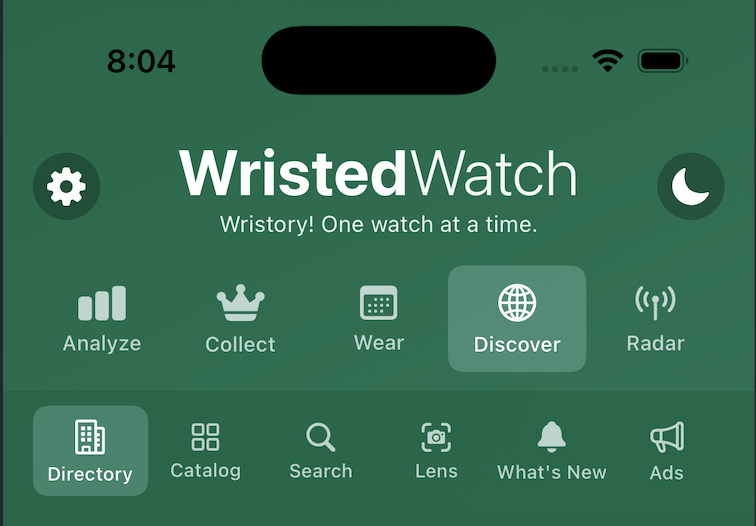
On iOS iOS
The app has five tabs across the top — Analyze, Collect, Wear, Discover, and Radar — each with its own row of sub-tabs. The gear icon (top-left) opens Settings; the moon icon (top-right) toggles dark mode.
- Analyze — your dashboard and insights.
- Collect → Collection · Services · Archive.
- Wear → Day · Week · Month · Year.
- Discover → Directory · Catalog · Search · Lens · Ads.
- Radar → What's New · Radar · Likes · Wishlist · Waitlist.
On the web Web
The browser app puts the same features in a grouped left sidebar you can jump around from directly:
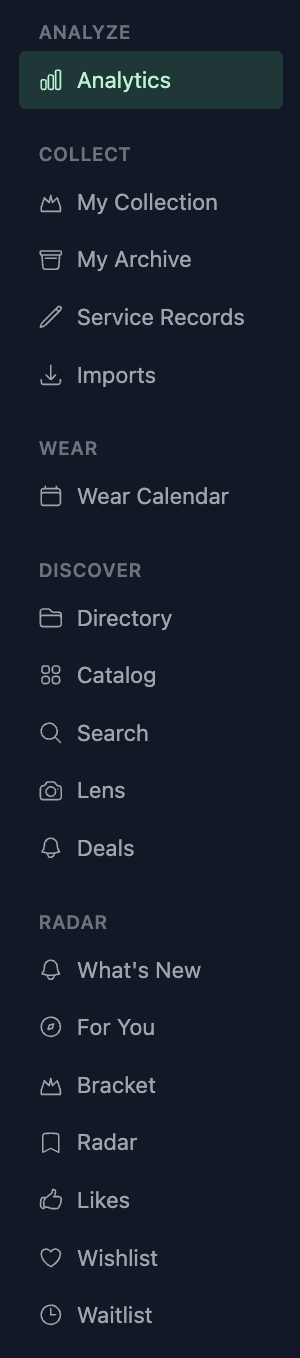
- Analyze — Analytics.
- Collect — My Collection · My Archive · Service Records · Imports.
- Wear — Wear Calendar.
- Discover — Directory · Catalog · Search · Lens · Deals.
- Radar — What's New · For You · Bracket · Radar · Likes · Wishlist · Waitlist.
Each item is its own page you can navigate to directly, and every page mirrors what the iOS app shows — sign in once and it's the same collection either place.
Discover — find your next watch
Discover is where the whole world of watches lives: a directory of every brand, a shoppable catalog, two kinds of search, a personalized feed, and the detail screen where you act on a watch.
Directory Both
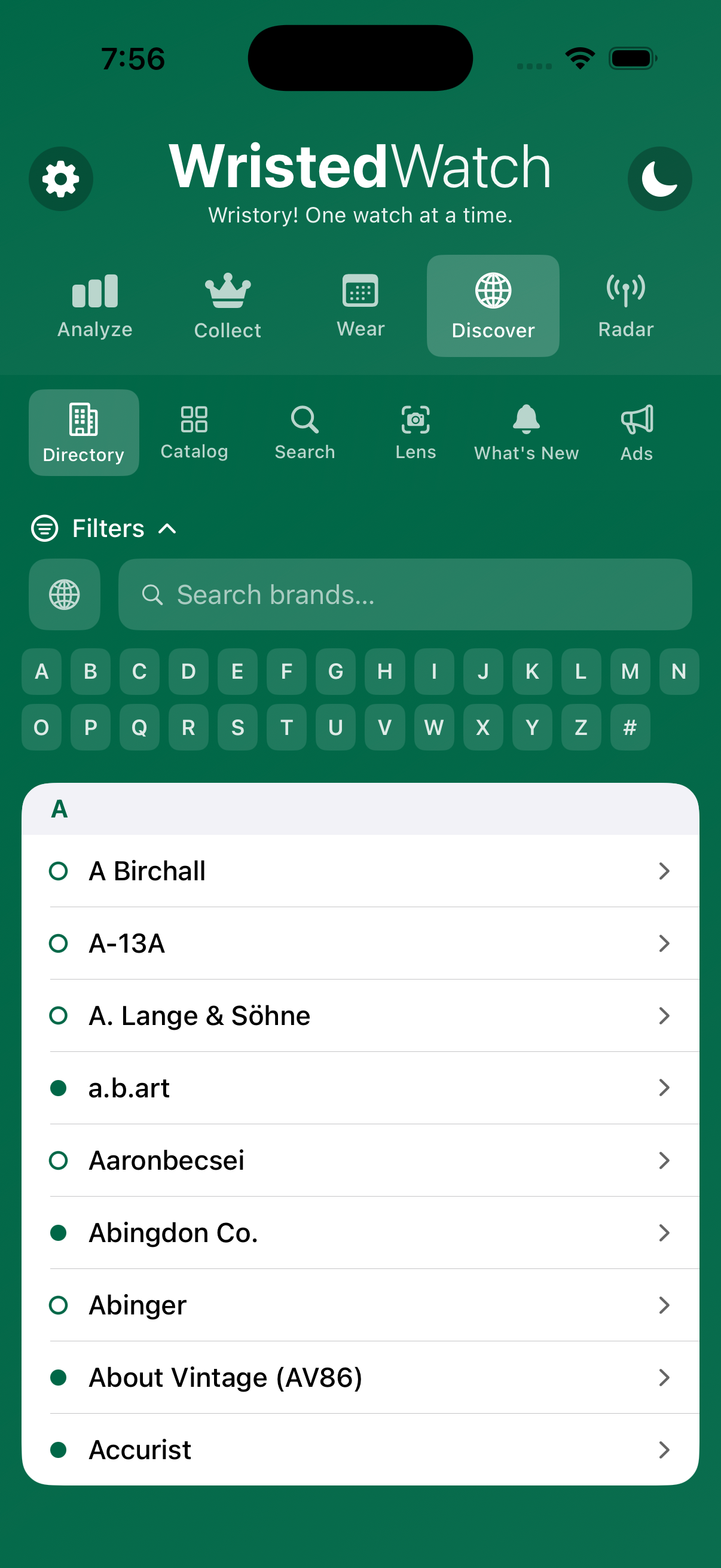
An A-to-Z guide to thousands of watch brands — each with a short introduction and a link to its own website. This is the map of the watch world, including the many makers far outside the big names (A. Lange & Söhne, A-13A, Aaronbecsei, and on and on).
Each brand row carries a small dot that tells you whether it's shoppable inside WristedWatch:
- Filled green — in the Catalog. This brand has live, shoppable watches; tapping through opens its catalog with prices and stock.
- Hollow green ring — directory listing only. A known brand we catalog for reference; tap to read its intro and visit its website, but there's no live inventory in-app (yet).
- Browse every known brand alphabetically, or jump with the A–Z index.
- Search brands by name; open Filters to narrow by the country a brand calls home.
- Read a short brand intro and jump to the brand's official site.
- Open Discover › Directory (or the Directory page on web).
- Scroll or use the A–Z index to jump to a letter, or type in Search brands….
- Scan the dots — filled green brands are shoppable in the Catalog; hollow rings are listing-only.
- Tap a brand to read its intro and visit the maker directly, or open its catalog if it's shoppable.
Catalog Both
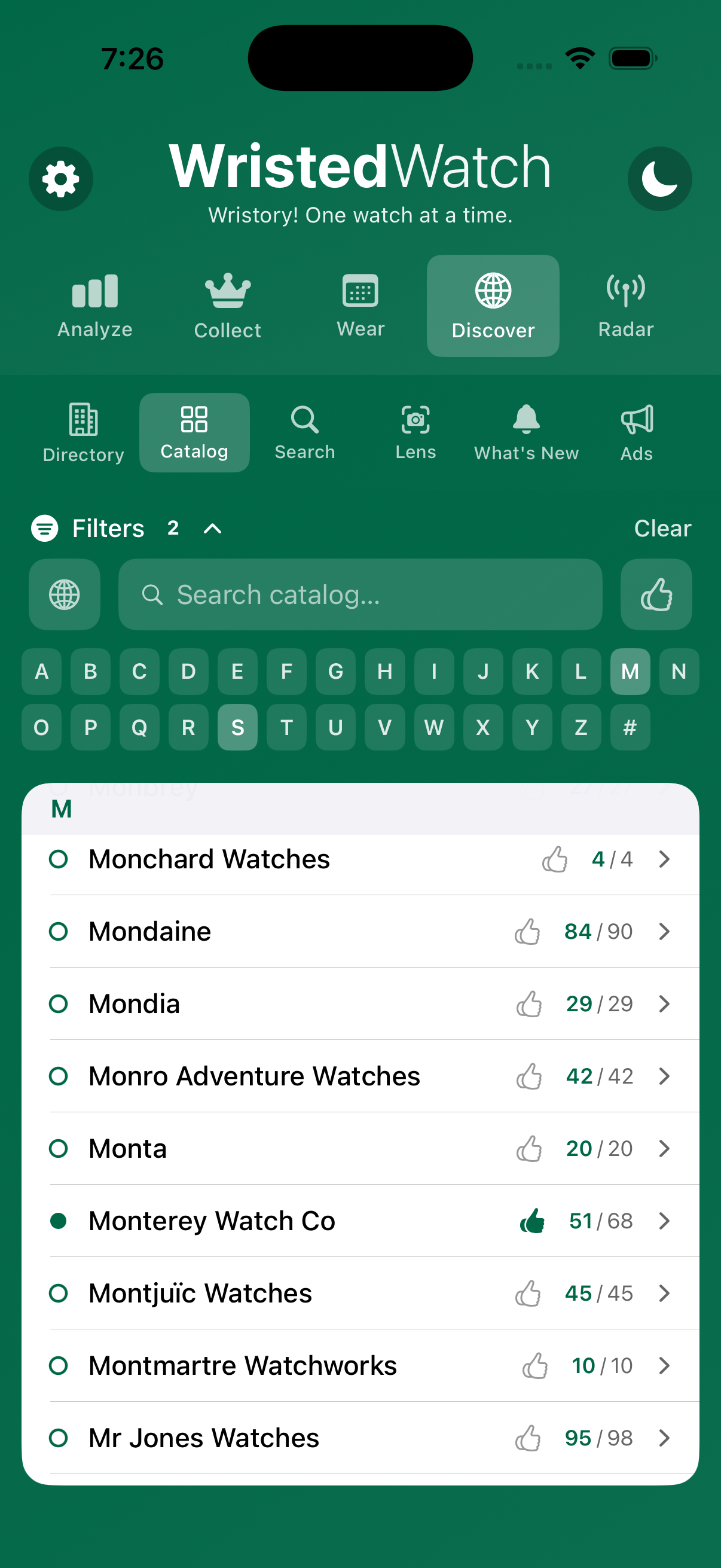
The living, shoppable catalog: hundreds of independent makers with prices and stock refreshed daily. Each brand row shows a watch count, a small review dot, and a thumbs-up — read below for exactly what each one means and how it changes.
What the dots and thumbs-up on a brand mean
The small coloured review dot next to a brand tells you whether that brand has anything new since you last looked. It updates on its own:
- Hollow green ring — not reviewed yet. You've never opened this brand's catalog. Open it once and the dot fills in.
- Solid amber — new since your last visit. The brand has added or restocked a watch since you last opened it. This is your cue there's something fresh to see.
- Solid green — reviewed and up to date. You've opened it and nothing new has landed since. When the brand adds something later, it flips back to amber.
You don't mark a brand reviewed by hand — simply opening a brand's catalog marks it reviewed through that moment, so an amber dot turns green automatically once you've looked.
The thumbs-up is your own "favorite brand" marker, not a community count: hollow means you haven't favorited it, filled green means you have. Tap it to favorite or un-favorite. Favoriting a brand lets you filter the catalog down to just your brands (see below) and feeds your For You recommendations.
- Prices and availability refreshed daily.
- Every price shown in its native currency with a US-dollar estimate beside it.
- Sold-out pieces stay visible (grouped under Sold Out) so you can track their return.
- Sort a brand's watches six ways: By Model (default), Release Date, By Name, By Reference, Price ↑, and Price ↓.
- Hide sold out toggle removes unavailable pieces from view.
- Favorites only (the thumbs-up filter) shows just the brands you've favorited.
- Open the Filters bar to multi-select by first letter (A–Z) and narrow by country; search by keyword.
- Open Discover › Catalog and scan the dots to spot brands with something new (amber).
- Tap a brand to see its full lineup with real prices — this also marks it reviewed.
- Use the sort control and Hide sold out / Favorites only toggles, or open Filters for A–Z and country.
- Tap the thumbs-up to favorite brands you care about, then flip on Favorites only to focus.
- Tap any watch to open its detail screen and act on it.
Smart Search Both
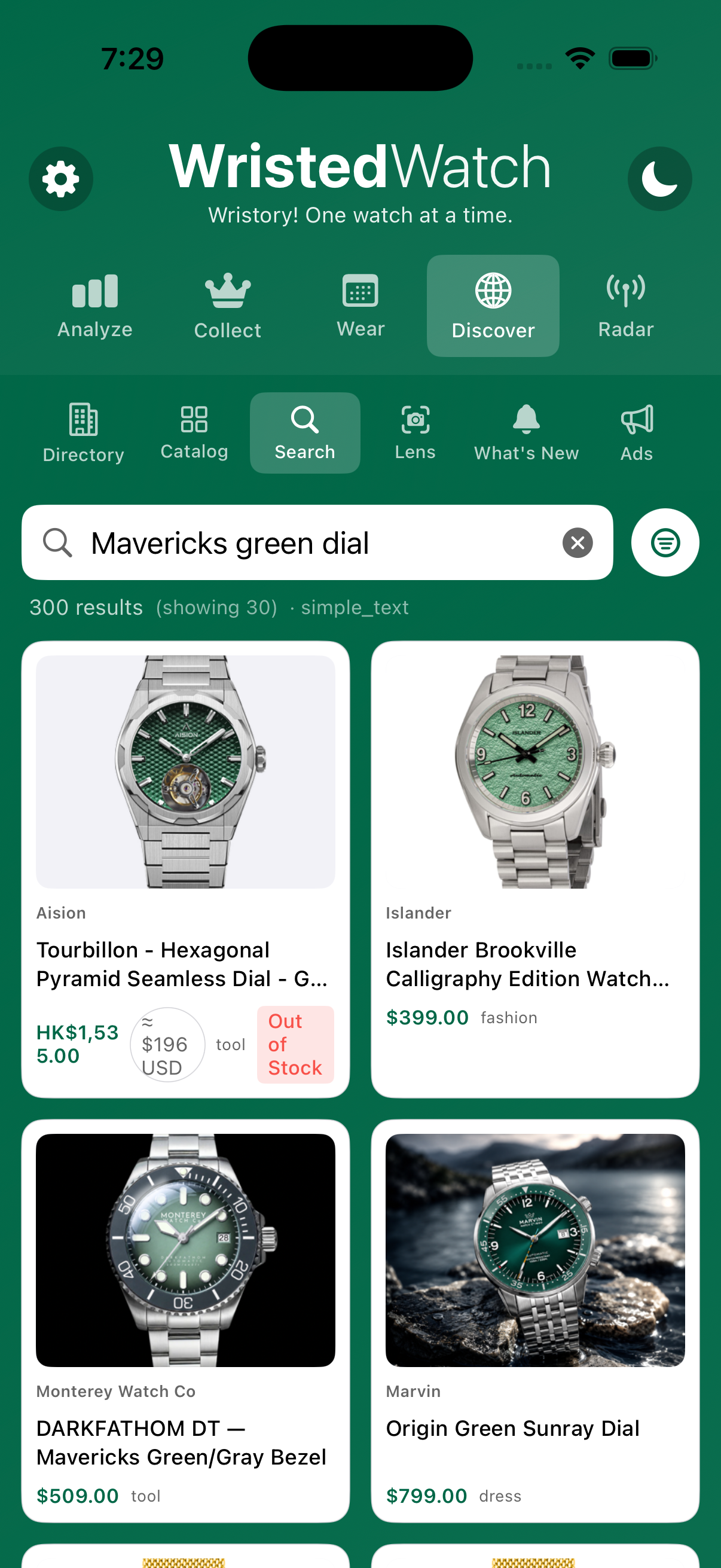
Search the entire catalog the way you'd describe a watch to a friend. You don't need a reference number — plain language works. Here a search for "Mavericks green dial" returns matching watches across many brands (Aision, Islander, Monterey, Marvin…).
- Natural language: "blue diver under $550," "green field watch."
- Exact search by brand, model, or reference number.
- A result count shows how many matched and how many are shown (e.g., "300 results (showing 30)").
- Each result card shows the brand, model, and price — in its native currency with a US-dollar estimate beside it (e.g., HK$1,535 ≈ $196) — plus a style tag (tool, fashion, dress) and an Out of Stock badge when sold out.
- Refine or reorder results with the filter control beside the search box.
- Open Discover › Search.
- Type a description or an exact model/reference and submit.
- Refine with the filter control (e.g., limit the source to the catalog).
- Tap a result to open its detail screen and act on it.
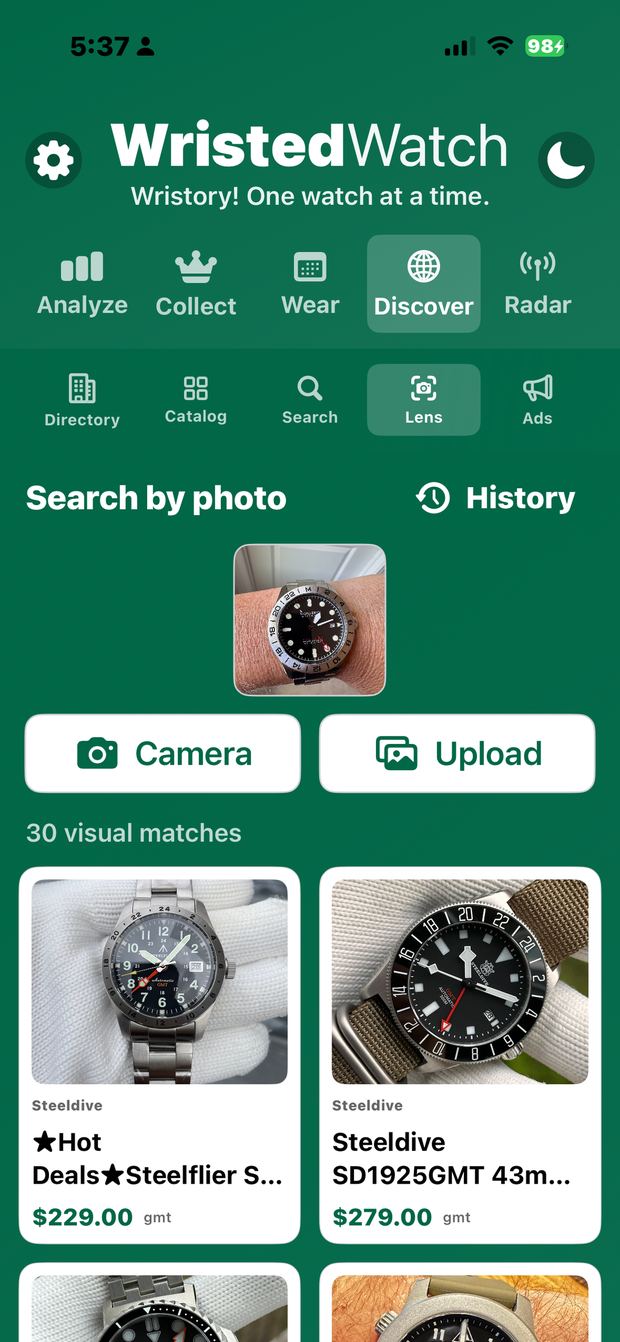
Lens — search by photo Both
See a watch you can't name? Snap a photo or upload one and Lens finds visually similar watches in the catalog — the shape, the dial, the overall vibe.
- Search from your camera or an existing photo.
- Returns visually similar catalog watches with brand and price.
- Your photo and results are saved to Lens history for 30 days, then automatically deleted.
- Open Discover › Lens.
- Tap Camera to take a photo, or Upload to choose one.
- Review the visual matches; tap one to open its detail screen.
- Tap History to revisit recent searches (kept 30 days).
For You Both
For You is your personal front page — tuned to your taste and sharper every time you use it. The brands you collect, track, and like tell it what excites you, so it leads with the newest arrivals from exactly those names.
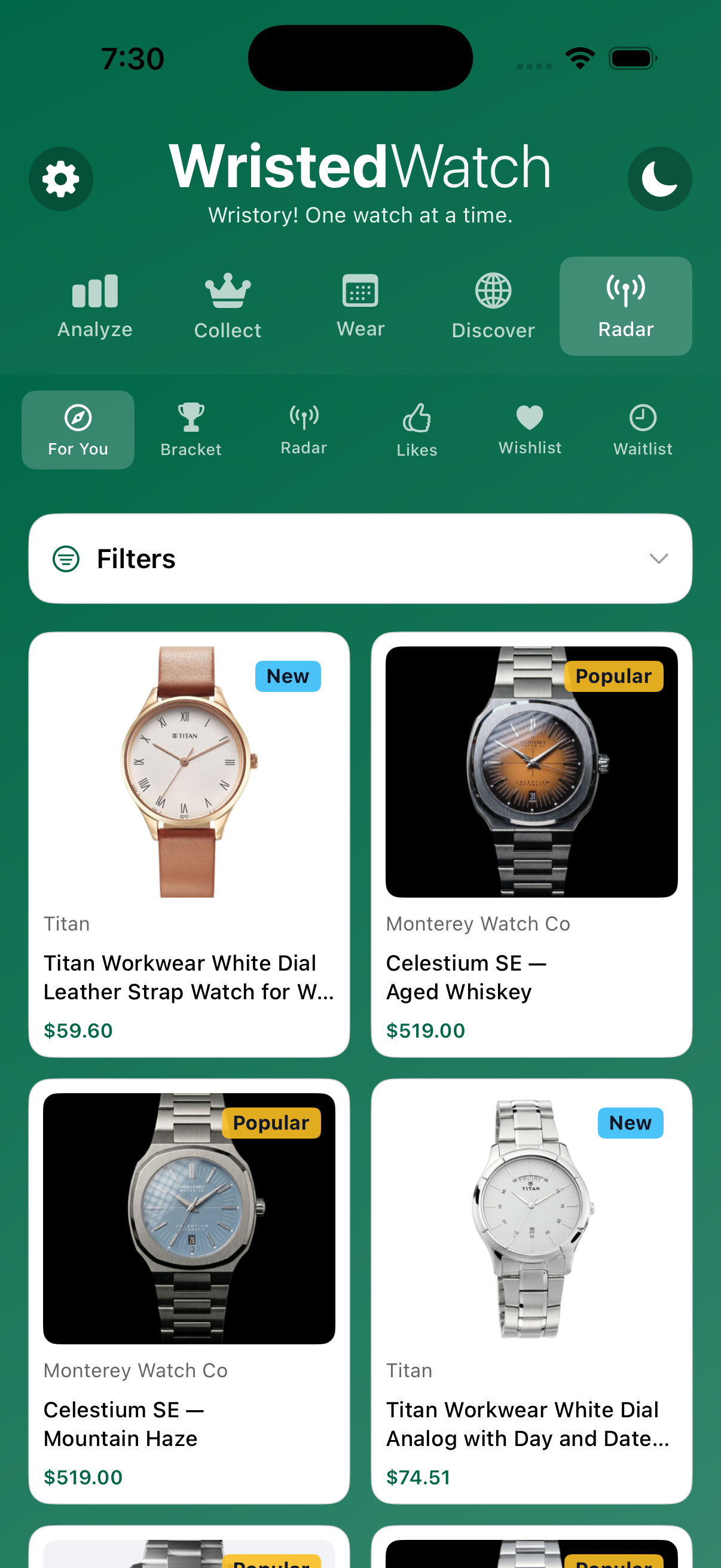
- Leads with fresh drops from brands you already follow.
- Cards are tagged New (just landed) or Popular (loved by the community), with brand, model, and price.
- Open the Filters bar to narrow by dial color, style, and price.
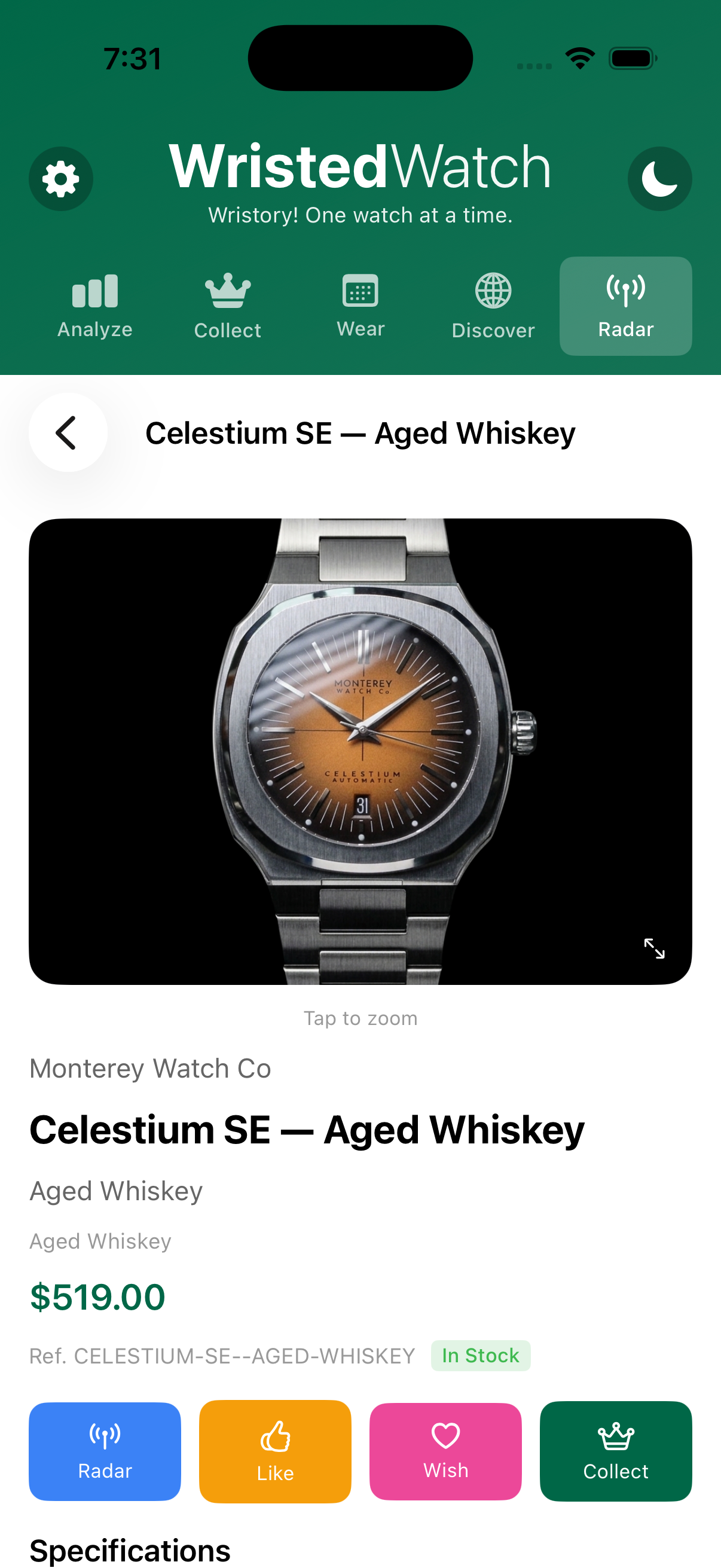
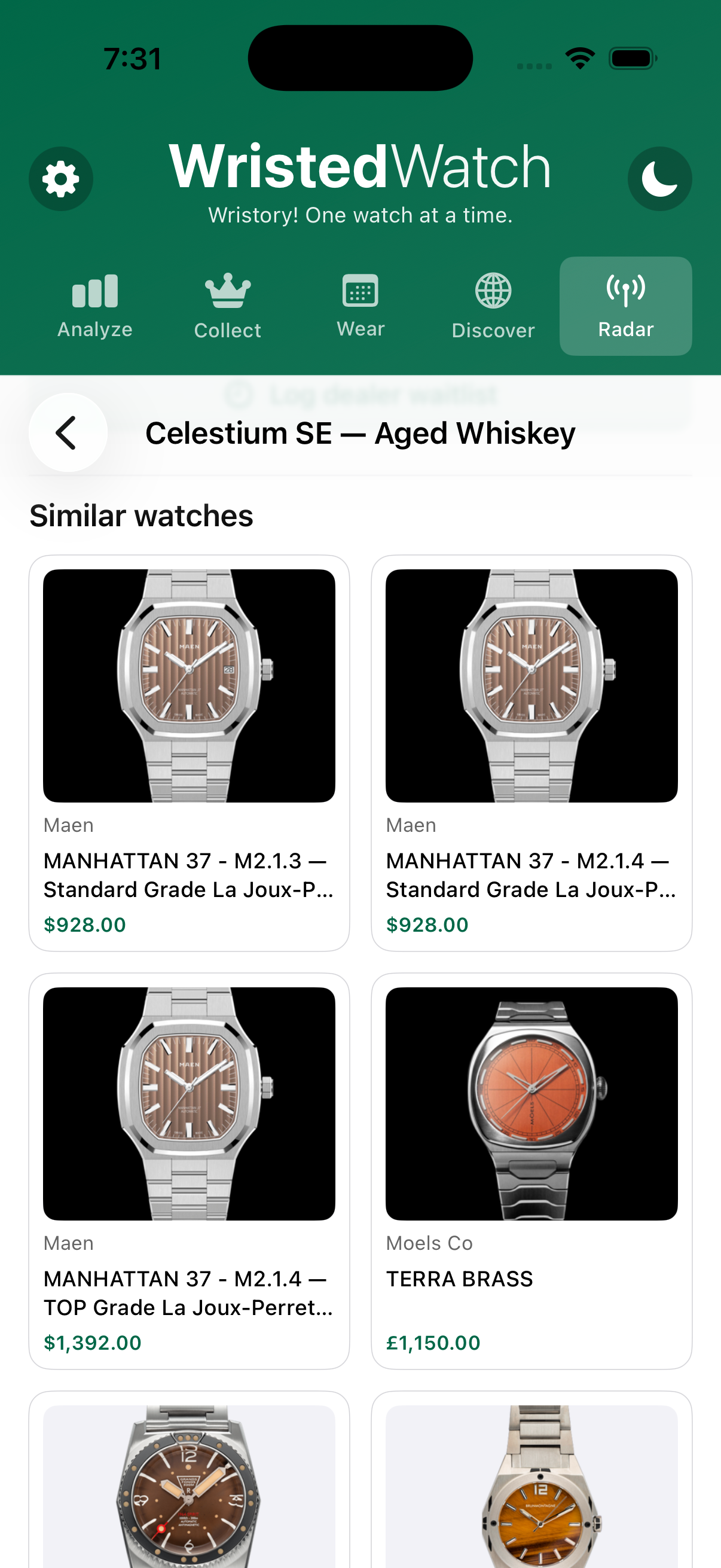
- Tapping a recommendation opens its full detail; scroll down for a Similar watches grid of related pieces across brands.
- Open Radar › For You (For You in the Radar group on web).
- Scroll the feed; use Filters to focus by color, style, or price.
- Tap any card to open its detail, and check Similar watches for more like it.
Watch detail & Wrist It Both
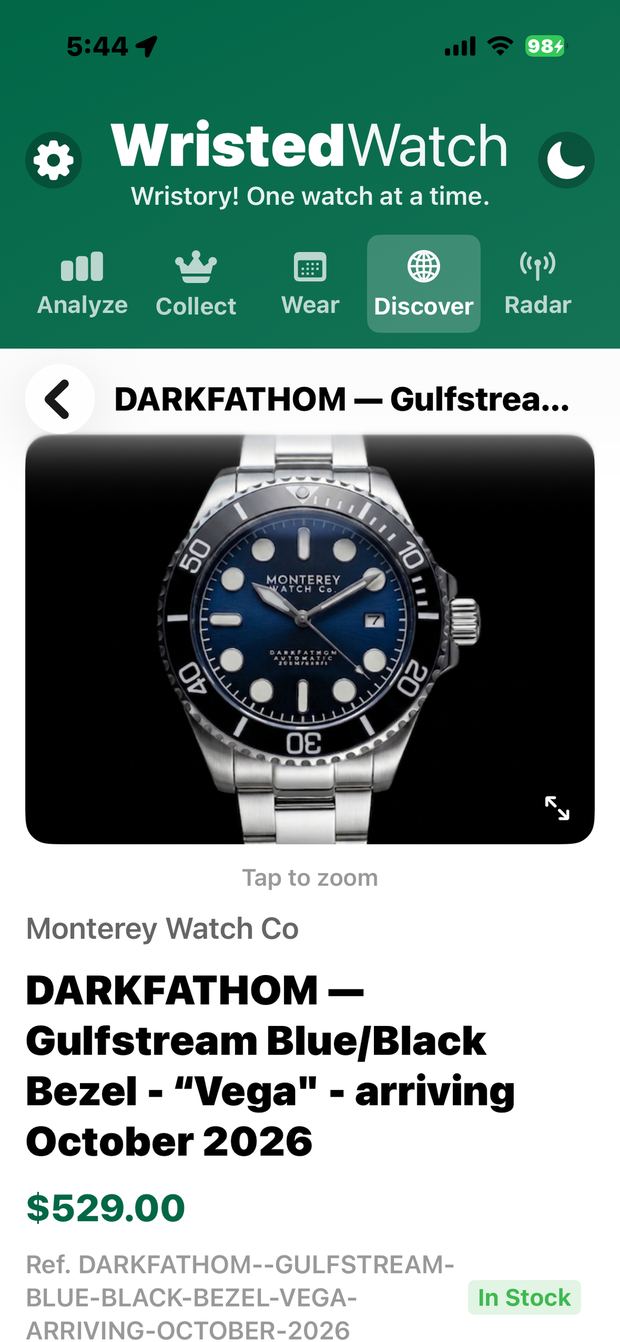
The detail screen is where you act on a watch. It shows the image (tap to zoom), price and stock status, four quick actions, full specifications, catalog info, and the buy handoff. Here's the full path from a brand to the brand's own checkout:
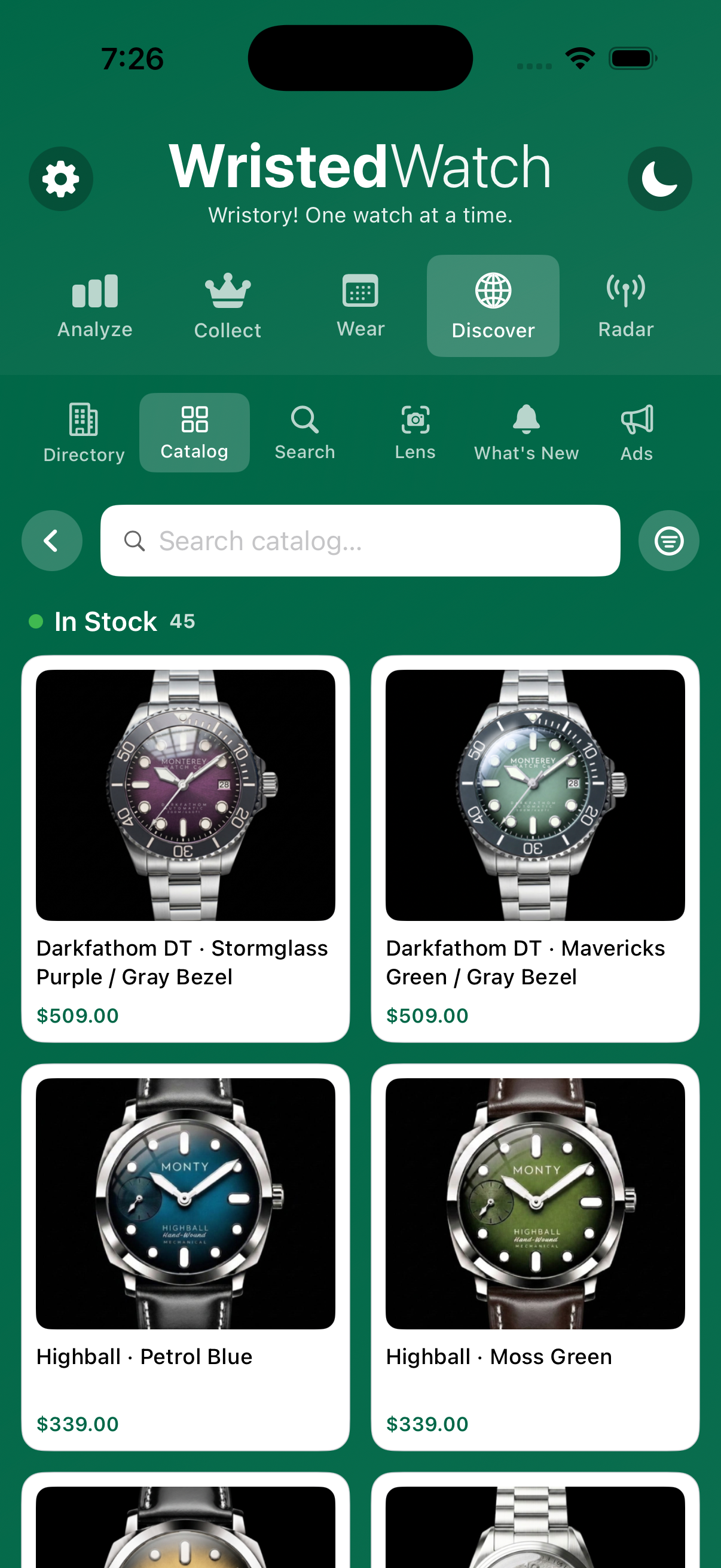
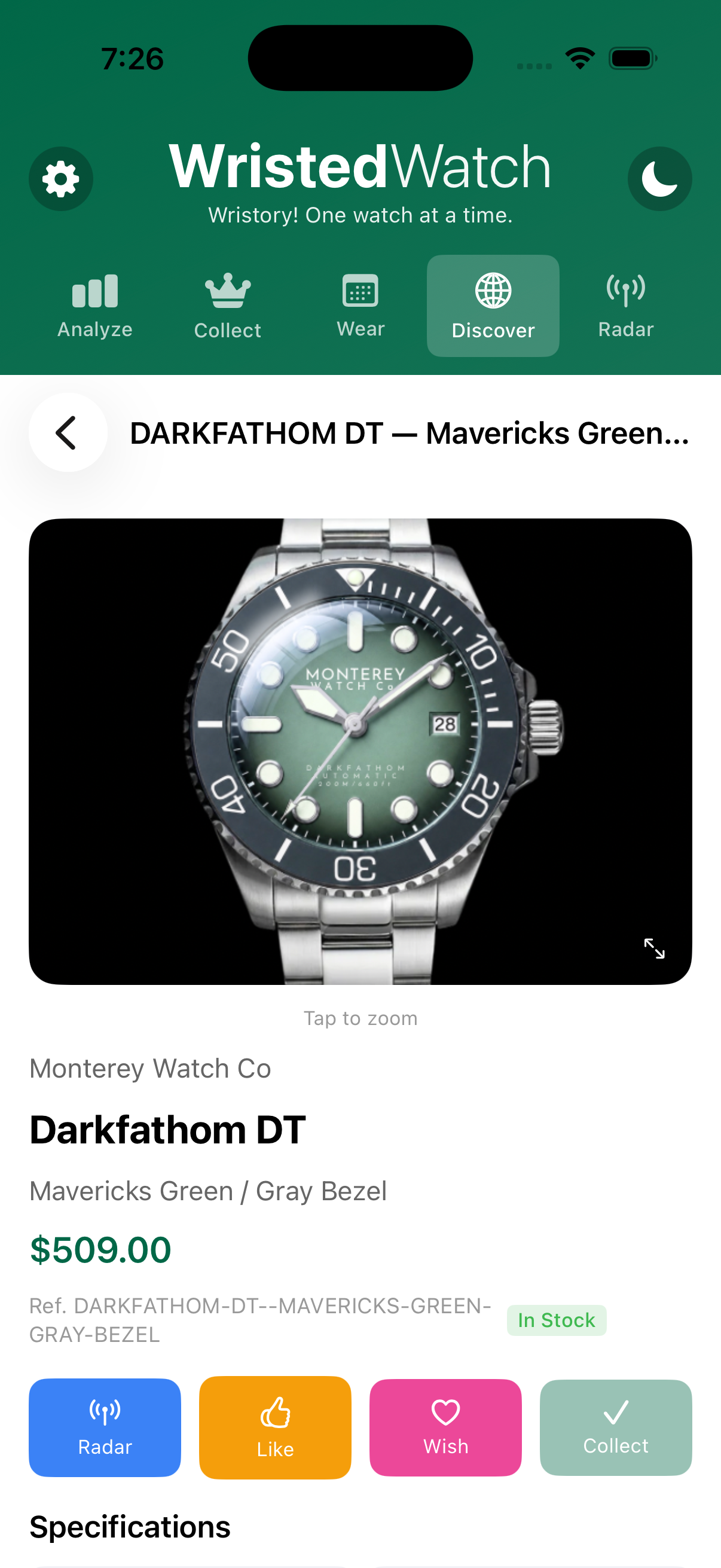
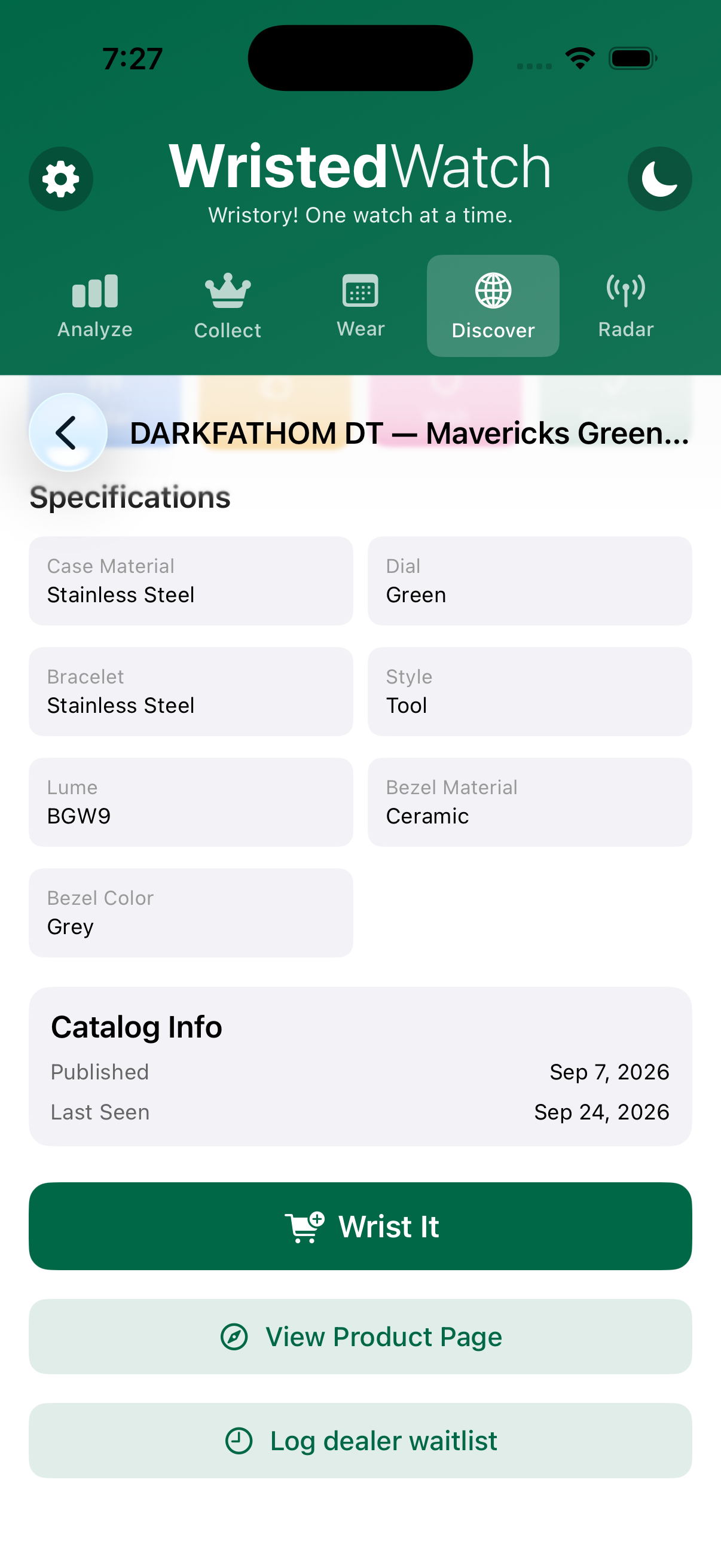
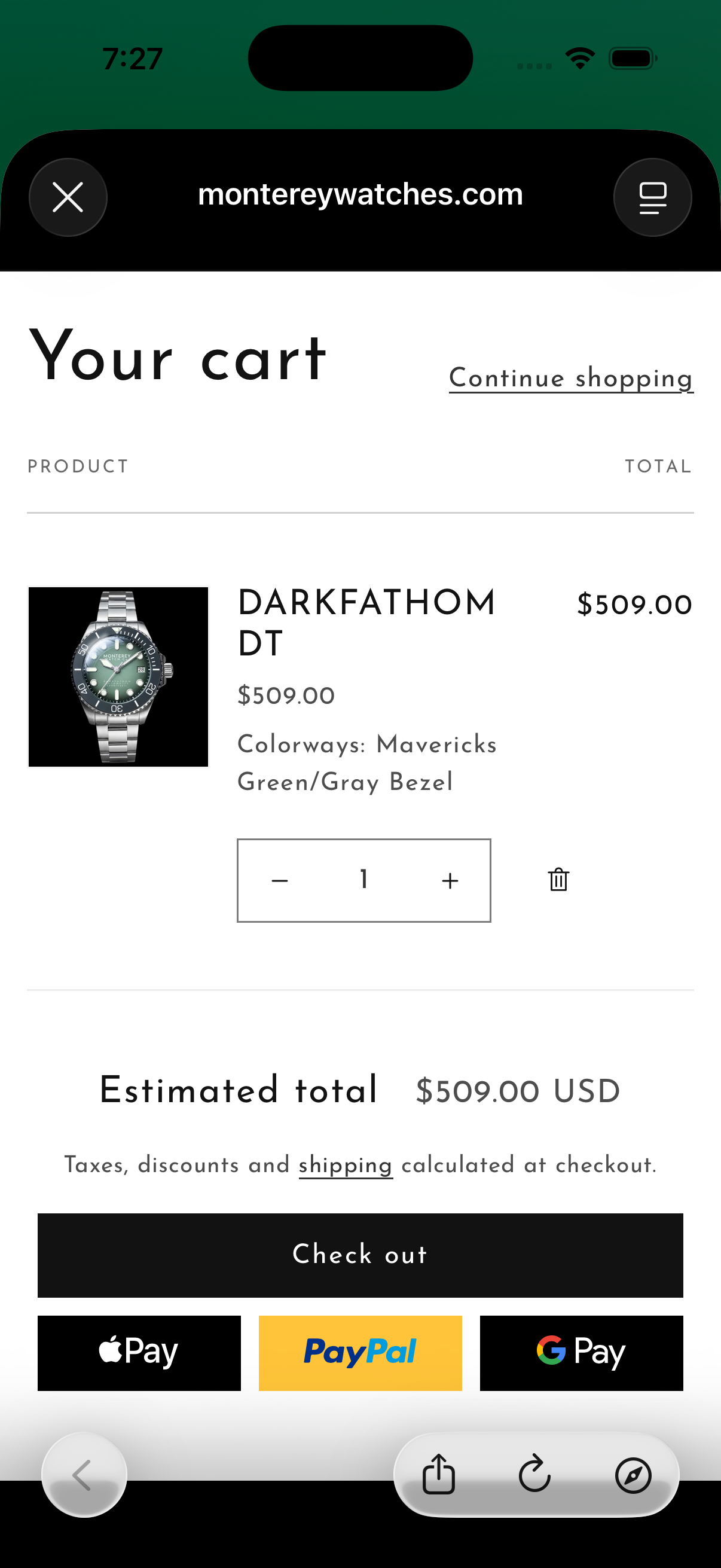
The four action buttons map straight onto the collecting journey:
- Radar — start watching it (and get alerts on it). Tap again to stop watching.
- Like — signal your taste to sharpen For You. Tap again to remove.
- Wish — add to your wishlist to rank and set a target price. Once wishlisted, reopen the watch to edit its target price and restock alerts.
- Collect — mark it as owned and add it to your collection.
- Each button is a toggle — a filled state means it's already on your Radar / Likes / Wishlist / Collection.
- Specifications — case/bracelet material, dial, style, lume, bezel material and color, and more.
- Catalog Info — when it was published and last seen in the catalog.
Below the specs are three buttons:
- Wrist It — the buy button. It deep-links straight to the watch in the brand's own shopping cart (see step 4 above), so you check out on the source site with the piece already in your cart.
- View Product Page — opens the brand's product page to read more first.
- Log dealer waitlist — record that you're on a dealer's waitlist for this piece, so you can track it alongside everything else you're waiting on.
Availability matters: Radar, Like, and Wrist It are available only while a watch is live (in stock) in the catalog. A sold-out piece still opens and can stay on your Wishlist or Collection — arm a restock alert on it and you'll hear the moment it returns.
- Tap a brand in the Catalog to open its lineup, then tap a watch to open its detail.
- Use Radar / Like / Wish / Collect to file it into the right stage.
- Scroll to read specifications and catalog info.
- Tap Wrist It to land in the brand's cart ready to check out, View Product Page to read more first, or Log dealer waitlist to track a waitlist spot.
Deals Both
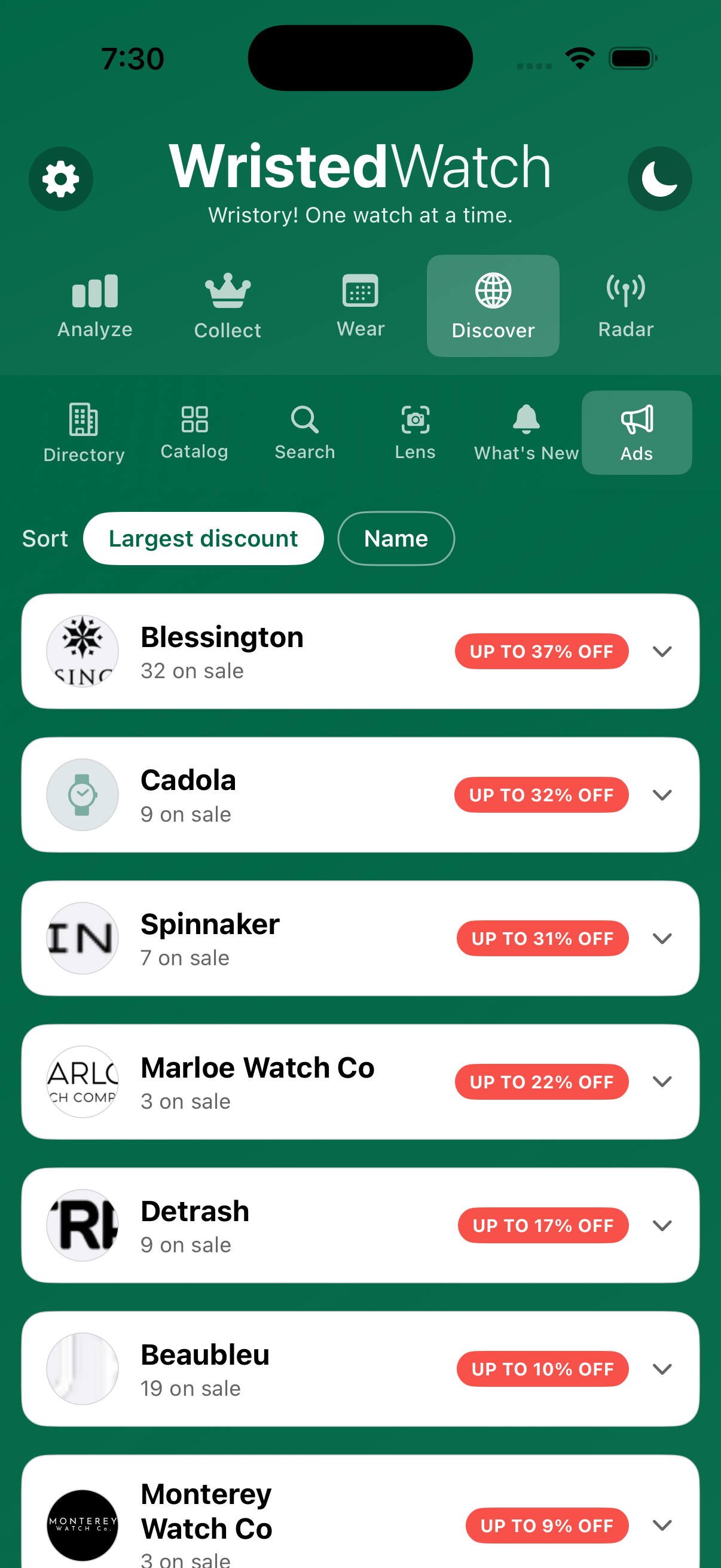
The fastest way to see what just got cheaper. Deals groups the catalog's current price drops by brand, so you can see at a glance which makers are running the biggest sales. On iOS this is the Ads sub-tab under Discover; on the web it's the Deals page.
- Each row is a brand with its logo, how many pieces are on sale, and an "UP TO X% OFF" badge.
- Sort by Largest discount or Name.
- Tap a brand row to expand it and see the discounted watches; tap a watch for its detail and Wrist It.
- Open Discover › Ads on iOS (or the Deals page on web).
- Leave Sort on Largest discount to lead with the deepest sales, or switch to Name.
- Expand a brand and tap a watch to open its detail and buy via Wrist It.
Bracket Both
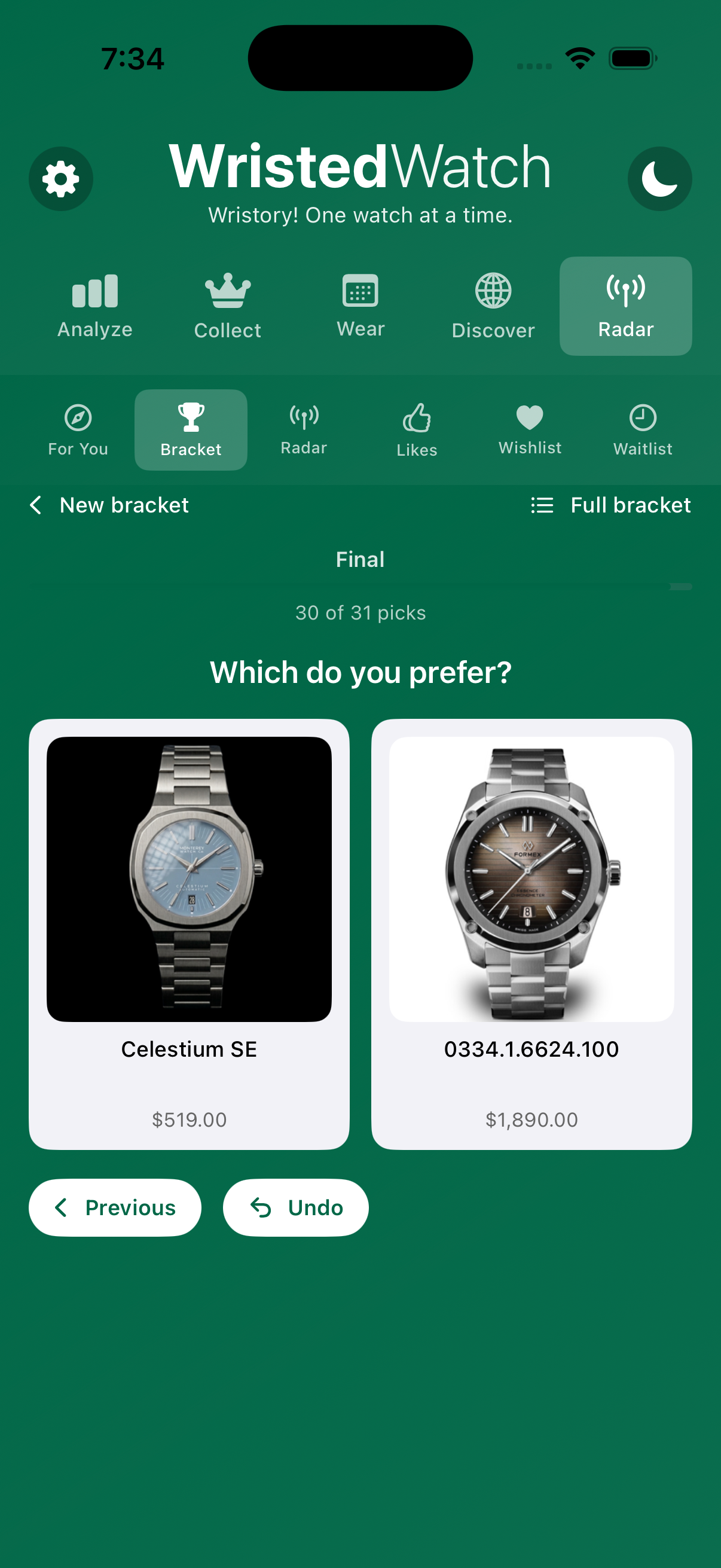
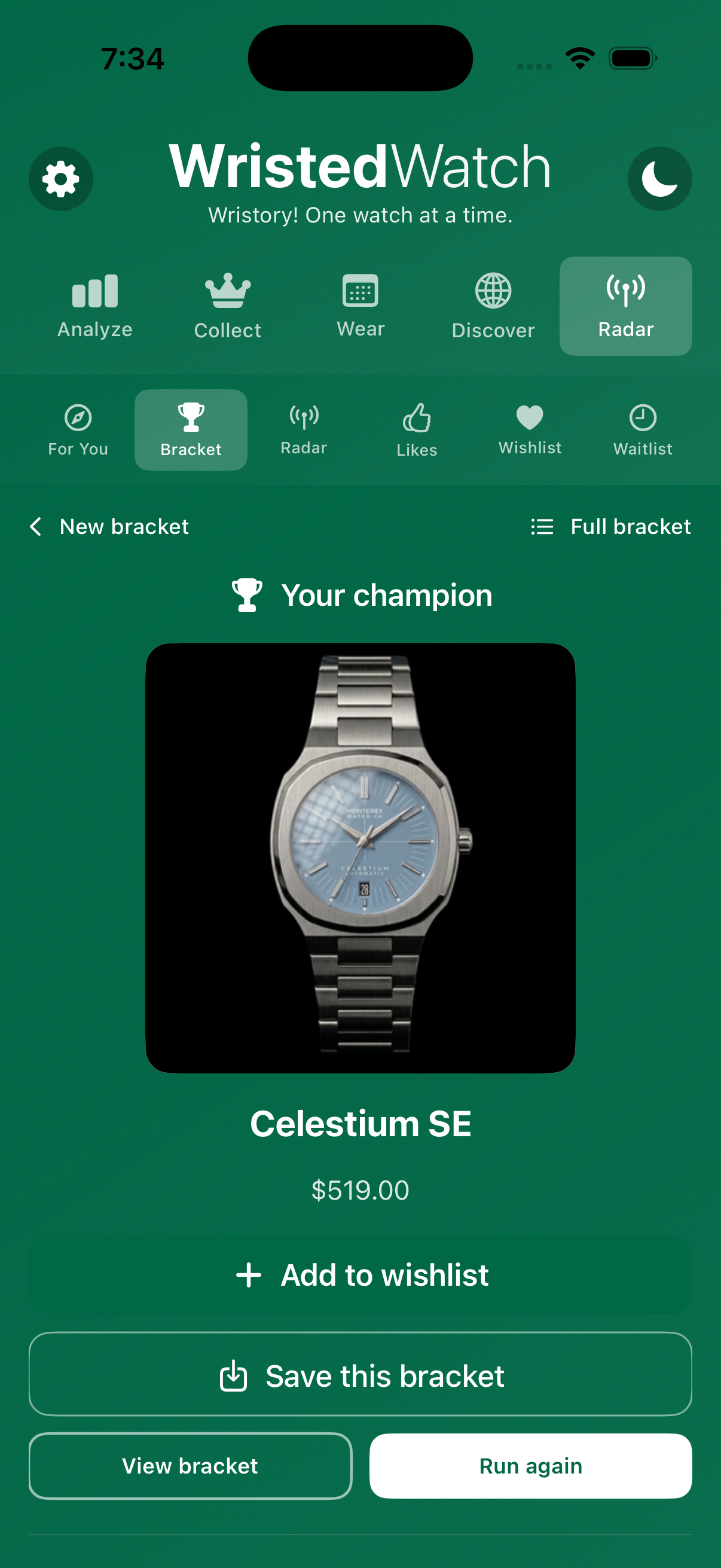
Can't decide which watch to buy next? Bracket puts your shortlist head-to-head. You pick a winner each round and WristedWatch crowns the one you love most — start to finish:
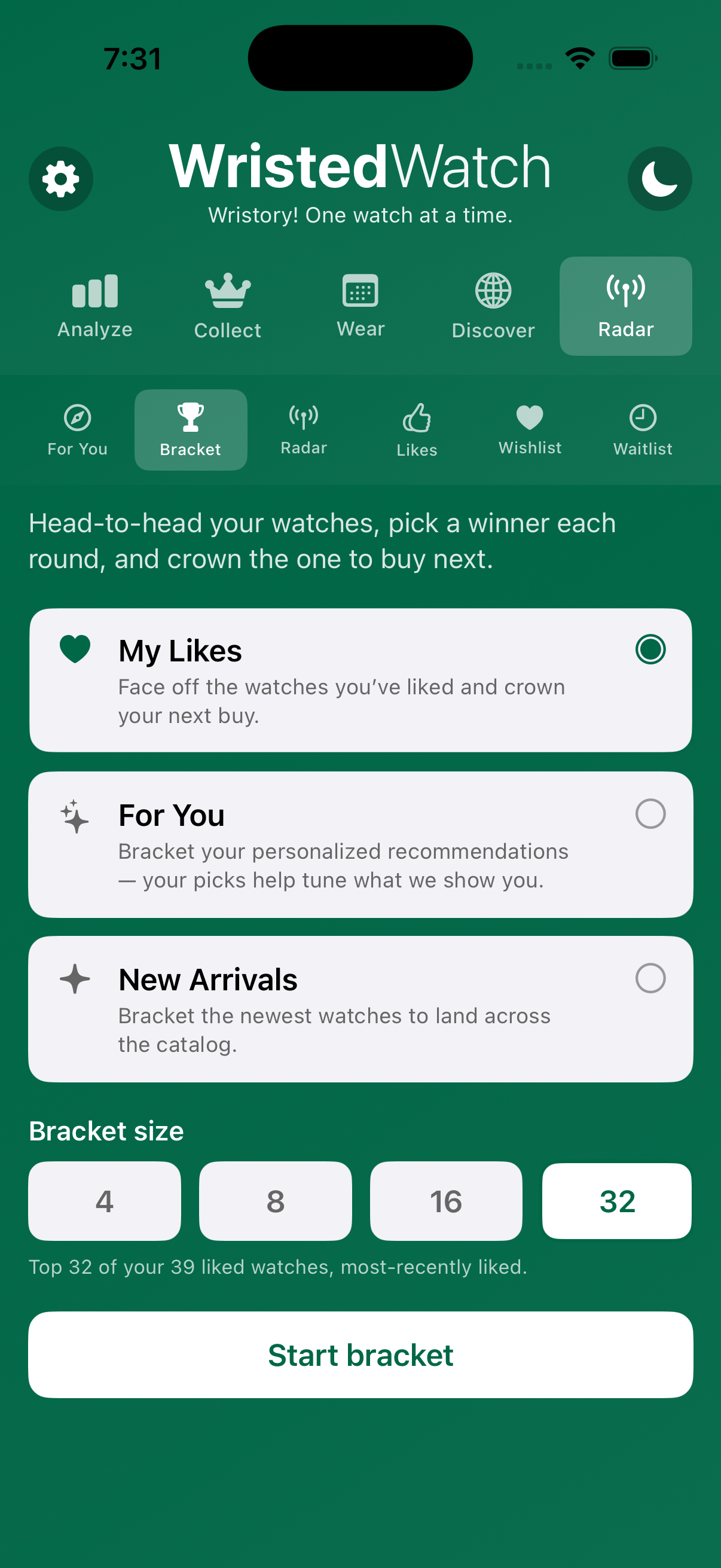
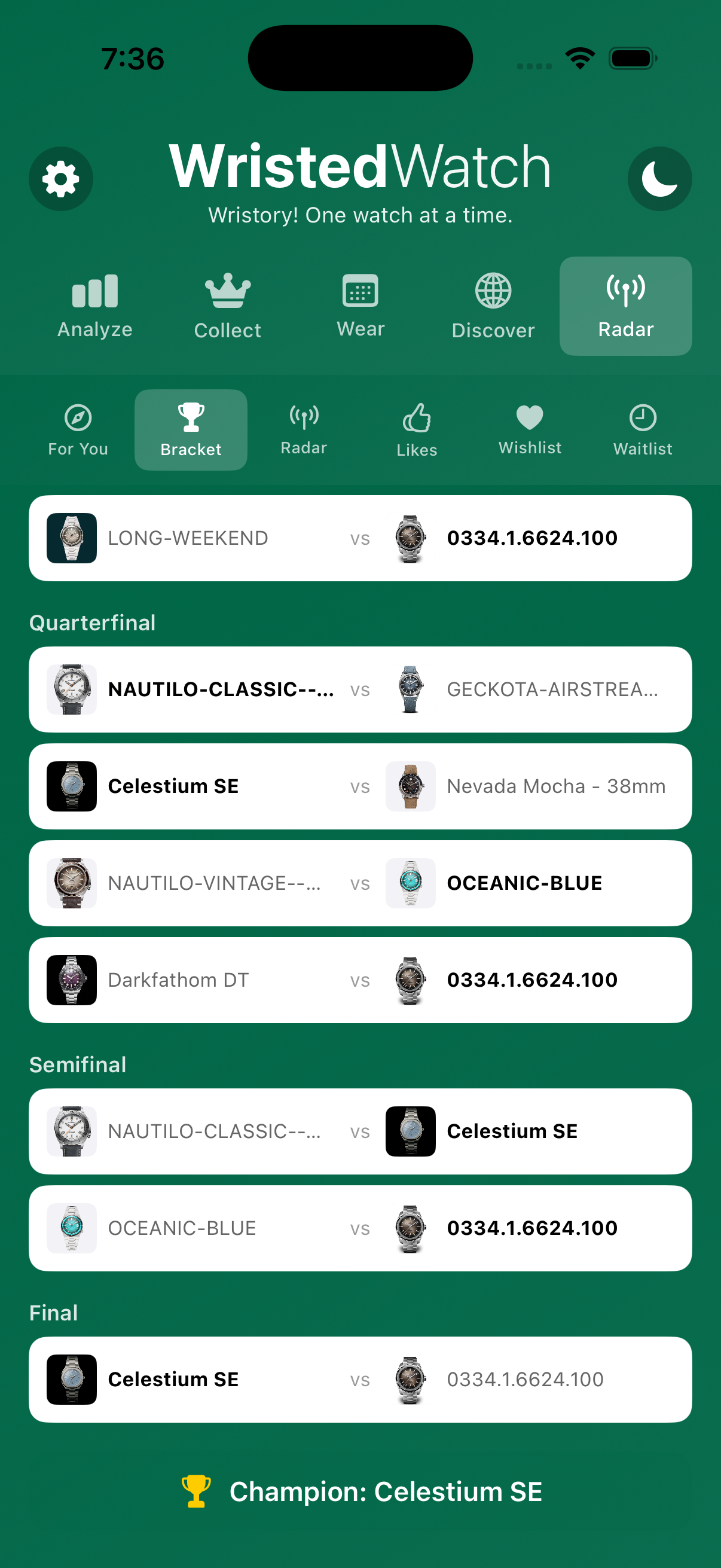
- Source — seed the bracket from My Likes, For You (your recommendations), or New Arrivals.
- Bracket size — 4, 8, 16, or 32 watches (it uses your most-recent picks to fill the field).
- Each round is a "Which do you prefer?" matchup between two watches; a progress count (e.g., "30 of 31 picks") tracks how far you are, and Previous / Undo let you step back.
- At the end, Your champion is crowned — Add to wishlist, Save this bracket, View bracket, or Run again.
- Full bracket shows every matchup by round (Quarterfinal → Semifinal → Final) with your winners and the champion.
- Open Radar › Bracket and choose a source (My Likes, For You, or New Arrivals) and a size.
- Tap Start bracket, then pick the watch you prefer in each match-up (use Undo if you change your mind).
- When your champion is crowned, add it to your wishlist or save the bracket to revisit; tap Full bracket to see all the rounds.
Curate & track — your collection
This is the private side of WristedWatch: the watches you own, want, and are waiting on, plus how you wear and maintain them. Everything here is yours alone.
Collection Both
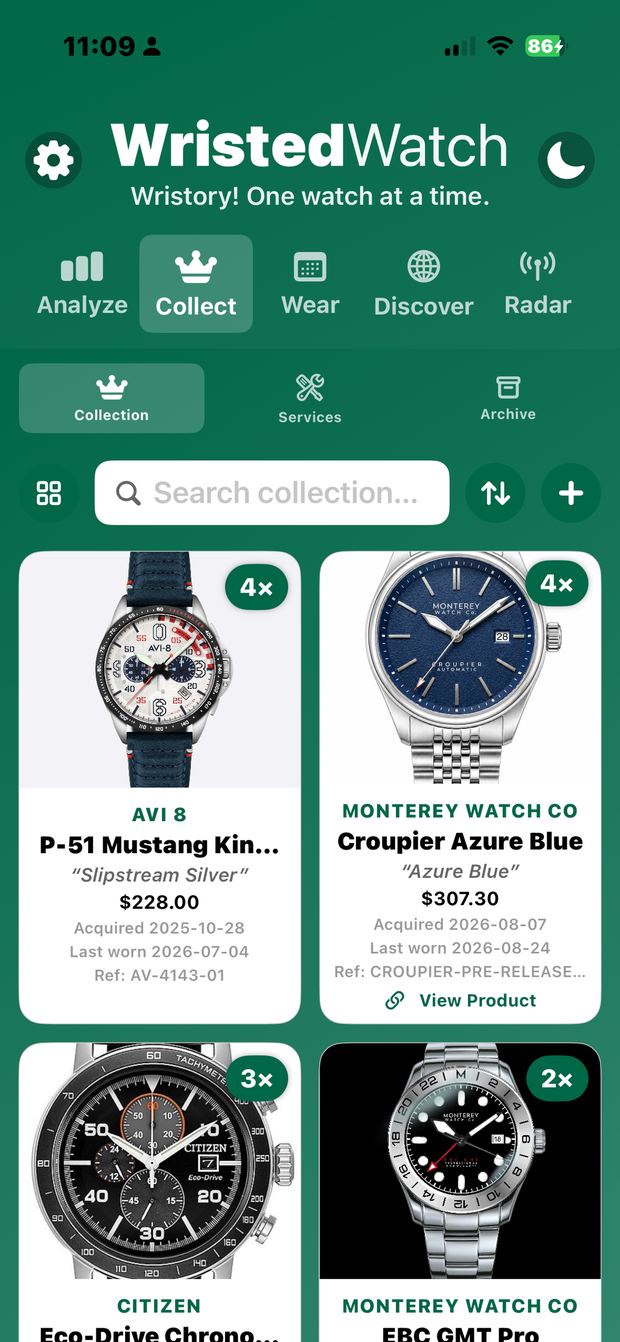
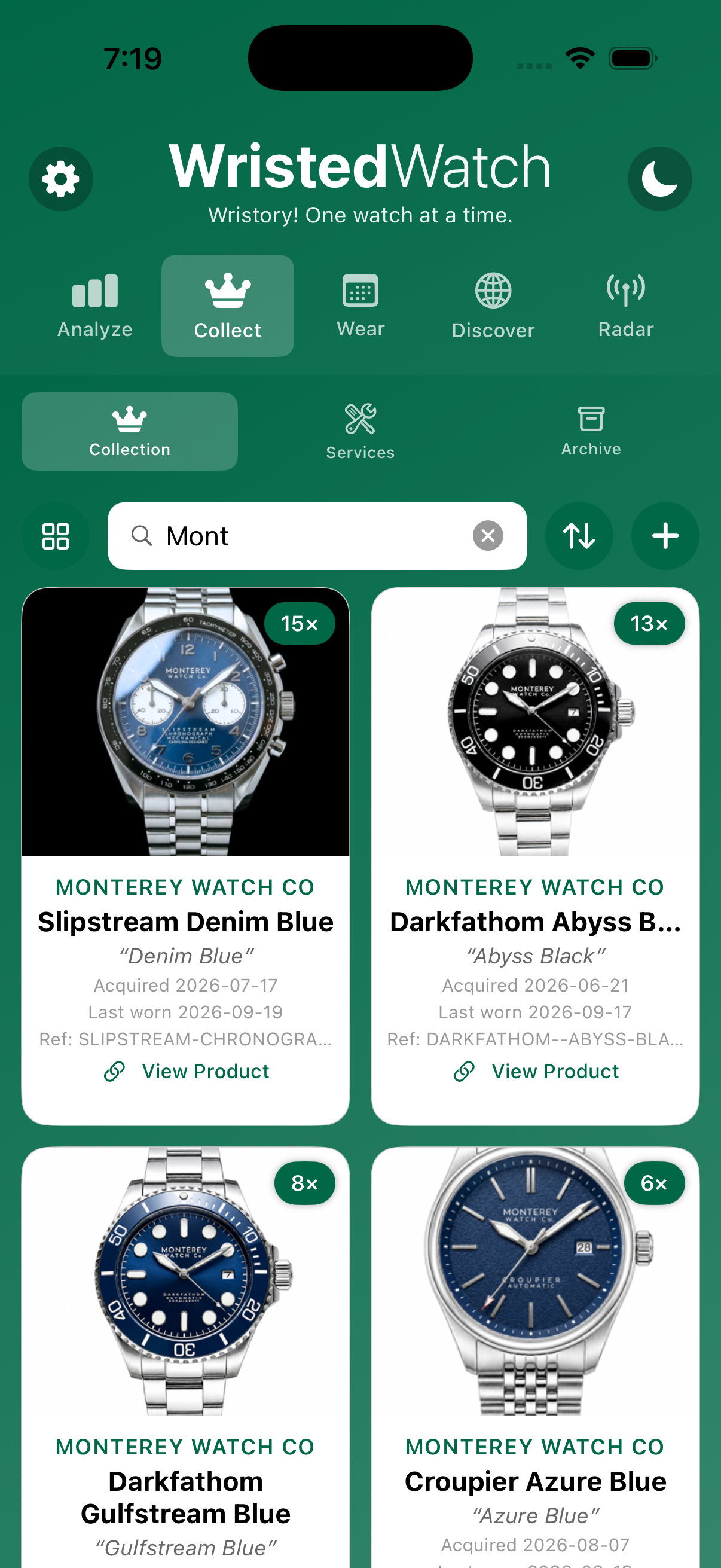
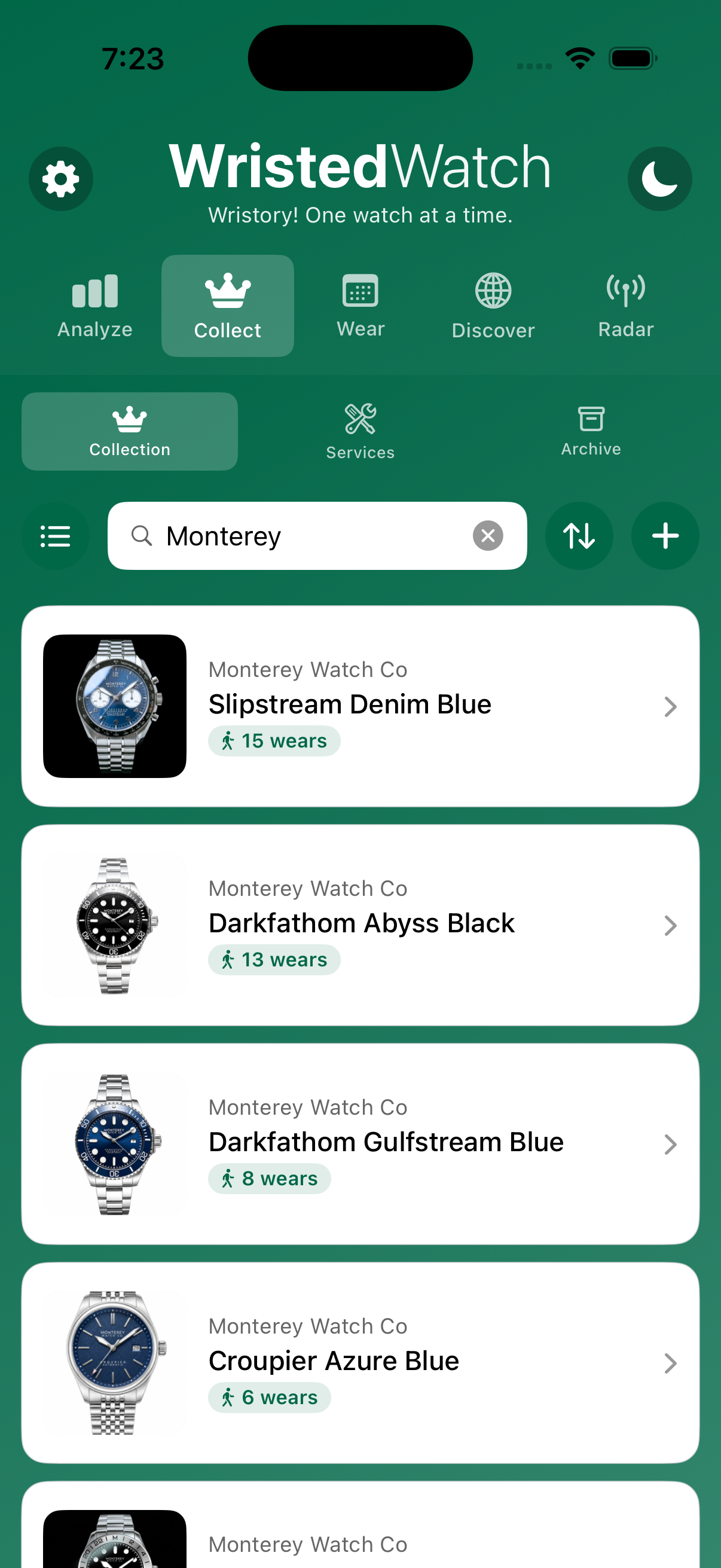
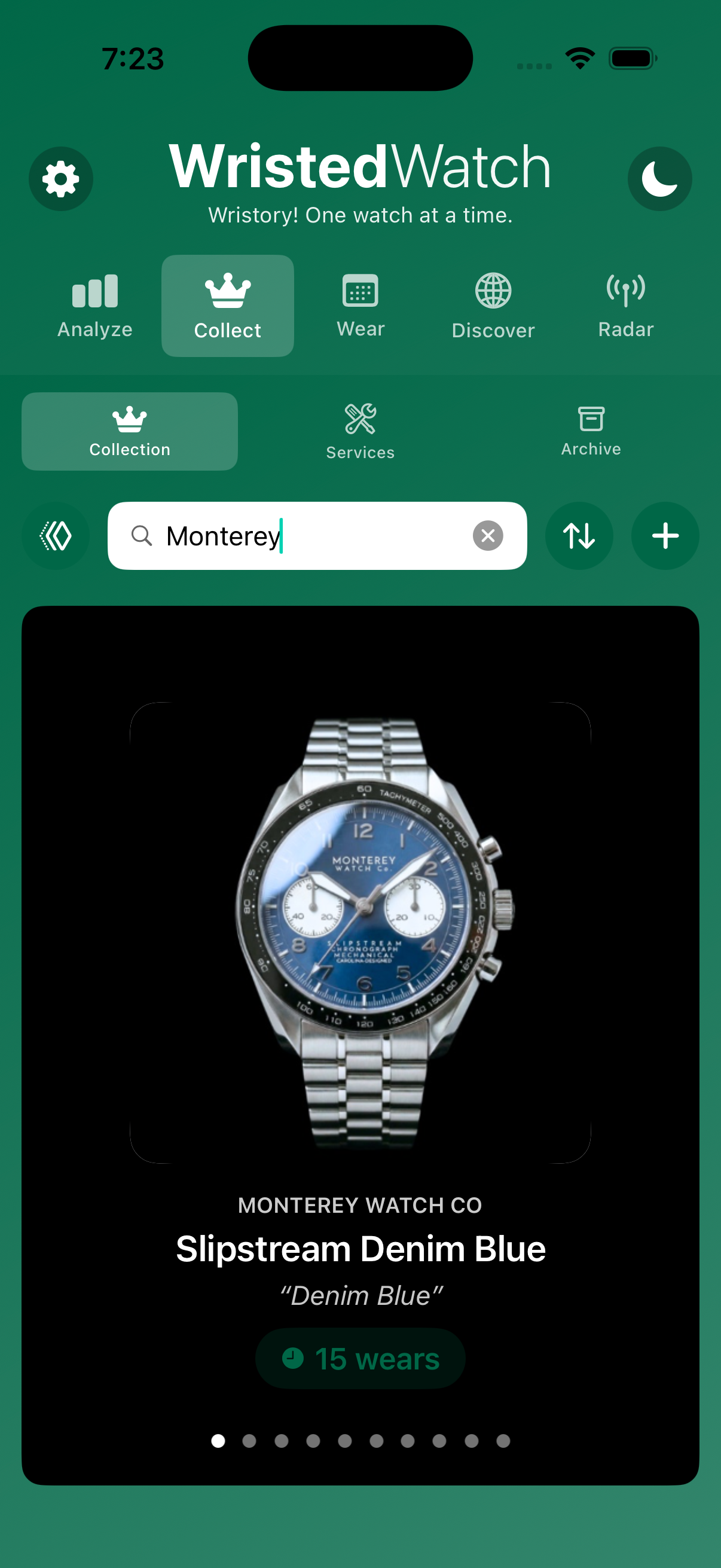
Your whole collection, beautifully kept — every timepiece in one private place with real specs, photos, acquisition details, and a wear count. Each card shows how many times you've worn it (the 4×, 3× badges). A view-mode button in the toolbar cycles through three ways to see it all:
- Log purchase price, date acquired, reference, and photos.
- Three view modes — tap the view button in the toolbar to cycle Grid → List → Carousel.
- Sort by Wears (default, high→low), Brand, Model, Acquired, or Cost — tap the active key again to flip the direction.
- Search within your collection.
- Owned catalog watches keep a View Product link.
- Open Collect › Collection.
- Add a watch with the + button — from the catalog (via Collect on a detail screen) or manually.
- Fill in acquisition price, date, reference, and photos.
- Tap the view button to switch grid/list/carousel, and the sort control (↑↓) to reorder.
Wishlist Both
The watches you intend to buy — ranked in priority order, each with optional alerts. Your wishlist is your purchase priority list: rank it, set price and restock alerts, and move a piece to your Collection once you own it.
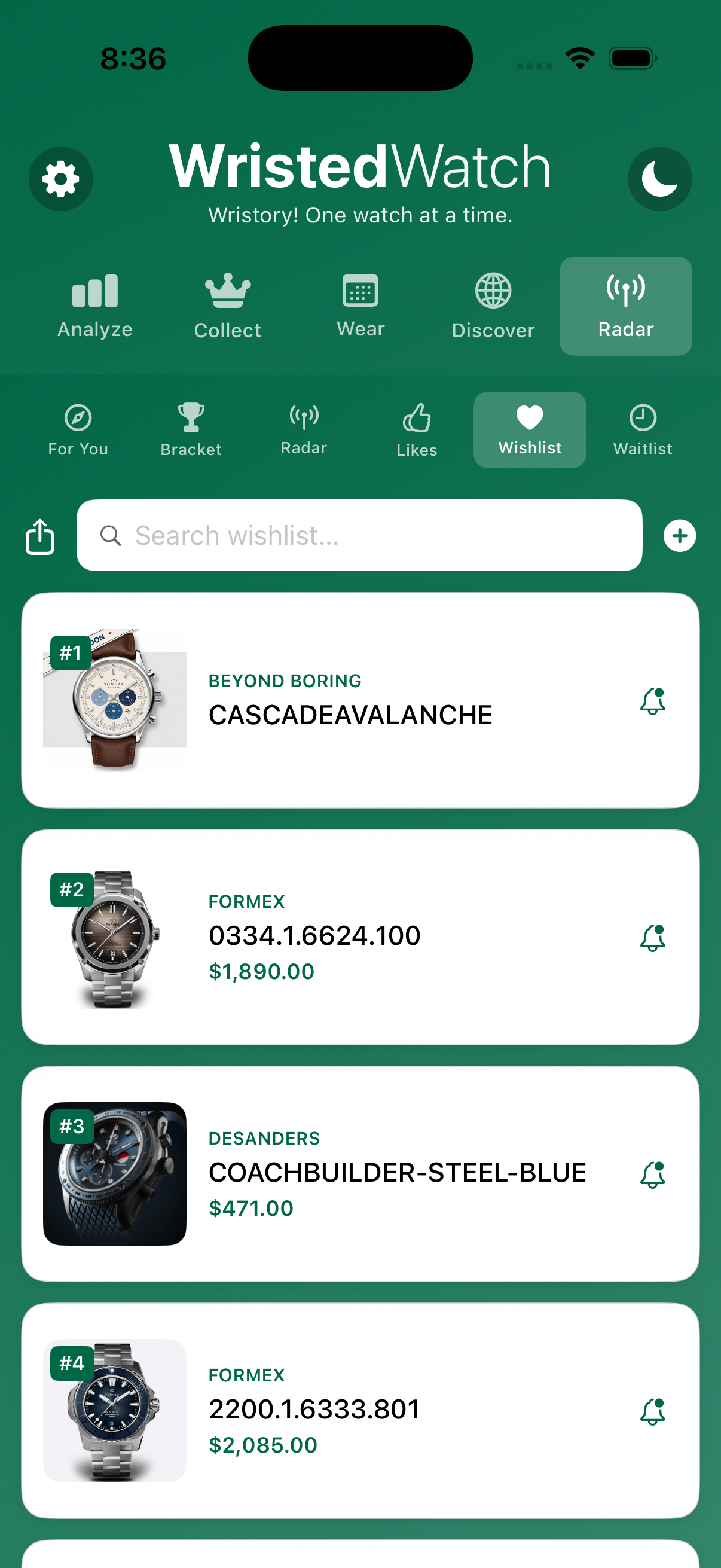
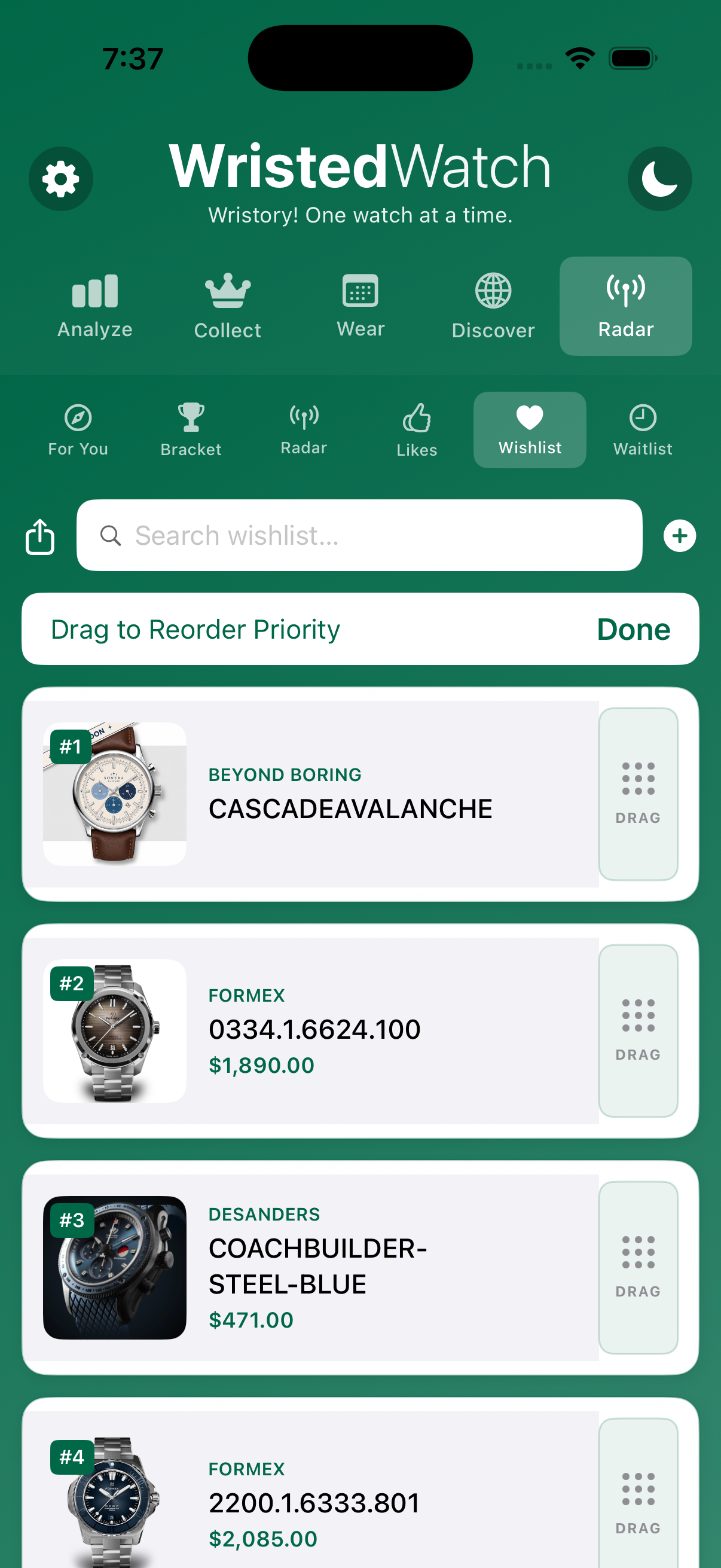
- Rank by priority — drag the handle to reorder; #1 is your next buy.
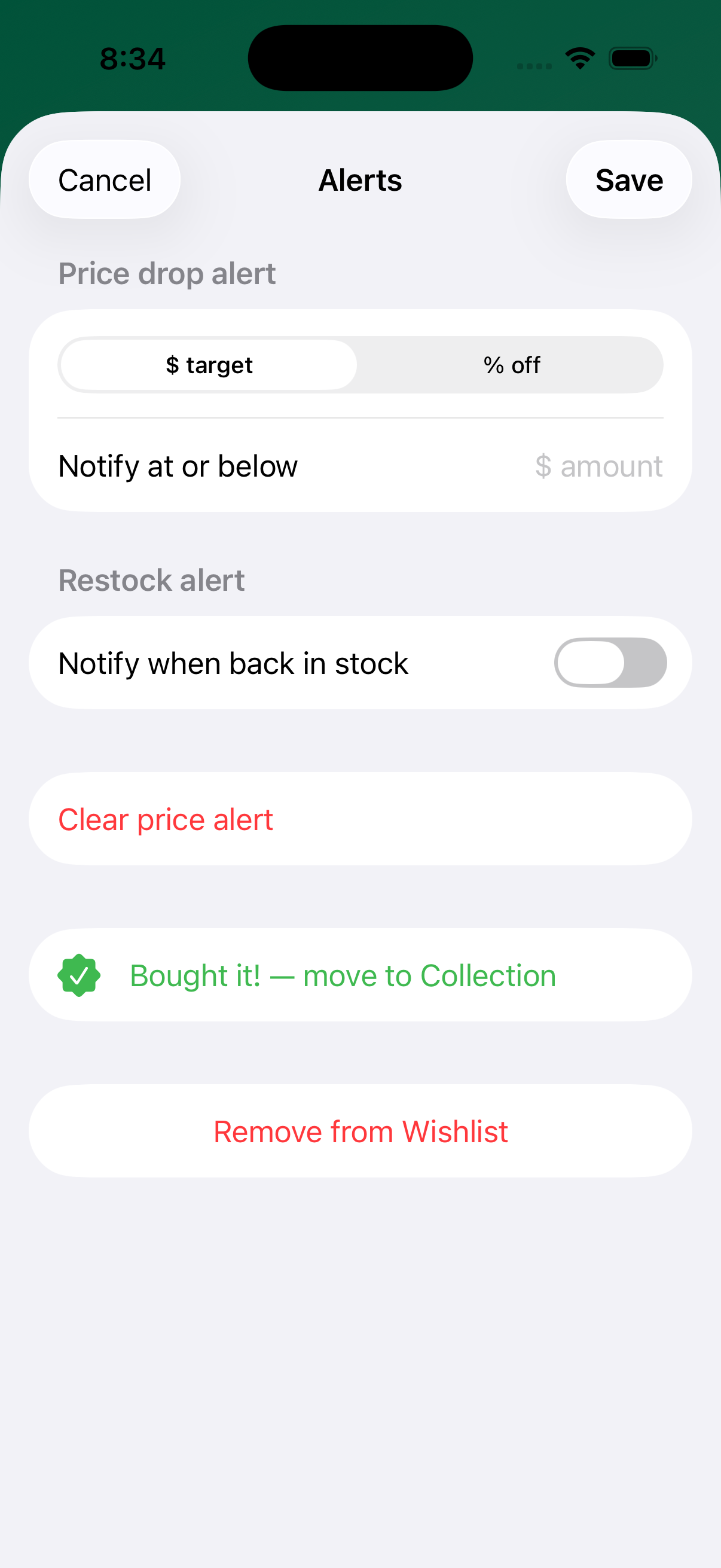
- Target-price alert — set an exact dollar target or a percent-off, and get pinged when the price reaches it.
- Restock alert — toggle it on a sold-out piece to hear the moment it returns.
- Rows show alert badges — a 🎯 target-price badge (e.g. "🎯 $2,500"), a restock badge, and any notes.
- Alerts apply to live catalog watches; move a watch to your Collection once you buy it.
- On a watch's detail screen, tap Wish.
- Open Radar › Wishlist and drag the handle to rank items in priority order.
- Tap a row's alert control to set a target price ($ or % off) and/or a restock alert.
- When you buy it, add it to your Collection.
Waitlist Both
Logging a dealer or brand waitlist? Track your position, expected dates, and the eventual outcome in one place, so an allocation you've been waiting months for never slips your mind.
- Open Radar › Waitlist.
- Add the watch and record your position and expected date.
- Update the outcome when the call finally comes.
Likes Both
A lightweight way to signal taste without committing to buy. Likes feed your For You recommendations and can seed a Bracket. Tapping a brand from your Likes takes you straight to that brand's watches.
- Tap Like on any watch detail.
- Review everything you've liked under Radar › Likes.
- Use them to start a Bracket or let them sharpen For You.
Wear calendar Both
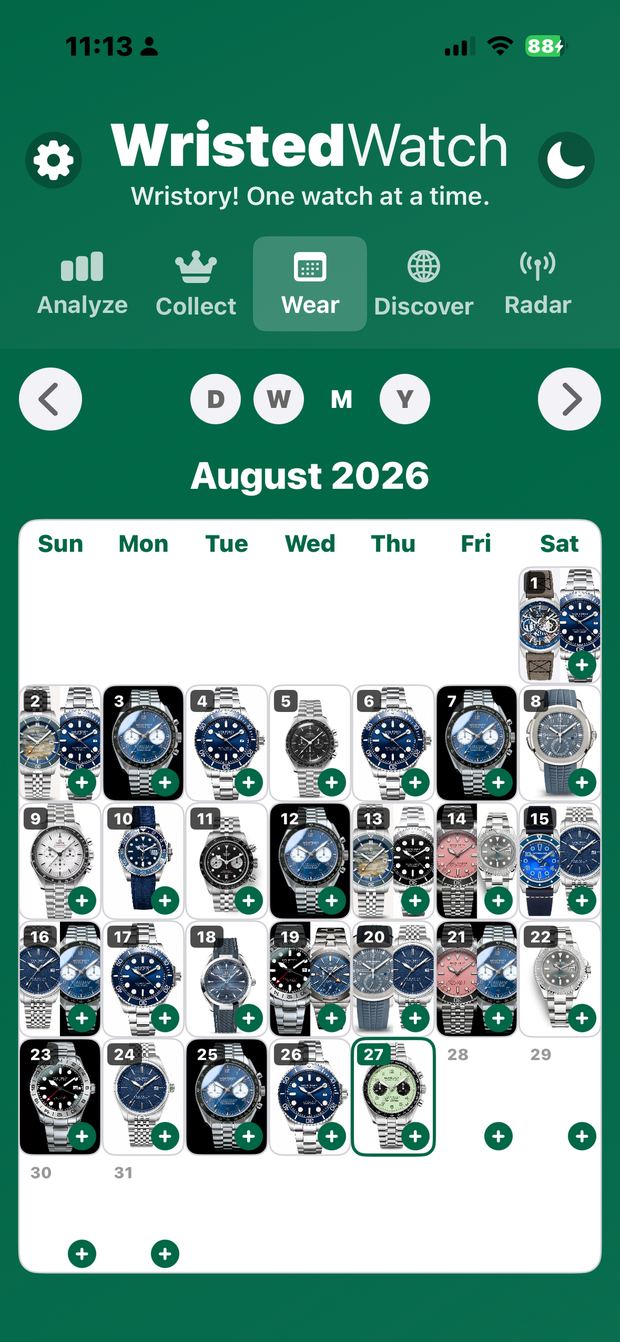
Record what's on your wrist each day and watch your habits take shape. It's the most honest way to see which watches actually earn their place — and which have been sitting in the box.
- Log a watch to any day with the + on that date.
- Switch between Day, Week, Month, and Year views.
- Wear counts flow into each watch's card and your insights.
- Open the Wear tab.
- Pick D / W / M / Y for the view you want; use the arrows to move through time.
- Tap the + on a day and choose the watch you wore.
Service records Both
Track repairs and maintenance so a mechanical piece stays healthy — and so the record is there for the next owner. Log what was done, when, and by whom.
- Open Collect › Services.
- Add a service entry against a watch: date, work performed, and notes.
- Refer back before your next service interval.
Archive Both
For watches you no longer own but want to keep a record of. Archiving keeps your active collection clean while preserving the history of pieces that have moved on.
- Open Collect › Archive to view past pieces.
- Move a watch to the archive when you sell or trade it, rather than deleting it.
Imports Web
Bringing a collection over from a spreadsheet or another tool? Imports lets you load existing records so you don't have to start from scratch.
- Open the Imports page.
- Follow the on-screen prompts to bring in your existing records.
- Review the imported watches in your Collection and fill any gaps.
Stay informed — alerts & insight
The hardest part of collecting is timing. WristedWatch watches the market for you and turns your own data into insight.
Radar Both
Radar is both a place and an action. As an action, tapping Radar on a watch starts watching it. As a tab, it's the home for everything you're tracking — What's New, your Radar list, Likes, Wishlist, and Waitlist all live here.
- Tap Radar on any watch detail to start following it.
- Open the Radar tab to move between What's New, Radar, Likes, Wishlist, and Waitlist.
- Tap a brand you follow to jump straight to that brand's watches.
What's New & alerts Both
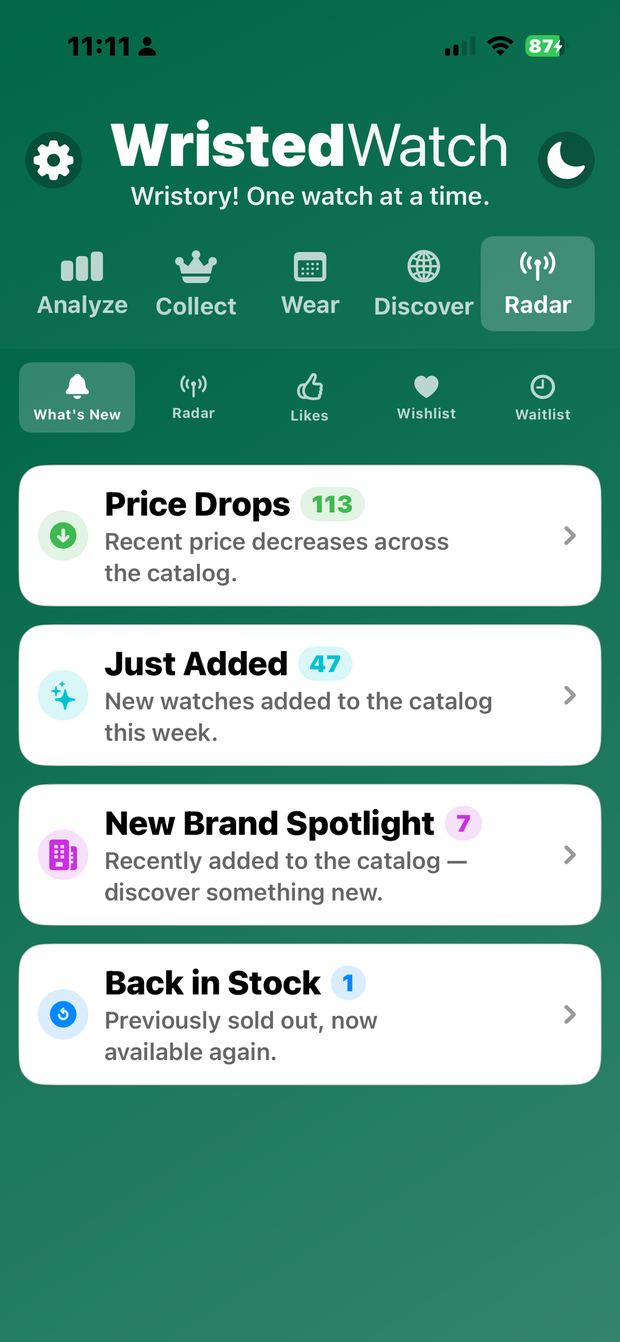
Your daily pulse, built around the brands and watches you follow. Everything rolls into a tidy digest, with the moments that matter pushed to you right away.
- Price Drops — recent price decreases across the catalog.
- Just Added — new watches added this week.
- New Brand Spotlight — brands recently added to the catalog.
- Back in Stock — previously sold-out pieces, available again.
- Open Radar › What's New (or the Feed on web).
- Tap any category to see the full list; tap a watch for its detail.
- In Settings, choose which categories and channels notify you — hit your target price or a restock and you'll hear about it right away; the rest rolls into a daily digest.
Notifications — how to set up alerts Both
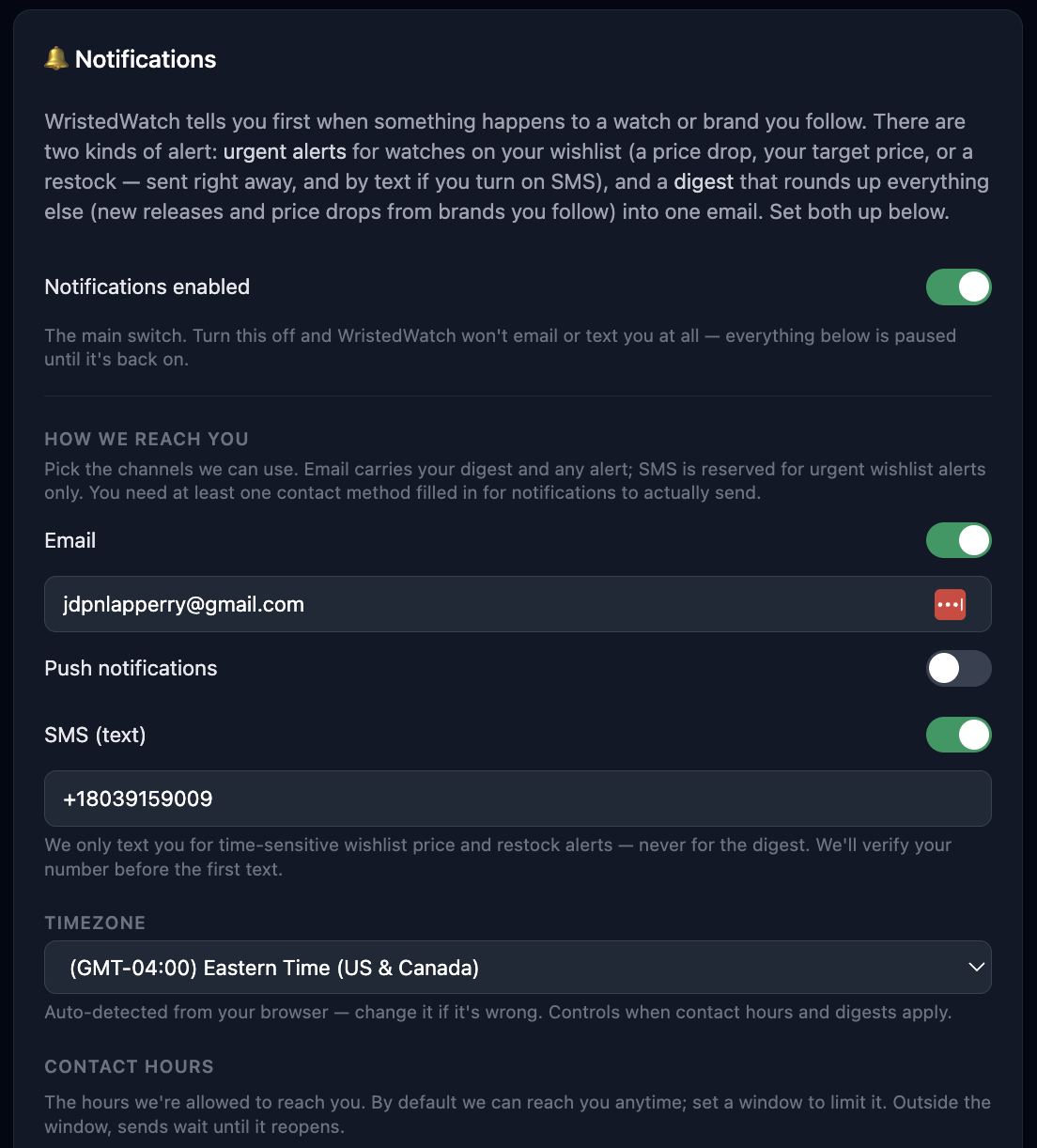
This is where you decide what WristedWatch tells you about and how it reaches you. When notifications are off, the screen collapses to a single switch; turn it on and the full set of controls appears.
The notification settings on the web app, top to bottom:
Step-by-step setup
- Open your Profile and tap Notifications.
- Turn on Enable notifications — the master switch that reveals everything below.
- Pick how we reach you: Email, Push, and/or Text (SMS). Turning on Push prompts iOS for permission — allow it so alerts can reach your device.
- Fill in Contact: your email (shown when Email is on) and phone number (shown when SMS is on). SMS is used only for high-intent alerts — a price target hit, a wishlist price drop, or an armed restock.
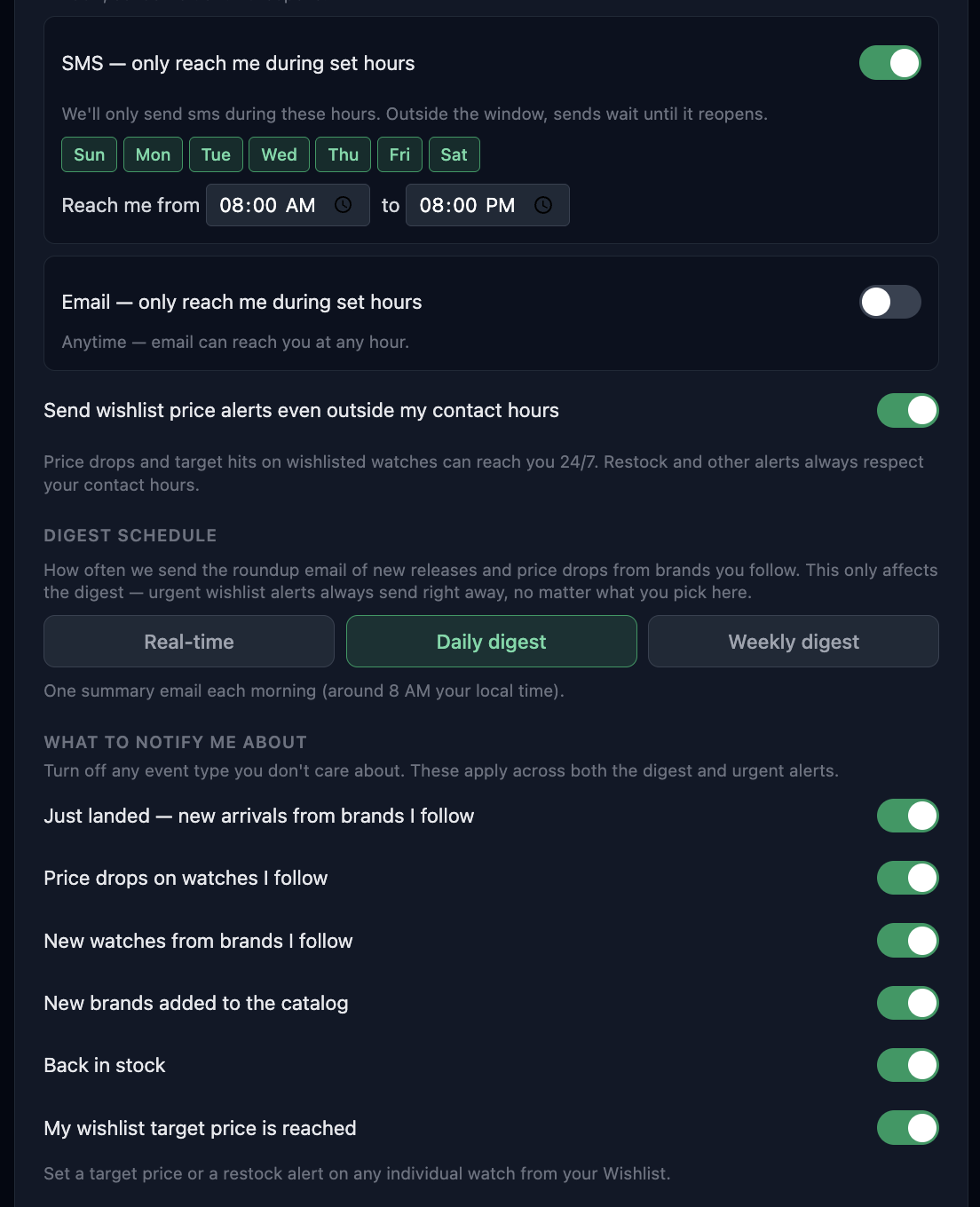
- Choose what to notify me about (see the categories below).
- Set your digest frequency, time zone, and contact hours.
What to notify me about
- Just landed — new arrivals from brands you follow.
- Price drops on watches you follow.
- New watches from brands you follow.
- New brands added to the catalog.
- Back in stock — a piece you're tracking returns.
- Wishlist target price reached — your set price is hit.
Frequency, quiet hours, and fine print
- Digest frequency — Real-time, Daily, or Weekly. Discovery updates (radar/likes) roll up into one summary on this cadence; urgent wishlist price alerts always send right away.
- Time zone — pick your zone (or tap "use this device's time zone") so digests and quiet hours land at the right local time.
- Contact hours — set an "only reach me during these hours" window per channel (Email, SMS, Push). Outside the window, we hold that channel.
- Bypass quiet hours — a toggle to let wishlist price alerts (target hits and price drops) text you 24/7. Back-in-stock always respects your quiet hours.
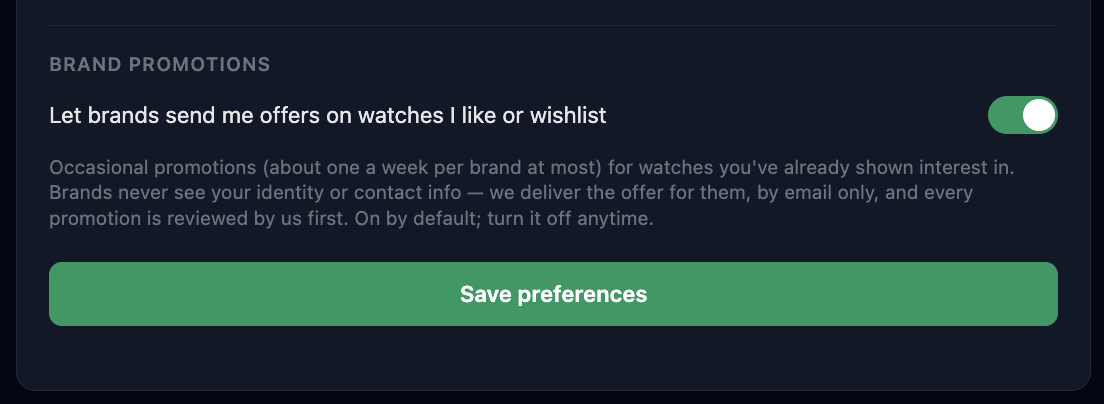
- Brand promotions — an optional opt-in to let brands send promotions on watches you like or wishlist. Brands never see your identity or contact info — WristedWatch does the sending, email only.
Analyze / Insights Both
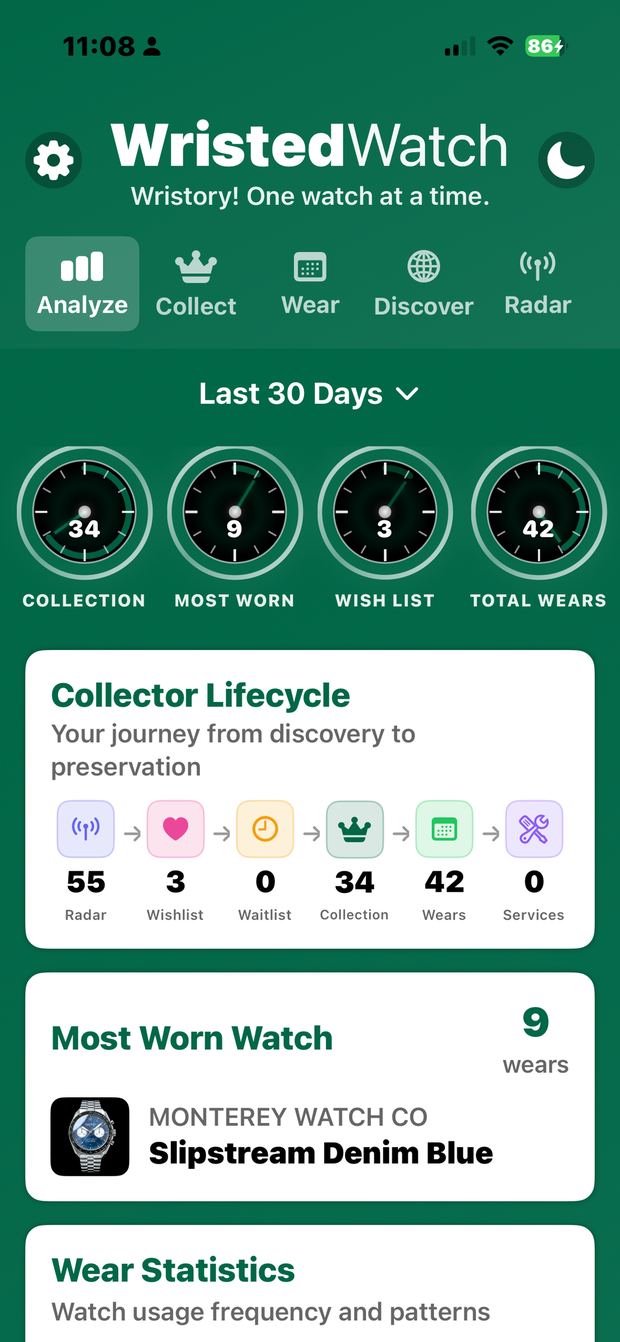
Turn your collection and wear data into insight. The dashboard opens with headline gauges — Collection size, Most Worn, Wish List, and Total Wears — over a date range you choose (e.g., Last 30 Days).
- Collector Lifecycle — a live count at every stage: Radar, Wishlist, Waitlist, Collection, Wears, Services.
- Most Worn Watch — your rotation leader, with its wear count.
- Wear Statistics — usage frequency and patterns.
- Value distribution, cost-per-wear, and collection growth over time.
- Change the date range to compare any period.
- Open the Analyze tab (Analytics on web).
- Set the date range at the top.
- Read the gauges and lifecycle strip, then scroll for wear statistics and value insights.
Your account
Settings & profile Both
Manage your profile, notification preferences, security, and subscription.
- Profile — display name and account details.
- Notifications — the full alert setup (see the Notifications section above).
- Multi-factor authentication (MFA) — add a second security factor using any authenticator app (a TOTP code), with a QR code to scan and a 6-digit code to verify.
- Appearance — light / dark mode (the moon icon on iOS). The app opens in dark mode by default.
- Manage Subscription — opens Apple's native subscription sheet to view or change your plan (for subscriptions purchased through the App Store).
- Feedback — send the team a note directly from the app.
- Sign out — sign out of this device.
- Delete account — schedules your account and data for permanent deletion. There's a grace period: you can Restore any time before the countdown ends to keep everything. After it ends, deletion is permanent.
Cross-device sync Both
Your collection, wishlist, wear log, and service records live in the cloud and sync across the native iOS app and any web browser — Android, iPhone, Mac, or PC. Start on your phone, pick up on your laptop. There's nothing to configure: just sign in with the same account.
Best practices for getting the most out of WristedWatch
- File watches into the right stage. Radar for curiosity, Wish for intent, Collect for owned. It keeps your lists honest and your alerts meaningful.
- Set target prices on your wishlist. This is what turns alerts from "something changed" into "the watch you want just hit your number."
- Log wear daily. Seconds a day becomes your richest data — most-worn pieces, cost-per-wear, and the watches that never leave the box.
- Record acquisition price and date. It powers value distribution and cost-per-wear in Analyze.
- Feed your taste. Like and Radar generously early on so For You quickly leads with the brands that are actually you.
- Tune your notifications. Pick the alert categories you care about in Settings so What's New stays signal, not noise.
- Confirm price at the source. The dollar figure beside a native price is an estimate — use Wrist It to verify on the brand's site before buying.
- Keep service records current. A documented service history keeps a mechanical piece healthy and adds provenance for the next owner.
- Archive, don't delete. When a watch moves on, archive it to preserve its history while keeping your active collection clean.
- Use both platforms. Desktop web for data entry and insight, iOS for on-the-go discovery and wear logging — it's one synced account.