
WristedWatch User Guide
Wristory! One watch at a time.
Discover, track, and preserve your watch collection — on iPhone or in any browser.
What's in this guide
Getting started
- What WristedWatch is
- The collecting journey
- Create an account & sign in
- Verify your email
- Free, and supporting WristedWatch
- Redeeming a code
- Finding your way around the web app
- The welcome tour
Discover
Curate & track
Stay informed
Your account & feedback
What WristedWatch is
WristedWatch is a watch tracking and discovery app built for collectors. Track the watches you own, research the ones on your radar, build a ranked wishlist, set restock and price alerts, and jump straight to a brand's cart with the Wrist It button. It runs on iPhone and in any browser, and it's being built with its community — your feedback shapes what comes next.
The collecting journey
However you collect, the app follows the same arc — discover, decide, acquire, enjoy, and remember.
Create an account & sign in iOS + Web
Open the web app, create an account (or sign in with Google or Apple), and your data syncs everywhere.
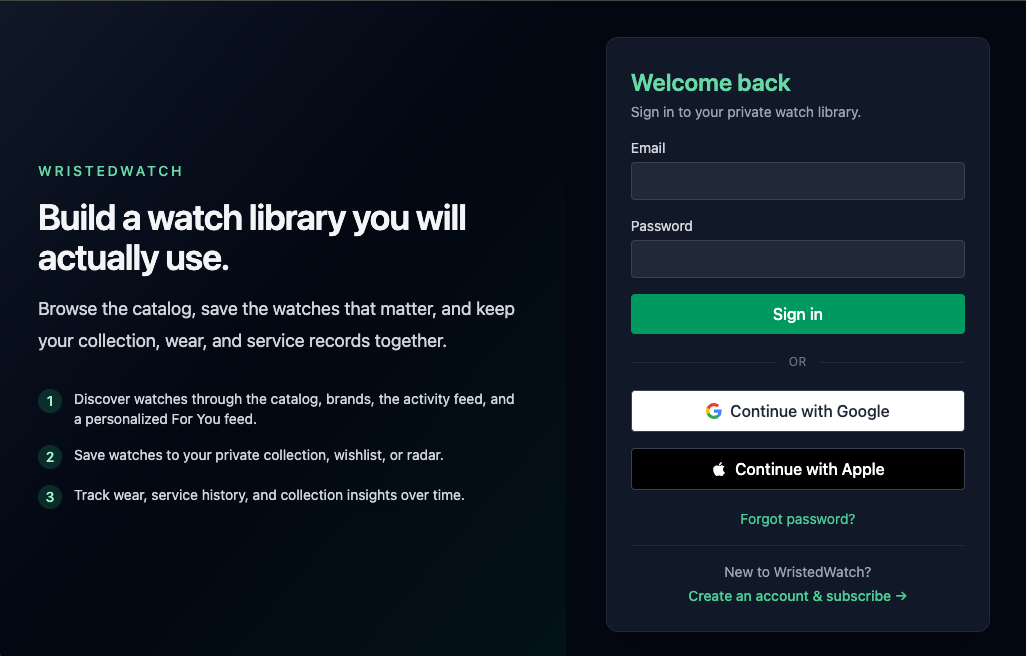
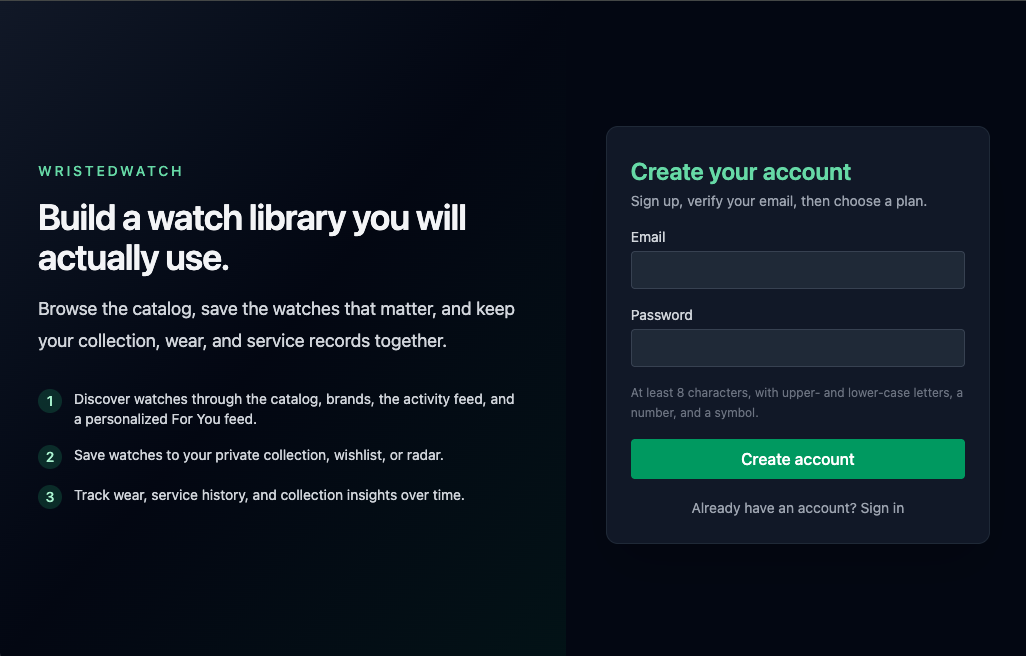
- Go to wristedwatch.com/wristedwatch in any browser.
- Choose Create an account & subscribe, or sign in with Google / Apple.
- Enter your email and a password (at least 8 characters, with upper- and lower-case letters, a number, and a symbol), then verify your email.
- Choose a plan (or redeem a community code) — then the sidebar on the left is your home base.
Verify your email iOS + Web
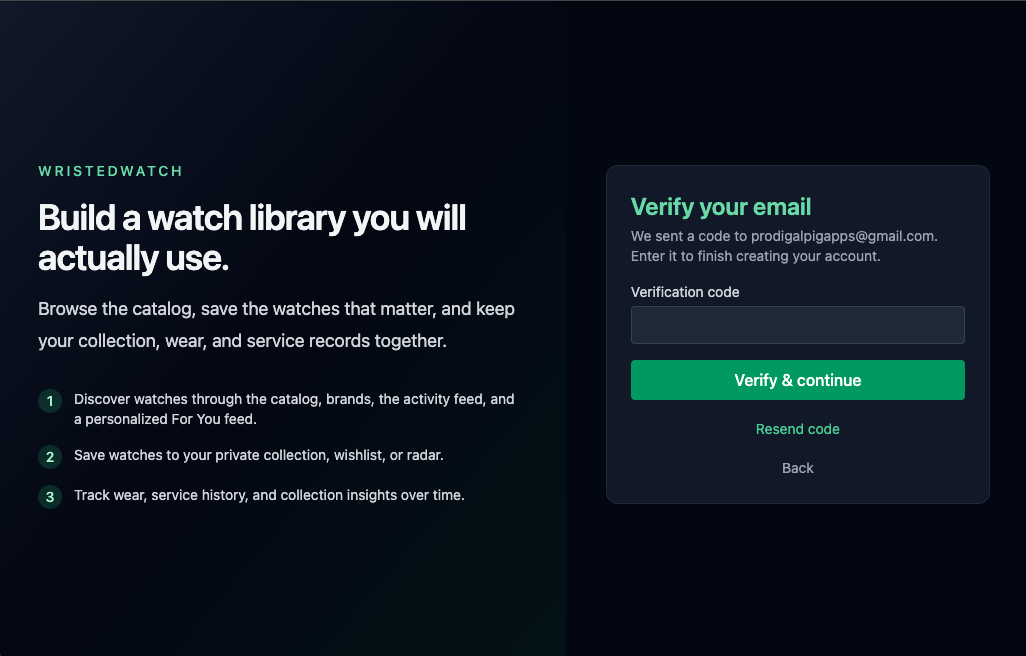
Right after you create your account, WristedWatch emails a verification code to confirm your address. Enter it here and choose Verify & continue. If it doesn't arrive within a minute, check spam or tap Resend code.
Finding your way around the web app Web
On the web, you navigate with a left sidebar grouped into five areas — Analyze, Collect, Wear, Discover, and Radar. The top header carries the WristedWatch logo, your signed-in email, and four buttons you'll use often: + Brand, Feedback, Guide, and Sign out.
The sidebar
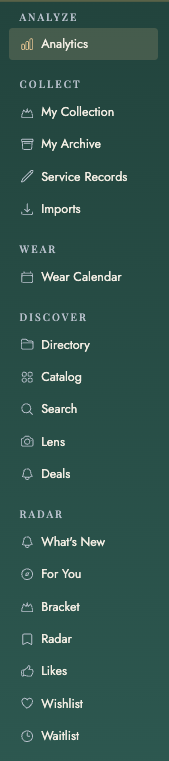
Think of the sidebar as the web version of the iPhone's bottom tabs. It's organized into five groups:
- Analyze — Analytics (your collection dashboard).
- Collect — My Collection, My Archive, Service Records, Imports.
- Wear — Wear Calendar.
- Discover — Directory, Catalog, Search, Lens, Deals.
- Radar — What's New, For You, Bracket, Radar, Likes, Wishlist, Waitlist.
The header & its buttons

- + Brand — suggest a watch brand we should add to the catalog.
- Feedback — tell us what's working and what isn't, right from the app.
- Guide — reopen the in-app welcome tour any time.
- Sign out — end your session.
The welcome tour iOS + Web
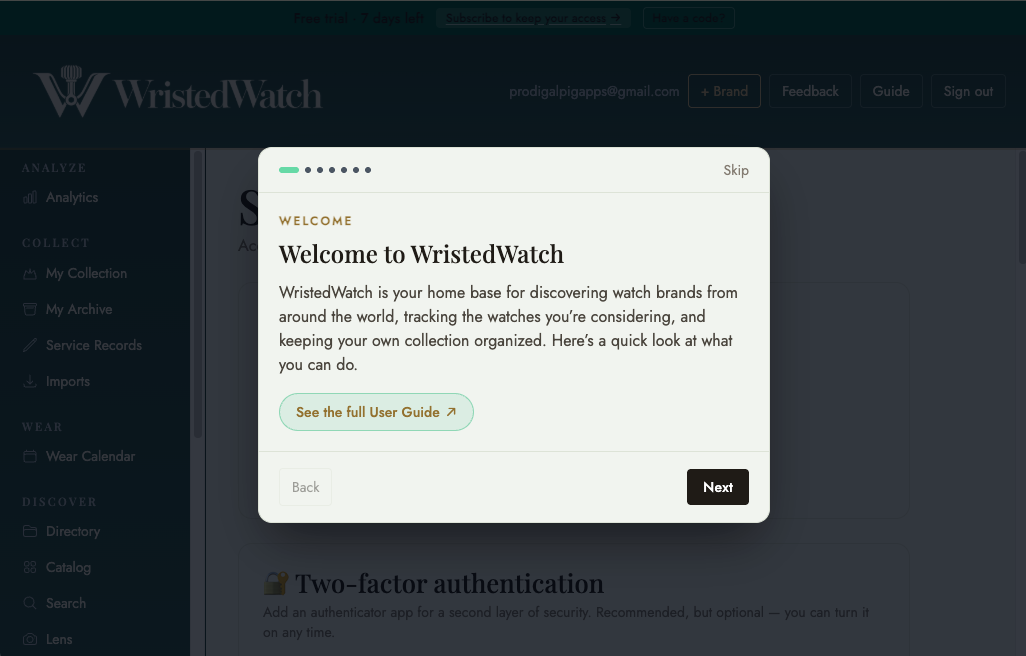
On your first sign-in, a short welcome tour introduces the app step by step. Use Next / Back to move through it, Skip to jump straight in, or See the full User Guide for the complete reference. You can reopen the tour any time from the Guide button in the header.
Discover — find your next watch
The Discover area is where you explore brands and watches: browse A–Z, search by words or a photo, get recommendations, and find what's on sale.
Directory iOS + Web
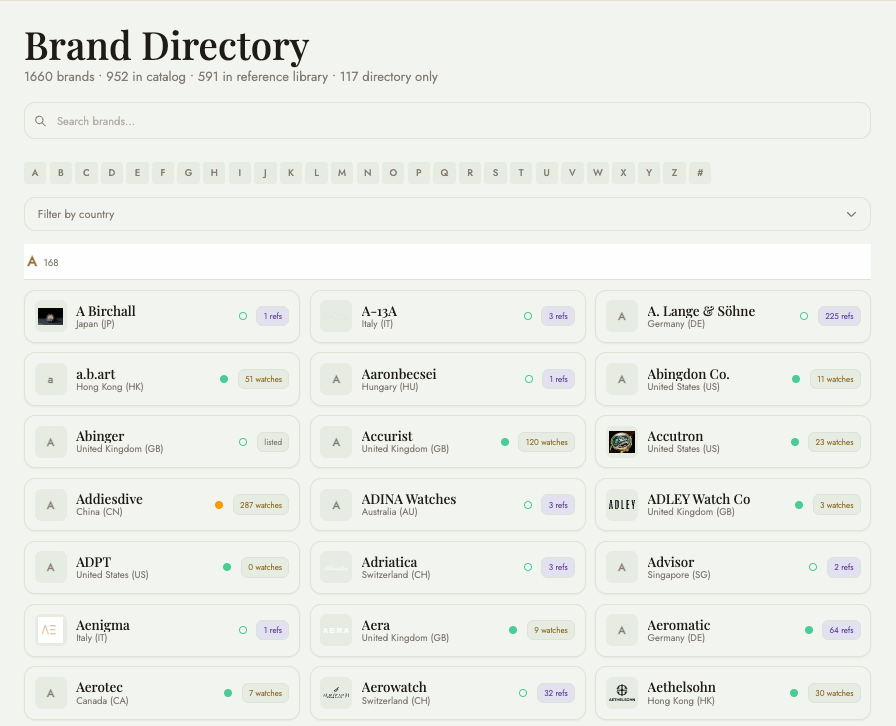
The Directory is the full A–Z of every watch brand we know about — the browsing front door even for brands not yet in the shoppable catalog. The header shows the totals (brands in catalog, in the reference library, and directory-only). Use the search box, the A–Z jump bar, or the Filter by country dropdown to narrow it down. Each card shows the brand's country, a status dot, and a count — watches (shoppable catalog items) or refs (reference-library models).
Catalog iOS + Web
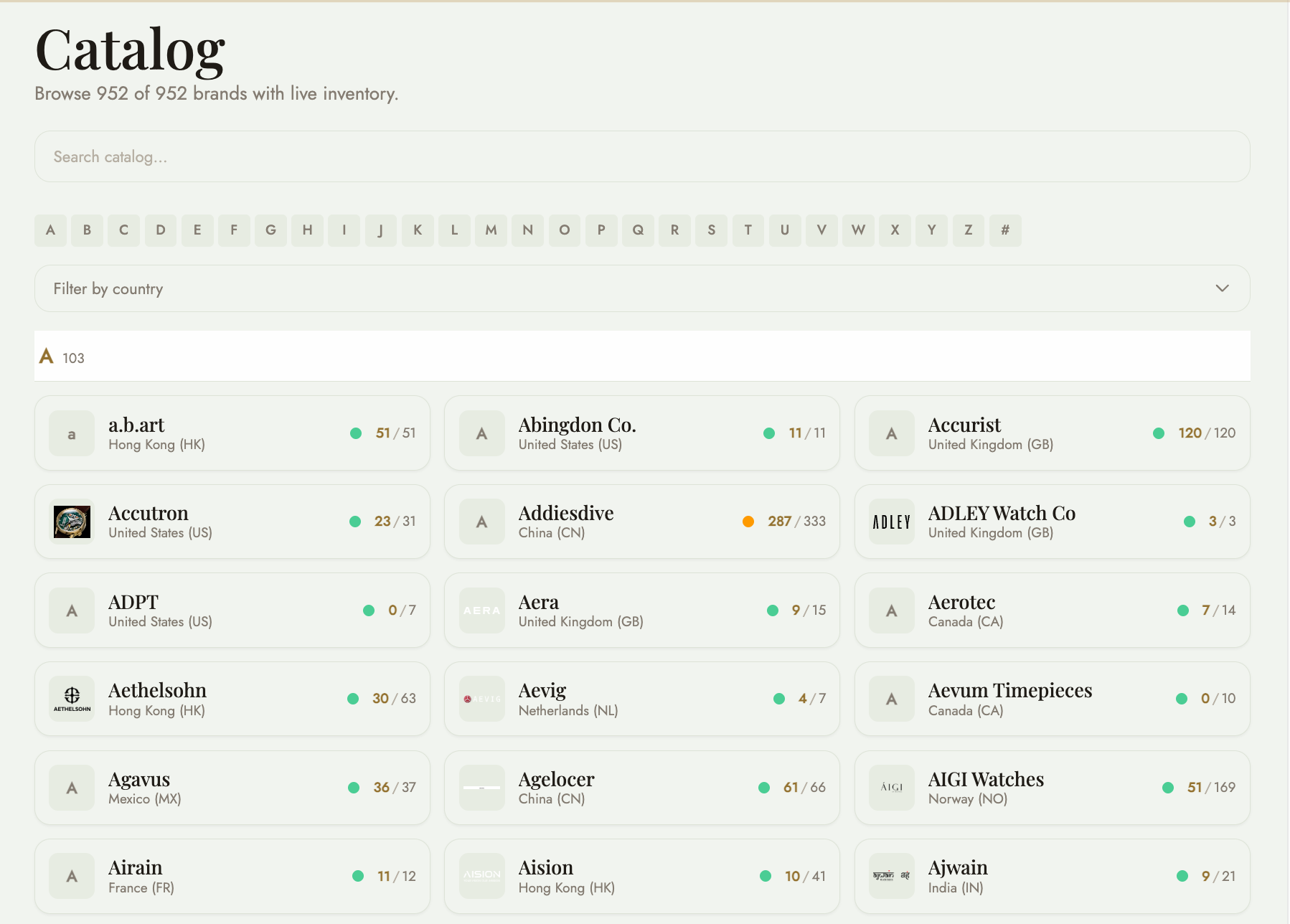
The Catalog is the subset of brands we actively track, with live inventory, pricing, and alerts — “Browse N of N brands with live inventory.” Search, use the A–Z jump bar, or filter by country. Each brand card shows a status dot and an in-stock / total count (e.g. 51 / 51). Open any brand to see its details and watch grid.
- Open circle — brand you haven't reviewed yet.
- Amber dot — new activity since your last visit.
- Green dot — you're caught up.
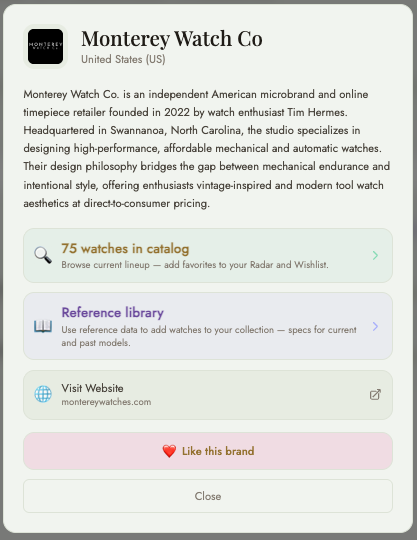
Opening a brand shows its story and country, a shortcut into its watches in catalog and reference library, a link to its official website, and a Like this brand button (likes personalize your For You feed and surface favorites first).
Browse everything Web
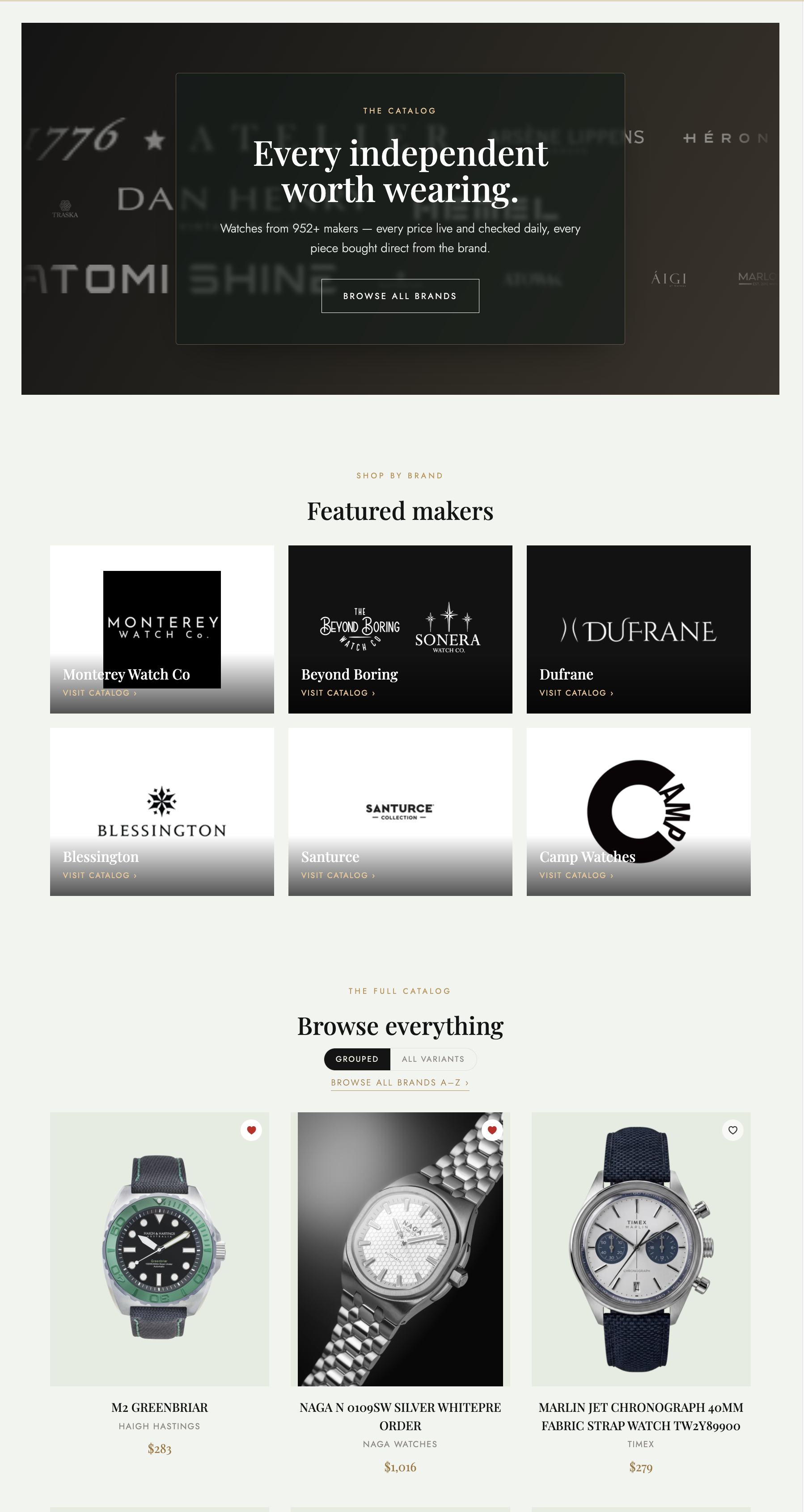
The Catalog landing page opens with a hero and a Featured makers ribbon, then Browse everything — the whole in-stock catalog in one grid. Watches on your wishlist, likes, and radar are surfaced first, then the most-liked brands across the community. Toggle Grouped vs All variants, jump to Browse all brands A–Z, or page through with Load more at the bottom.
Smart Search iOS + Web
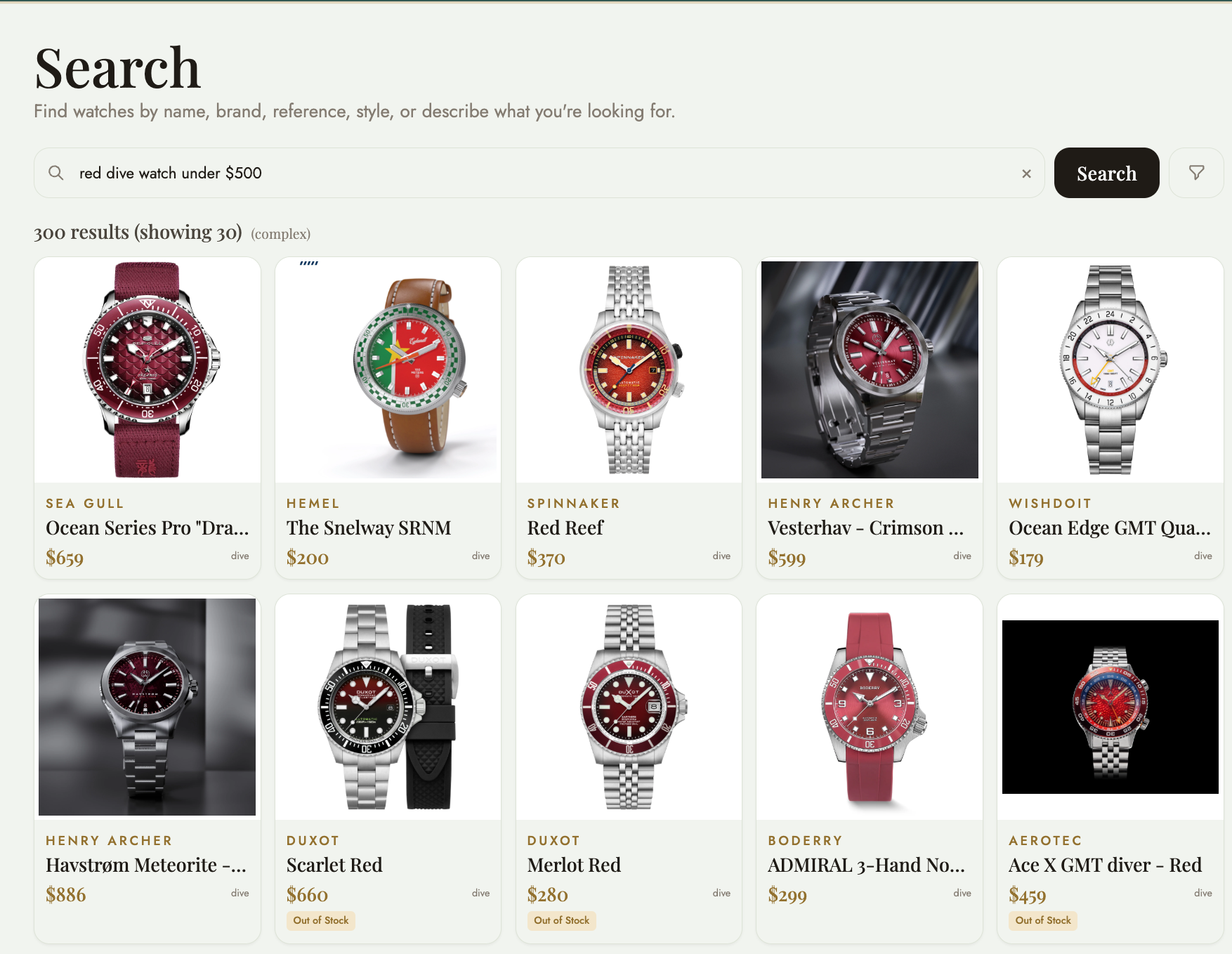
Type what you're after in plain language — a brand, a reference, a style, a price range, or a mix — and Smart Search finds matching watches, showing the result count and a grid you can tap straight into.
Lens photo search iOS + Web
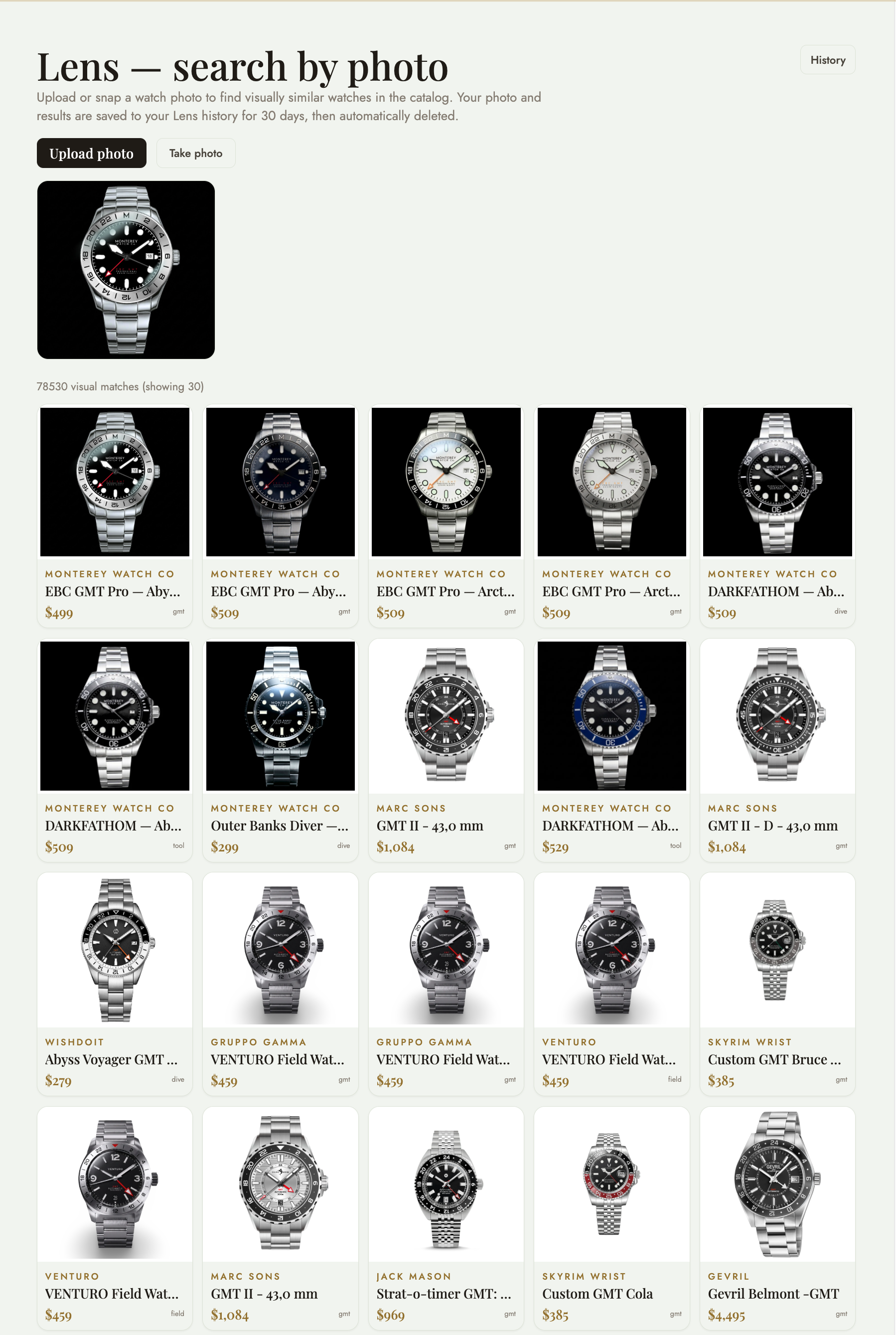
Upload photo or Take photo of a watch and Lens finds visually similar pieces in the catalog — great when you've seen a watch but don't know what it is. Each result shows the brand, model, and price so you can jump straight to the detail page.
For You iOS + Web
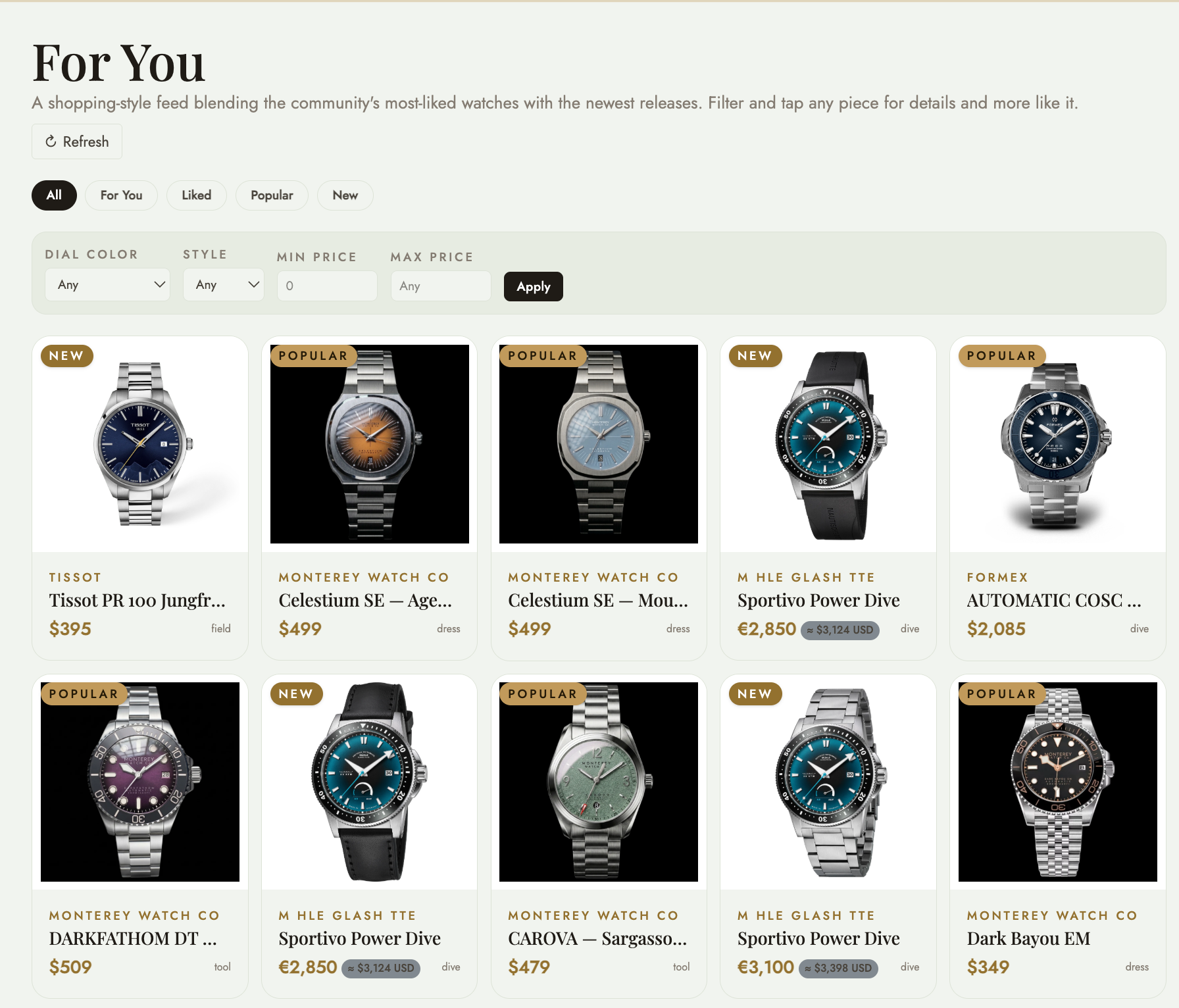
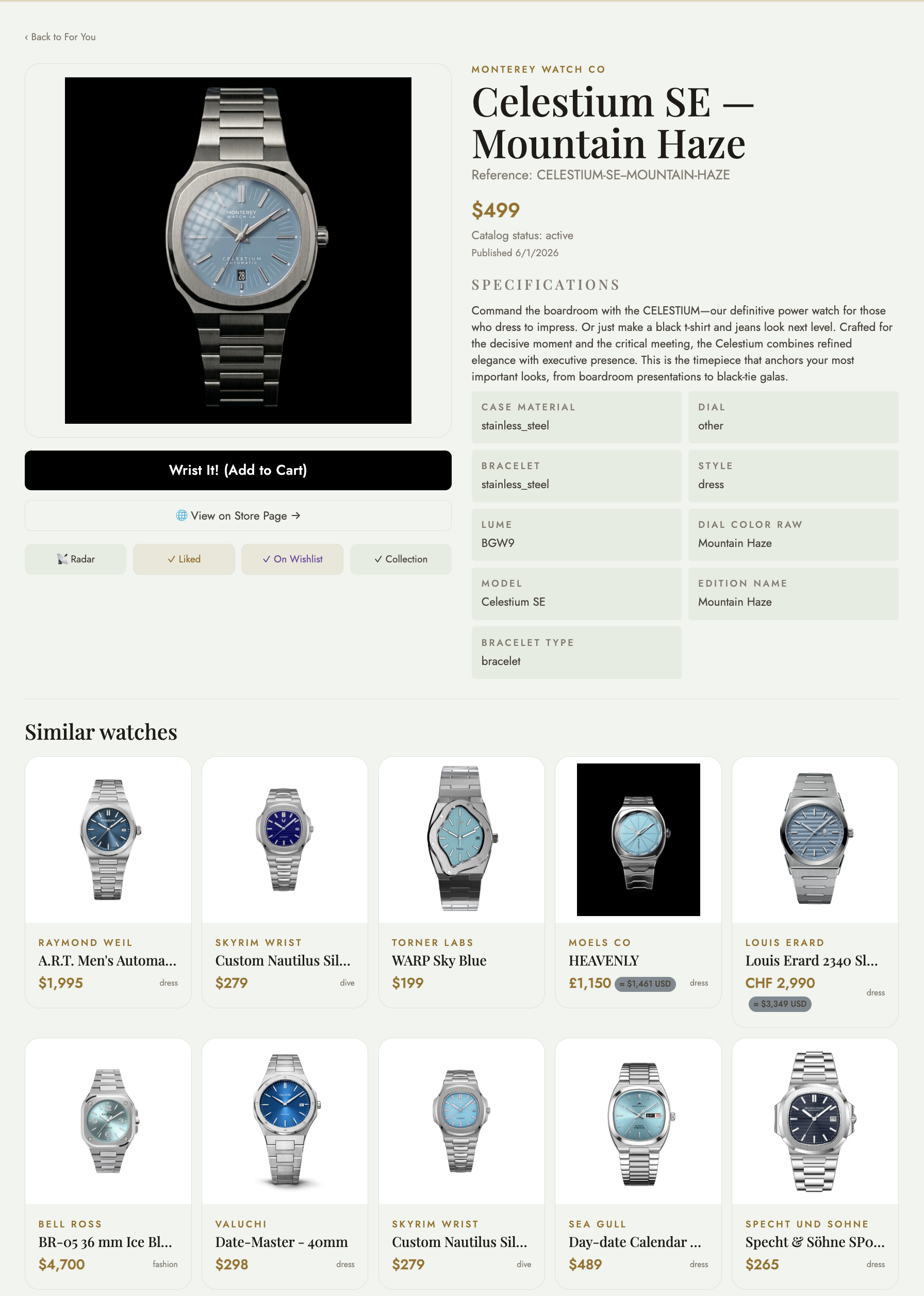
For You is a shopping-style feed that blends the community's most-liked watches with the newest releases. Filter by All, For You, Liked, Popular, New, or narrow by dial color, style, and price. Tap any piece for its detail page — which ends with a Similar watches row of visually and stylistically related watches. The more you track, like, and wishlist, the sharper the feed gets.
Deals iOS + Web
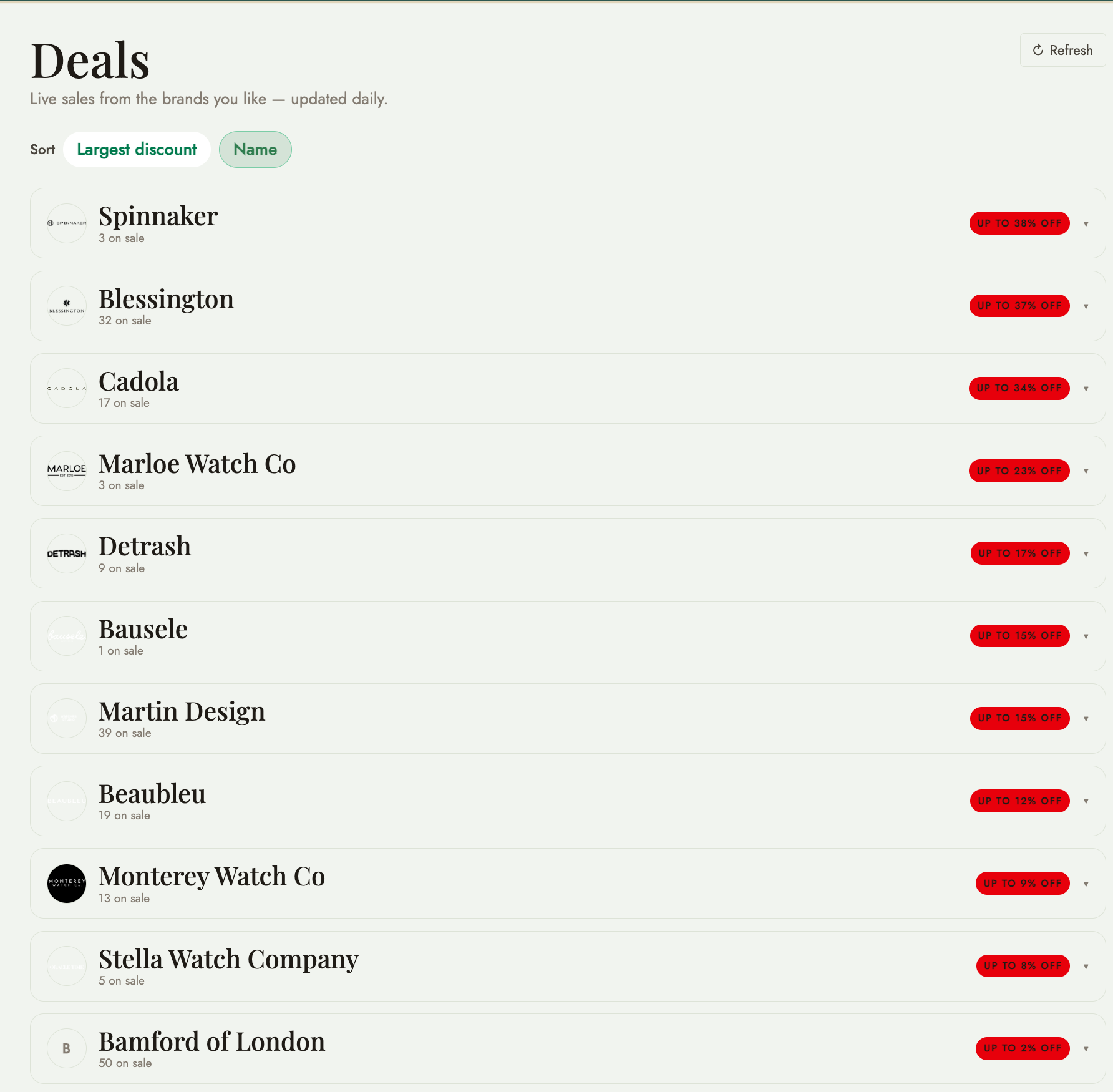
Deals rounds up live sales from the brands you like, refreshed daily. Each brand row shows how many watches are on sale and the top discount (“up to X% off”) — expand a brand to see the individual deals, and sort by Largest discount or Name.
The “Wrist It” buy flow iOS + Web
Found the one? Wrist It takes you straight to the brand's store with the watch already in your cart.
- Open a watch from the catalog, search, or For You.
- Review the price (and any sale price), variants, and specifications on the detail page.
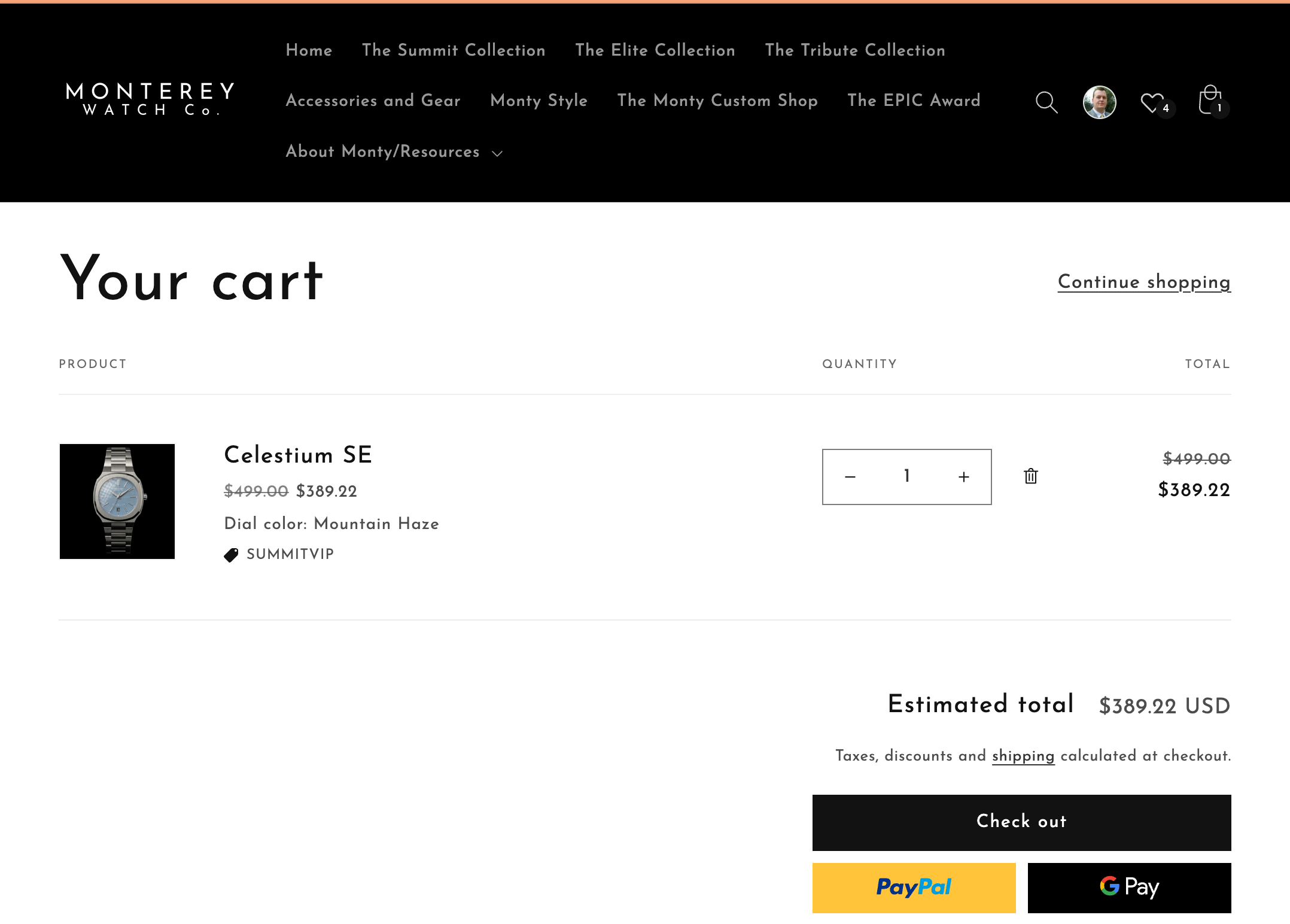
- Hit Wrist It! (Add to Cart) — the brand's site opens (a new browser tab) with the watch in the cart.
- Check out on the brand's own store.
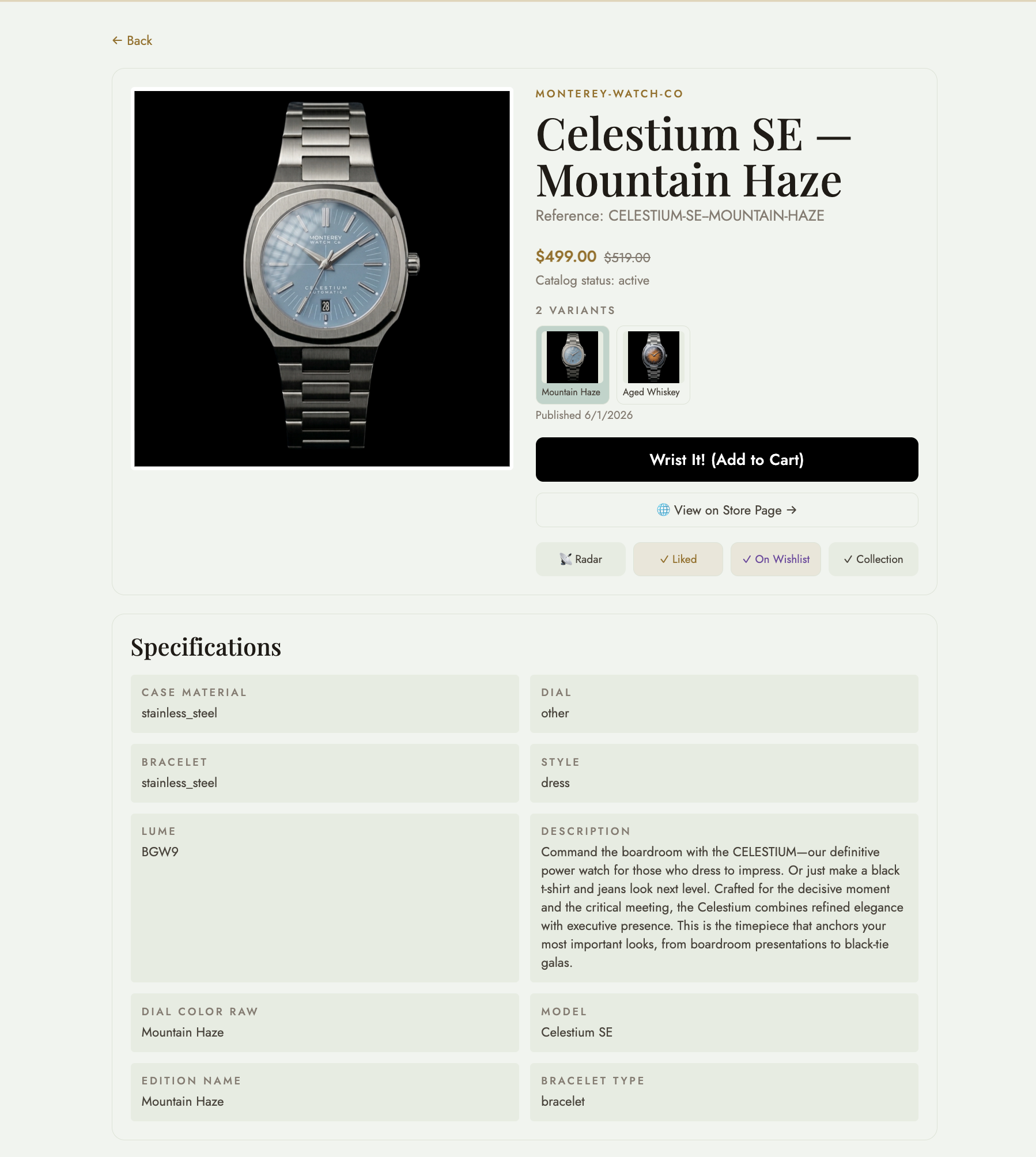
The detail page also carries View on Store Page and the four list actions (Radar, Like, Wishlist, Collection) right under the Wrist It button, so you can save a watch and jump to the store from one place.
Curate & track — your collection
Everything you own, want, and are watching — organized, ranked, and analyzed.
Collection iOS + Web
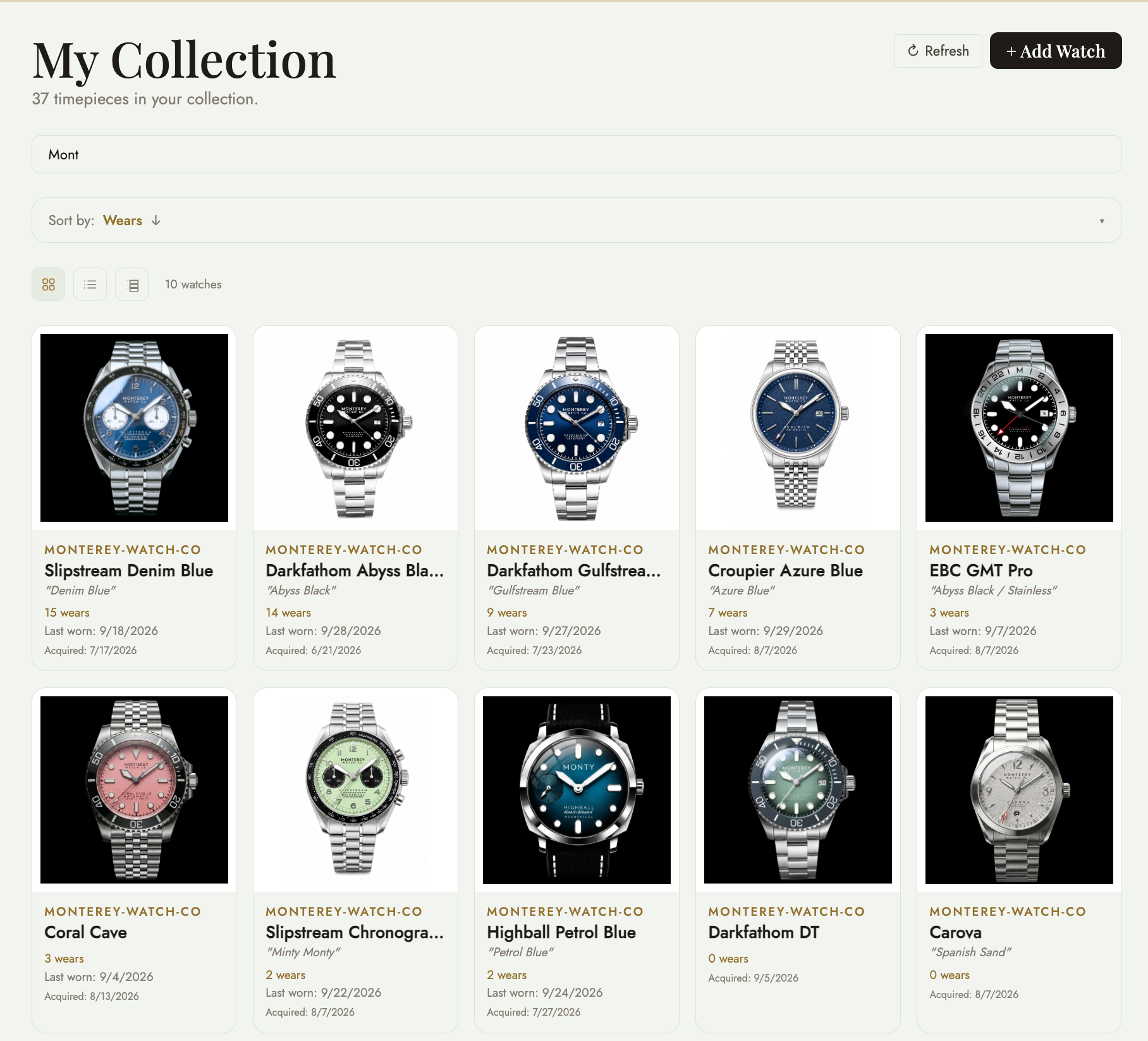
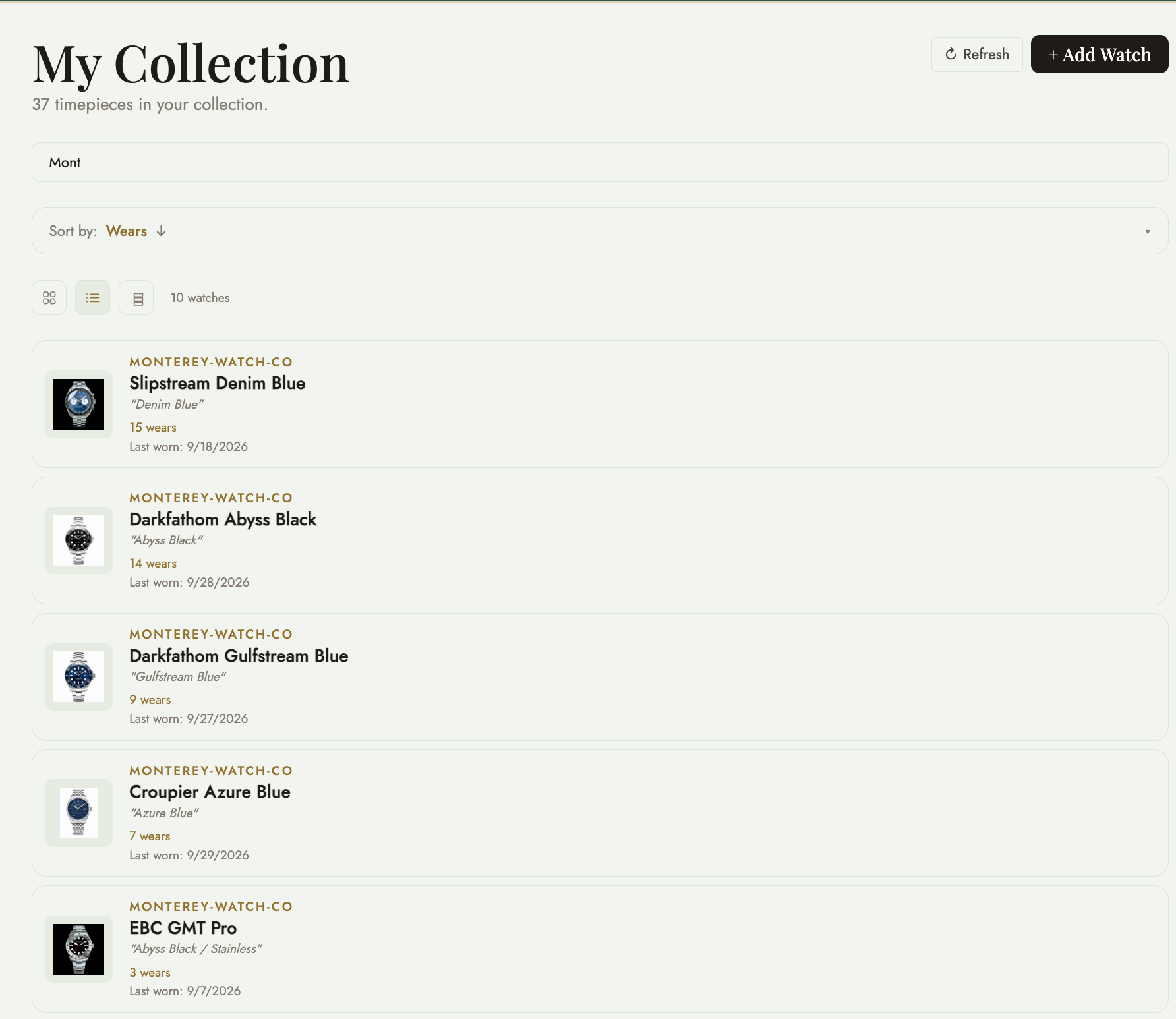
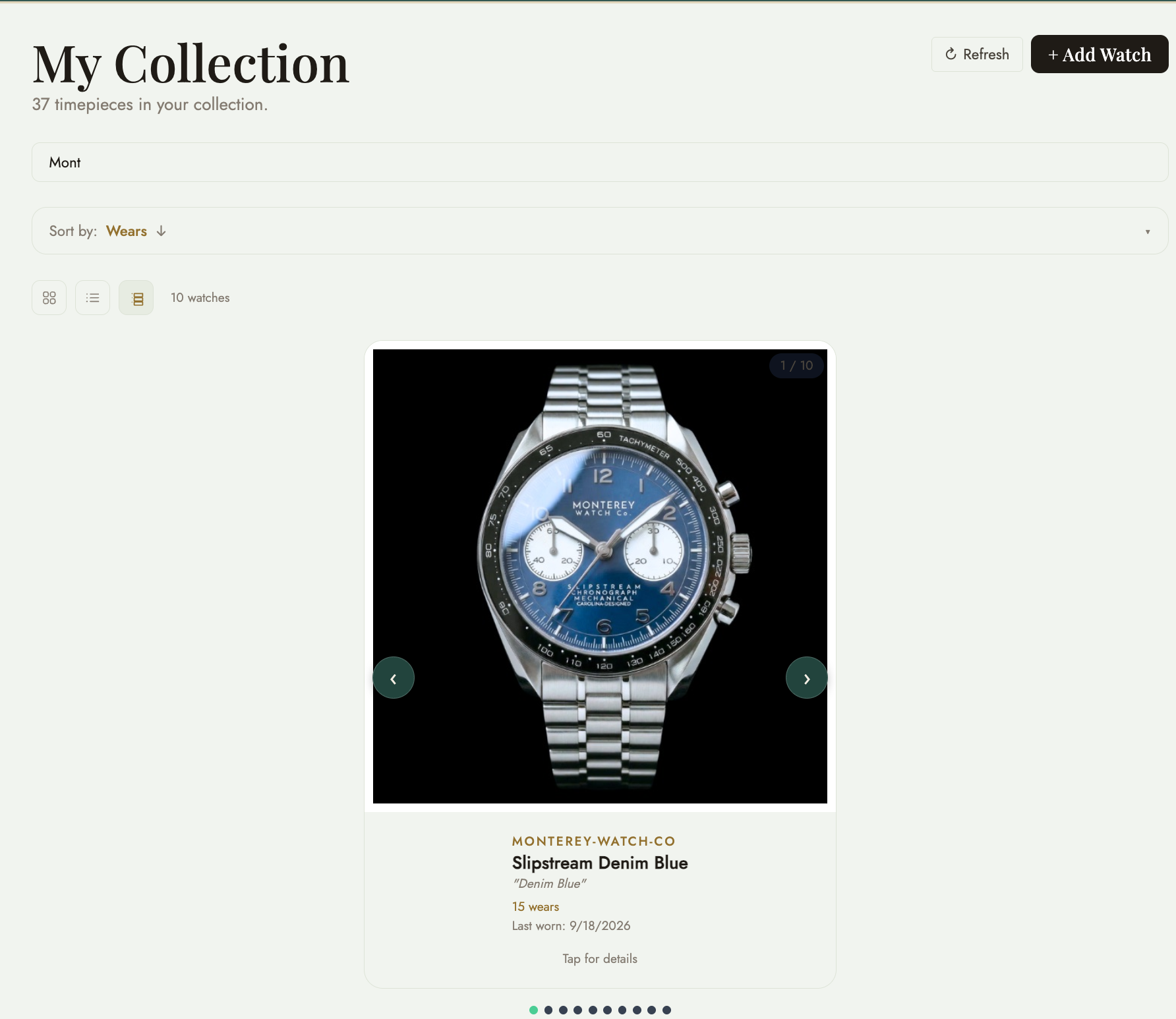
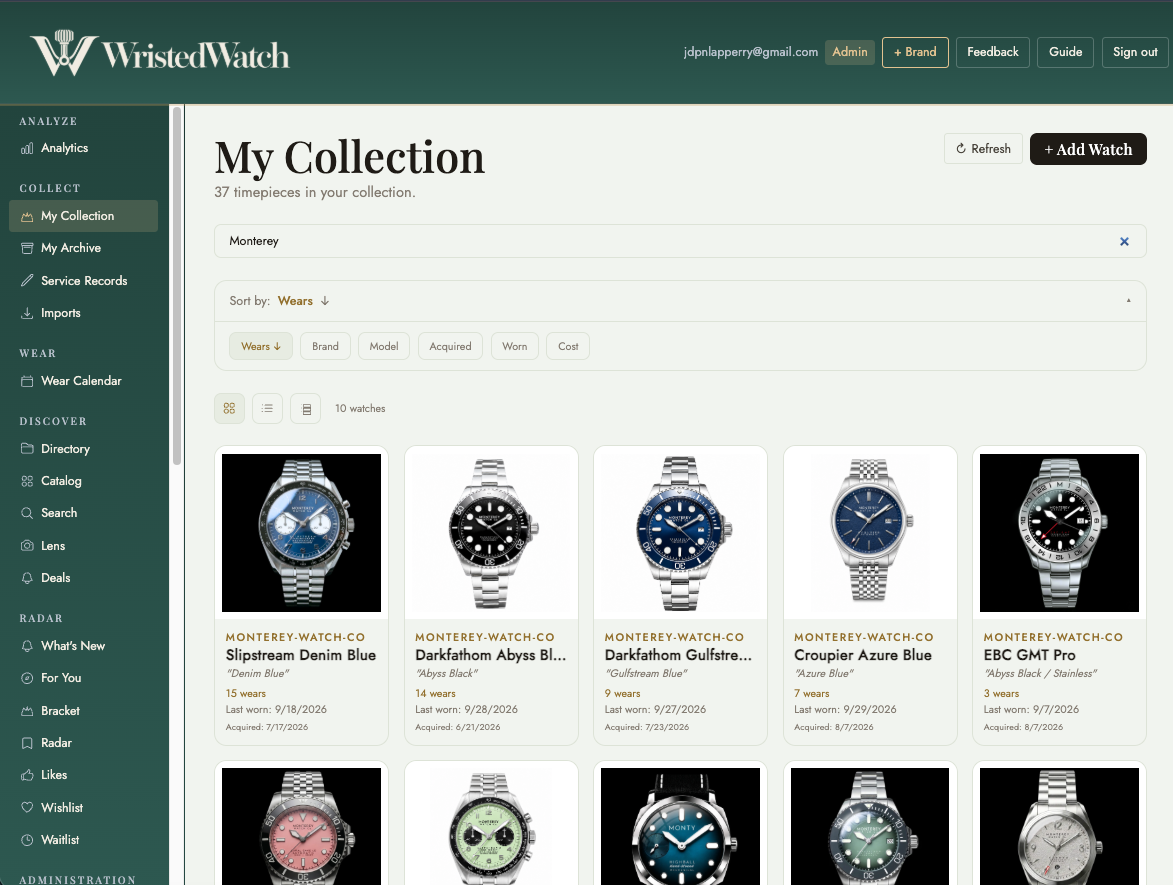
Track every watch you own with photos, specs, purchase info, and notes. The header shows your collection size (“N timepieces”), with search and a Sort by control (Wears, Brand, Model, Acquired, Worn, Cost). Switch between grid, list, and carousel views with the toggle, and add a piece with + Add Watch.
Adding a watch iOS + Web
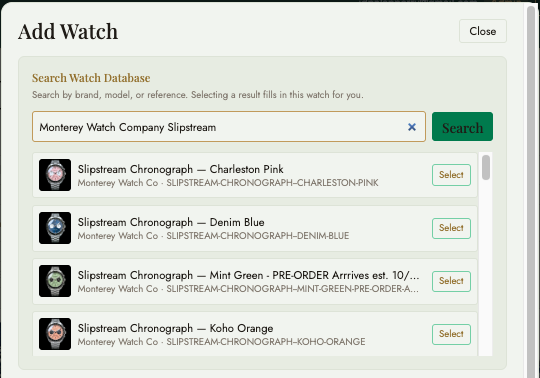
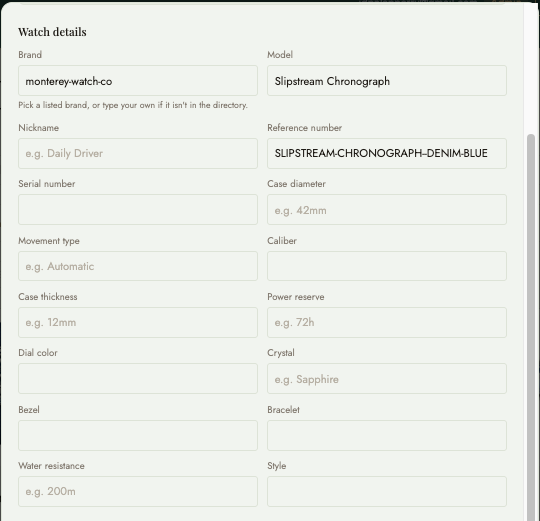
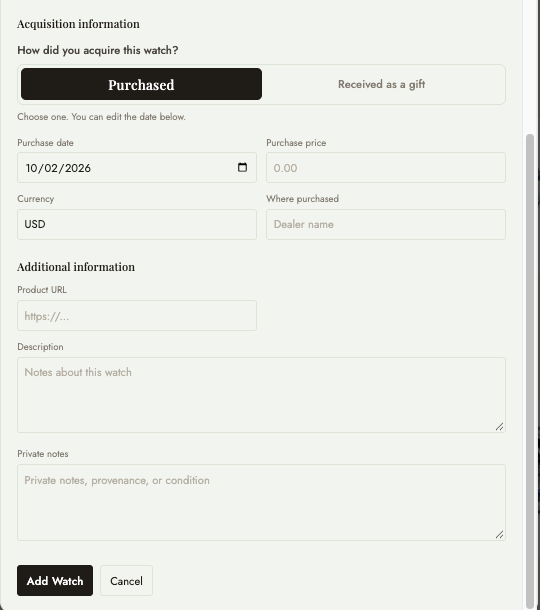
Choose + Add Watch on the Collection page to open the three-step Add Watch flow.
- Search the watch database. Search by brand, model, or reference and Select a result — it auto-fills the watch's details for you.
- Review & edit the details. Confirm or adjust brand, model, reference, serial number, case diameter, movement, caliber, dial color, bezel, water resistance, and more. (Pick a listed brand, or type your own if it isn't in the directory.)
- Add acquisition info and save. Record how you acquired it (purchased or gift), the date, price, currency, and seller, plus an optional product URL, description, and private notes — then choose Add Watch.
Wishlist iOS + Web
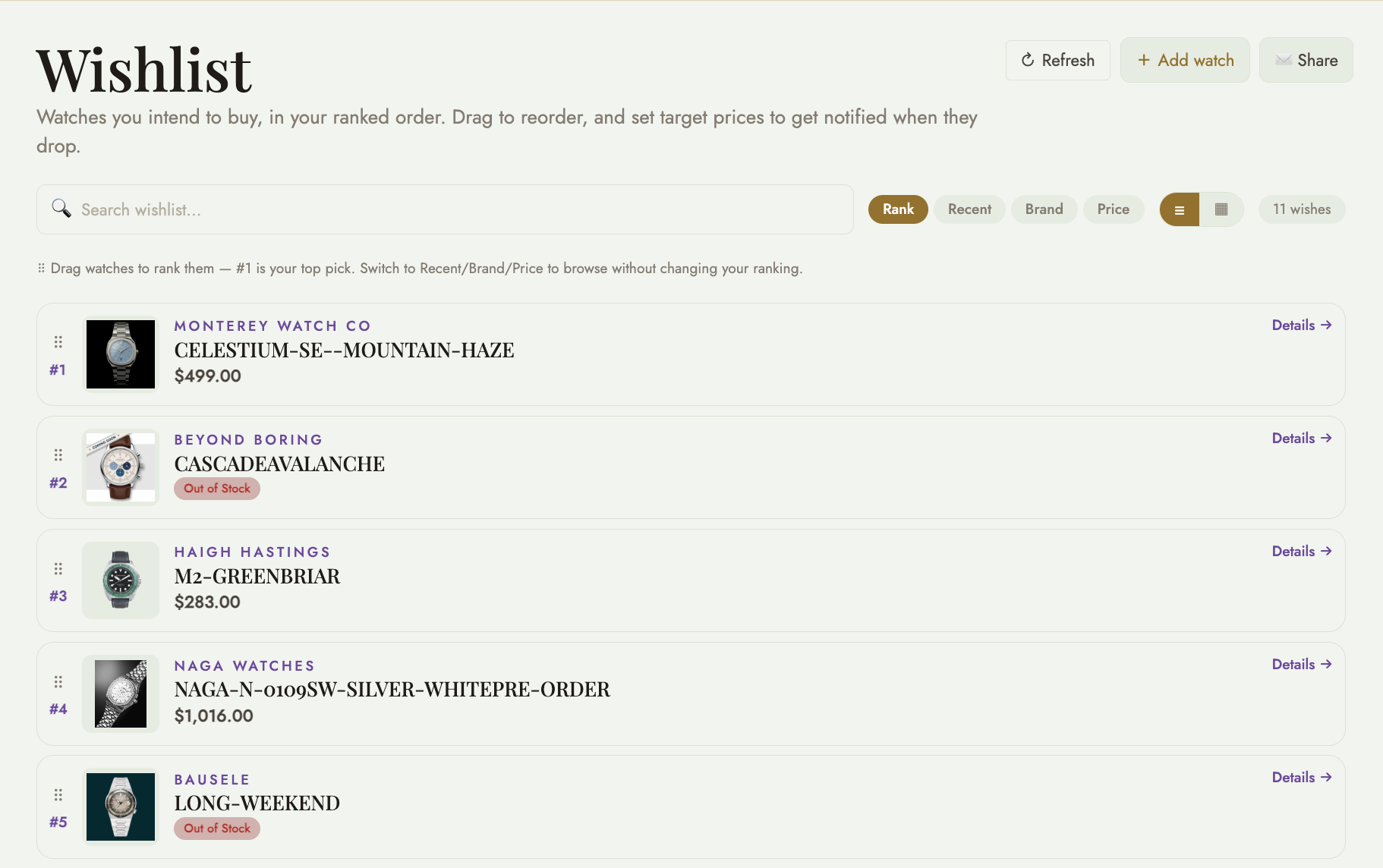
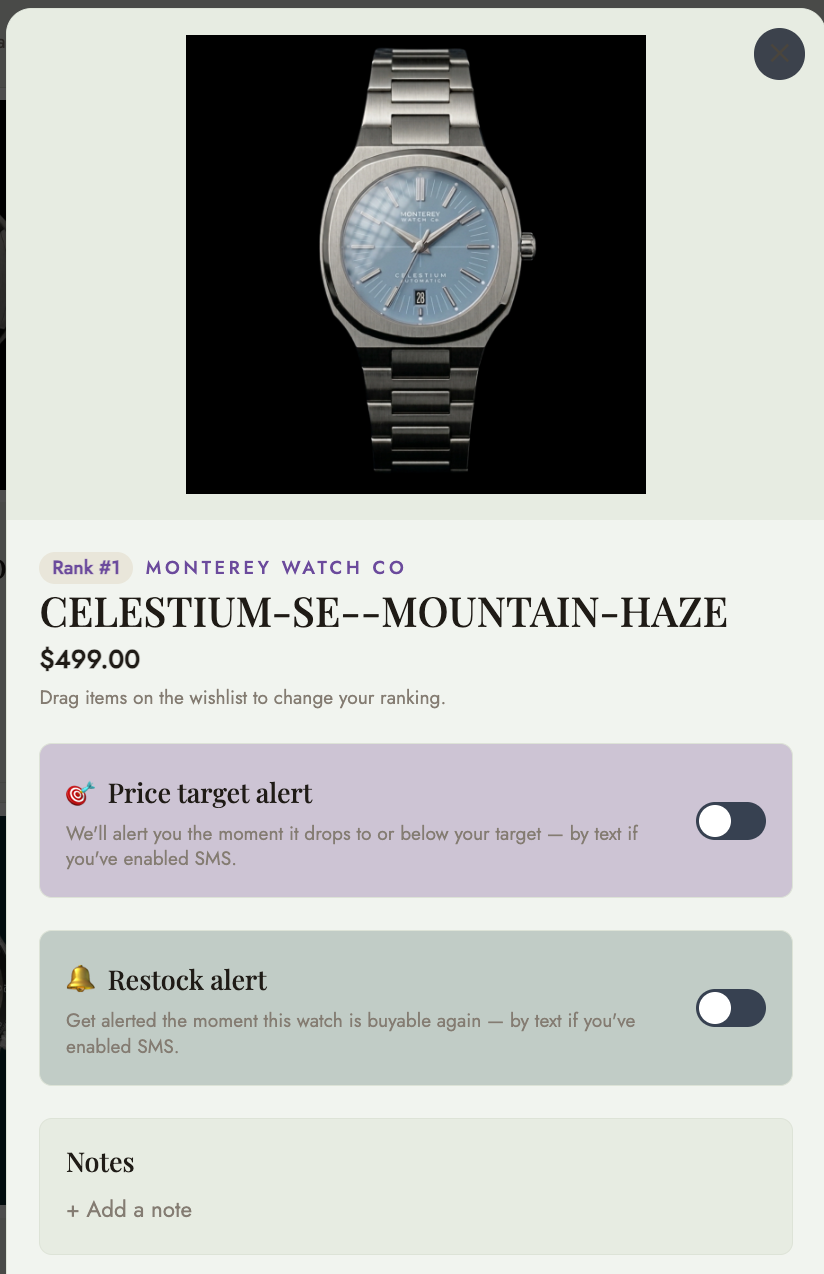
Rank the watches you want and attach alerts to each: a Price target alert (we'll tell you the moment it drops to or below your target — by text if you've enabled SMS) and a Restock alert (the moment it's buyable again). Drag items to change your ranking, and add private notes per watch.
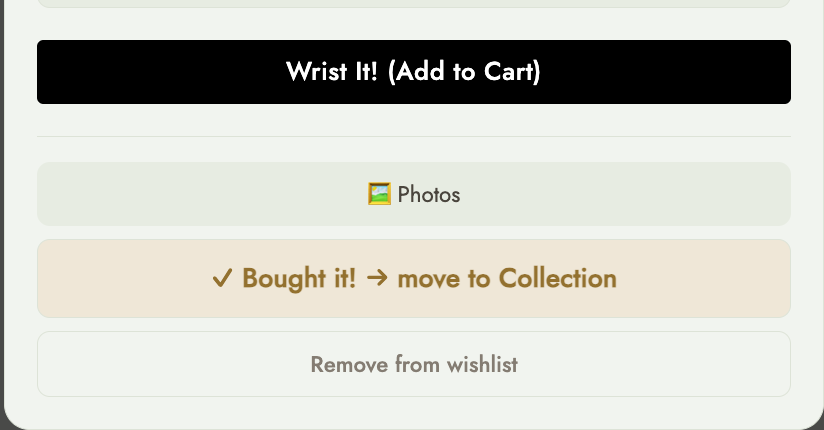
When you buy a wishlist watch, “Bought it! → move to Collection” moves it into your collection in one tap (you can also add photos, or remove it from the wishlist).
Radar & Likes iOS + Web
Radar is your watchlist of pieces you're keeping an eye on; Likes are the brands and watches you've thumbed-up (which also sharpens your For You feed).
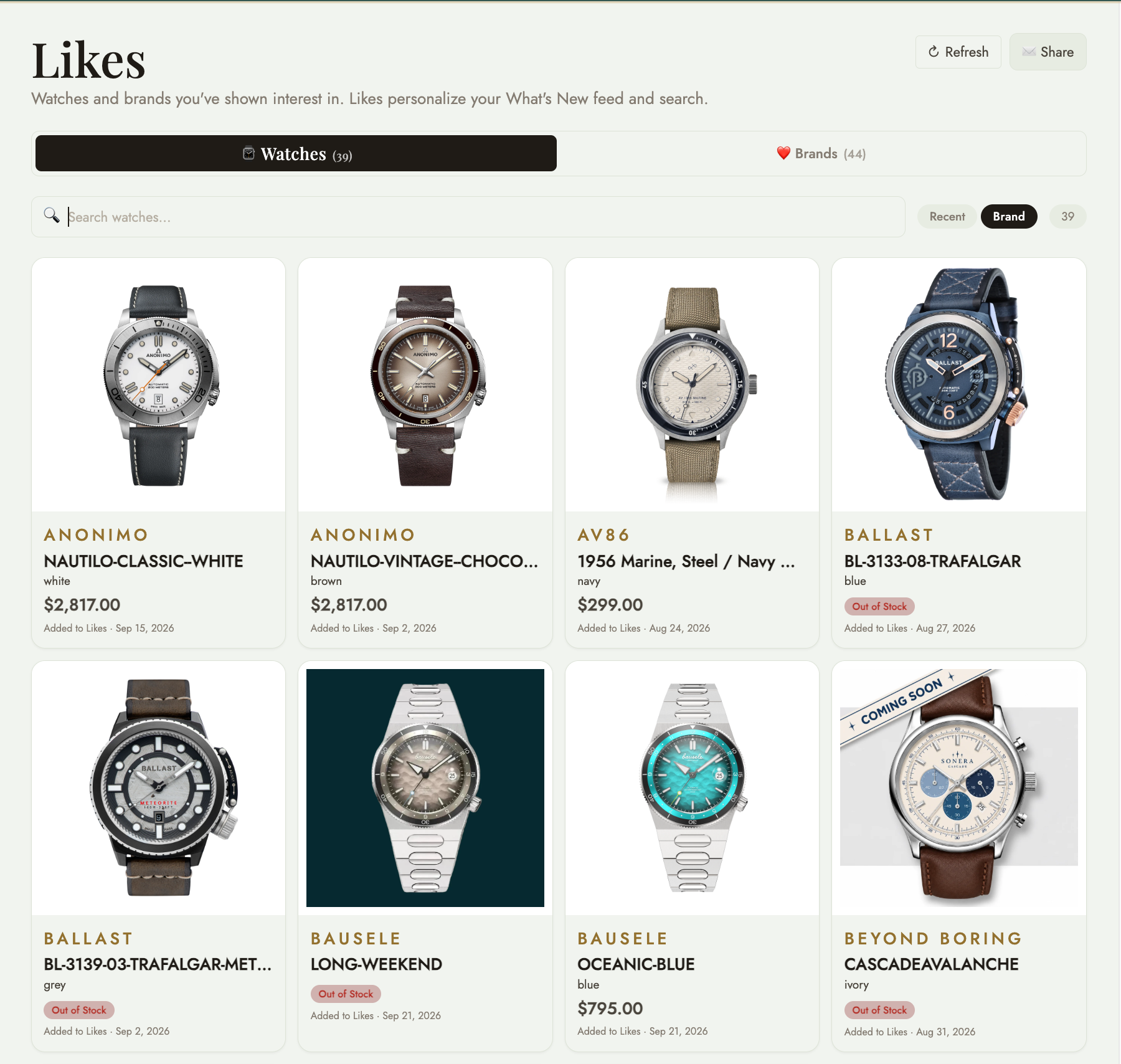
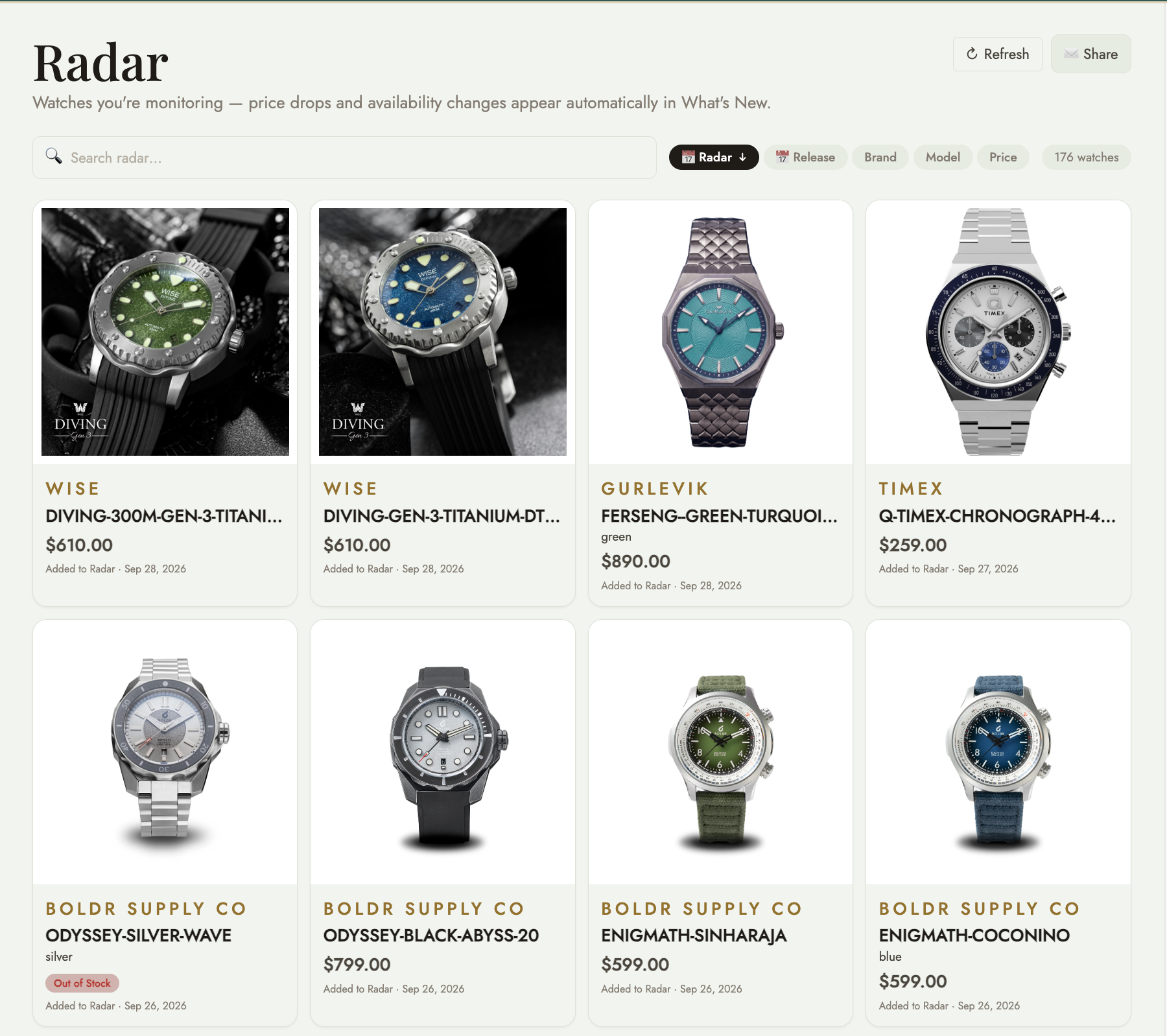
Likes separates Watches and Brands (liking personalizes your For You feed and search). Radar is your monitoring list — price drops and availability changes on radar watches appear automatically in What's New. Both support search and sorting (Recent, Brand, Model, Price, Release).
Analyze dashboard iOS + Web
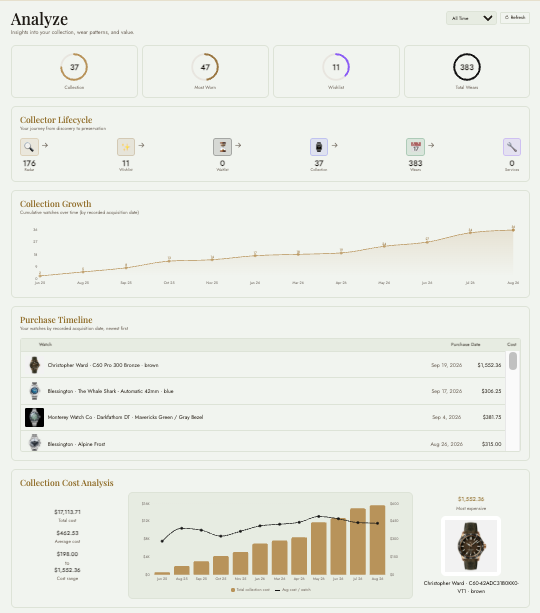
The Analyze dashboard turns your library into insight. At the top, KPI rings summarize your collection size, most-worn count, wishlist size, and total wears. Below that:
- Collector Lifecycle — your journey from discovery to preservation: Radar → Wishlist → Waitlist → Collection → Views → Services.
- Collection Growth — cumulative watches over time, by recorded acquisition date.
- Purchase Timeline — your watches by acquisition date, newest first, with purchase price.
- Collection Cost Analysis — total cost, average cost, cost range, and your most-expensive piece.
- Cost Per Wear — value efficiency per watch (lower is better in the same currency).
- Collection by Brand — how your watches split across manufacturers.
- Collection Insights — fun patterns like your daily driver, weekend favorite, weekday workhorse, busiest day, and preferred size.
- Most Worn Watch, Monthly Wear Trends & Wear Statistics — what actually gets wrist time.
Bracket iOS + Web
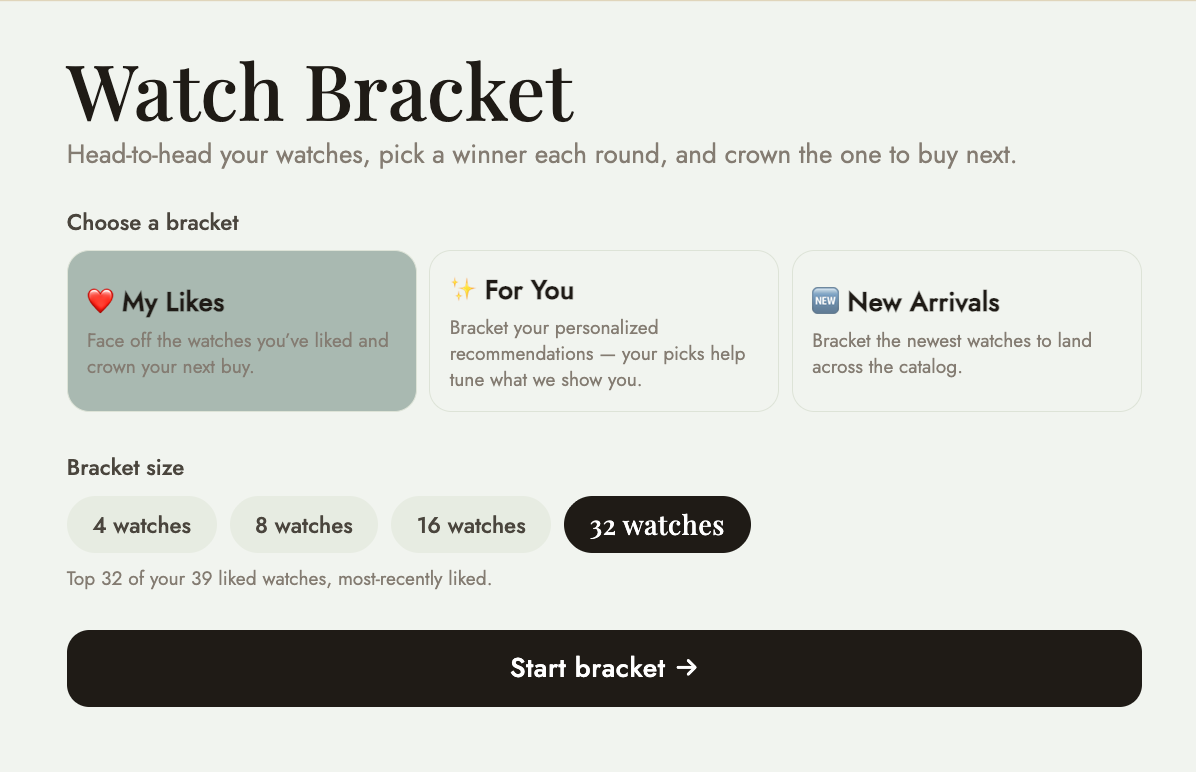
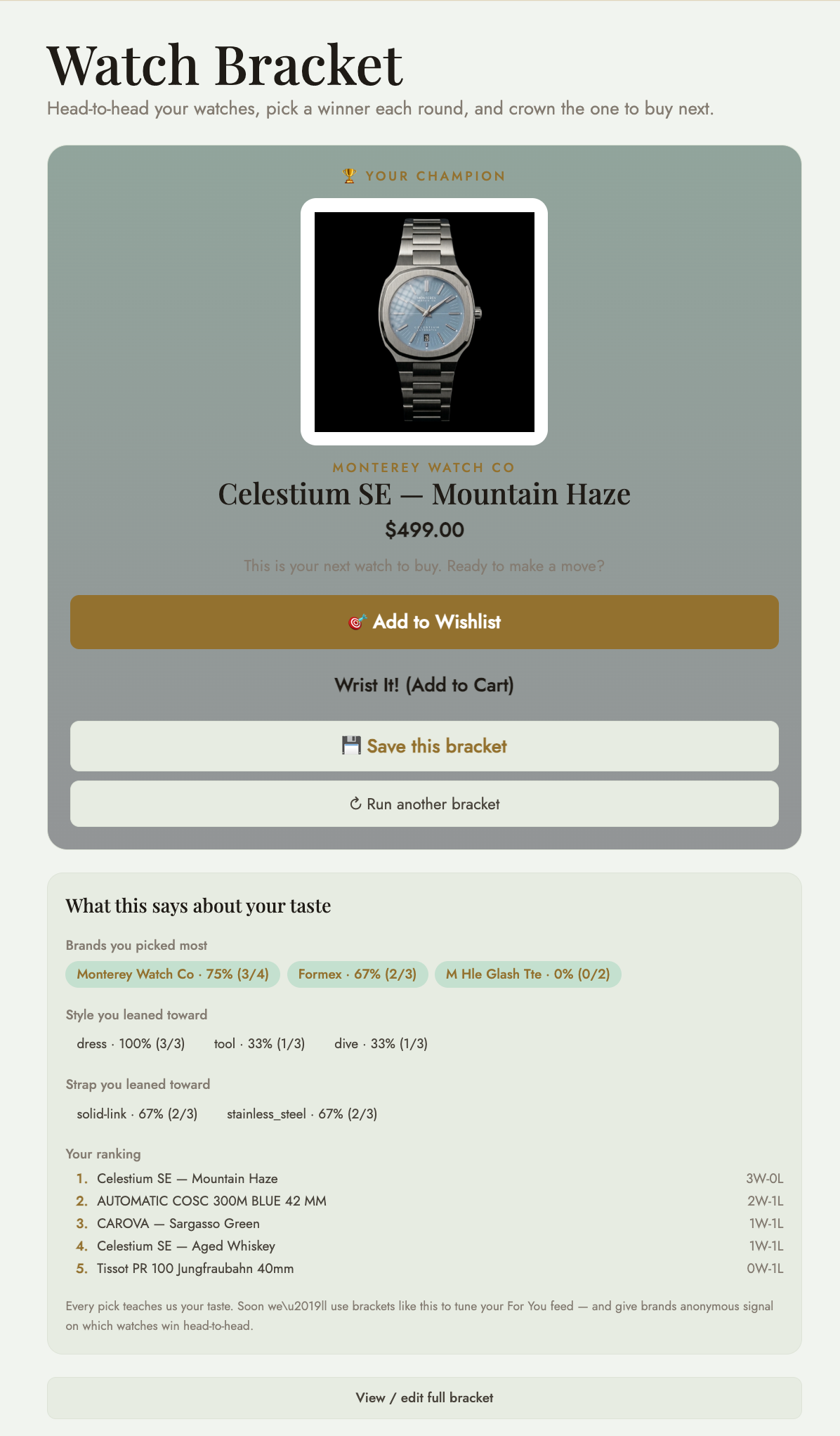
Can't decide which watch wins? Run a bracket — a head-to-head tournament of your watches — and vote until there's a champion.
- Choose a source and size. Bracket your Likes, your For You picks, or New Arrivals, at 4, 8, 16, or 32 watches.
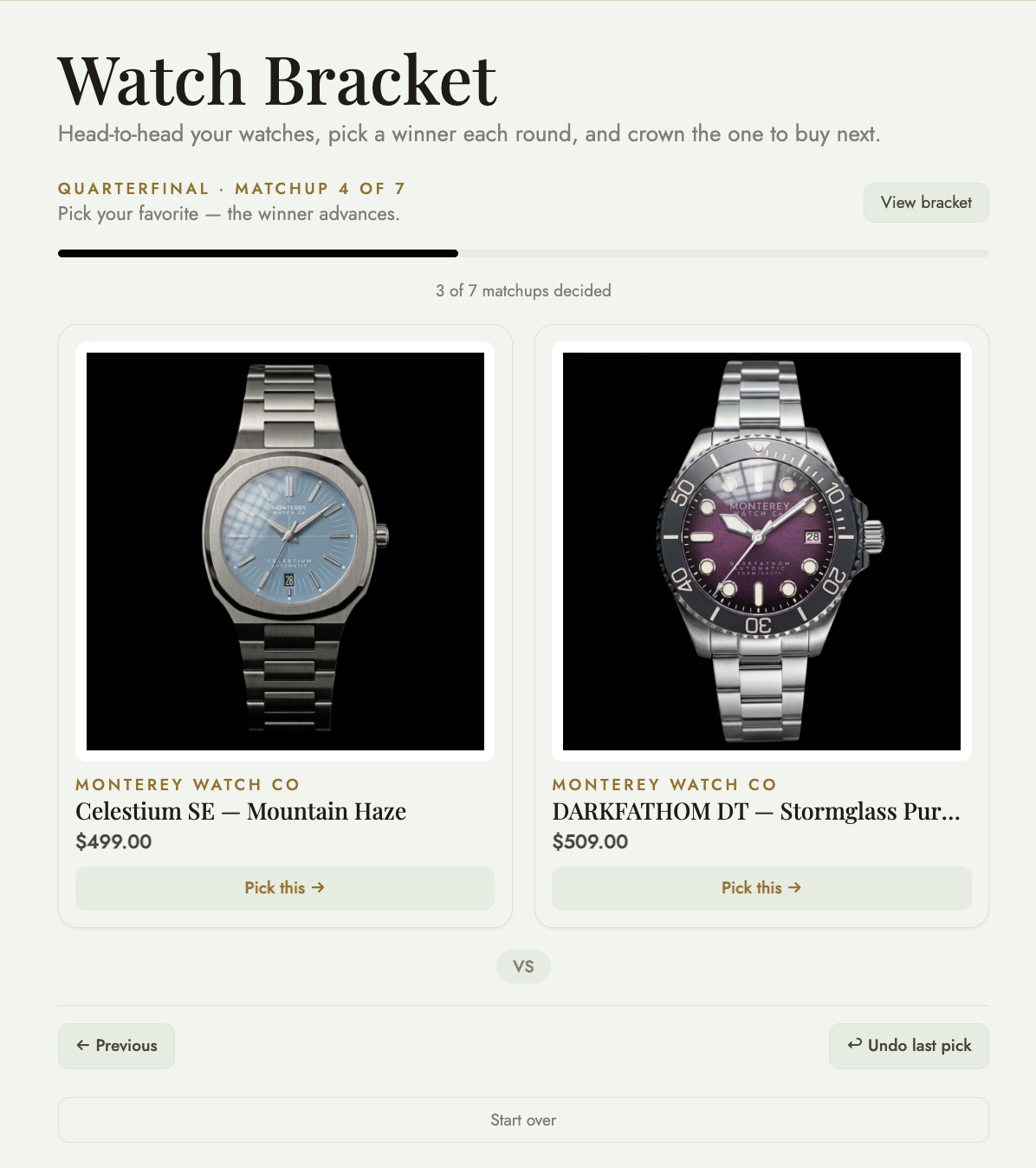
- Pick a winner each round. Two watches face off; tap Pick this and the winner advances. Undo or step back any time.
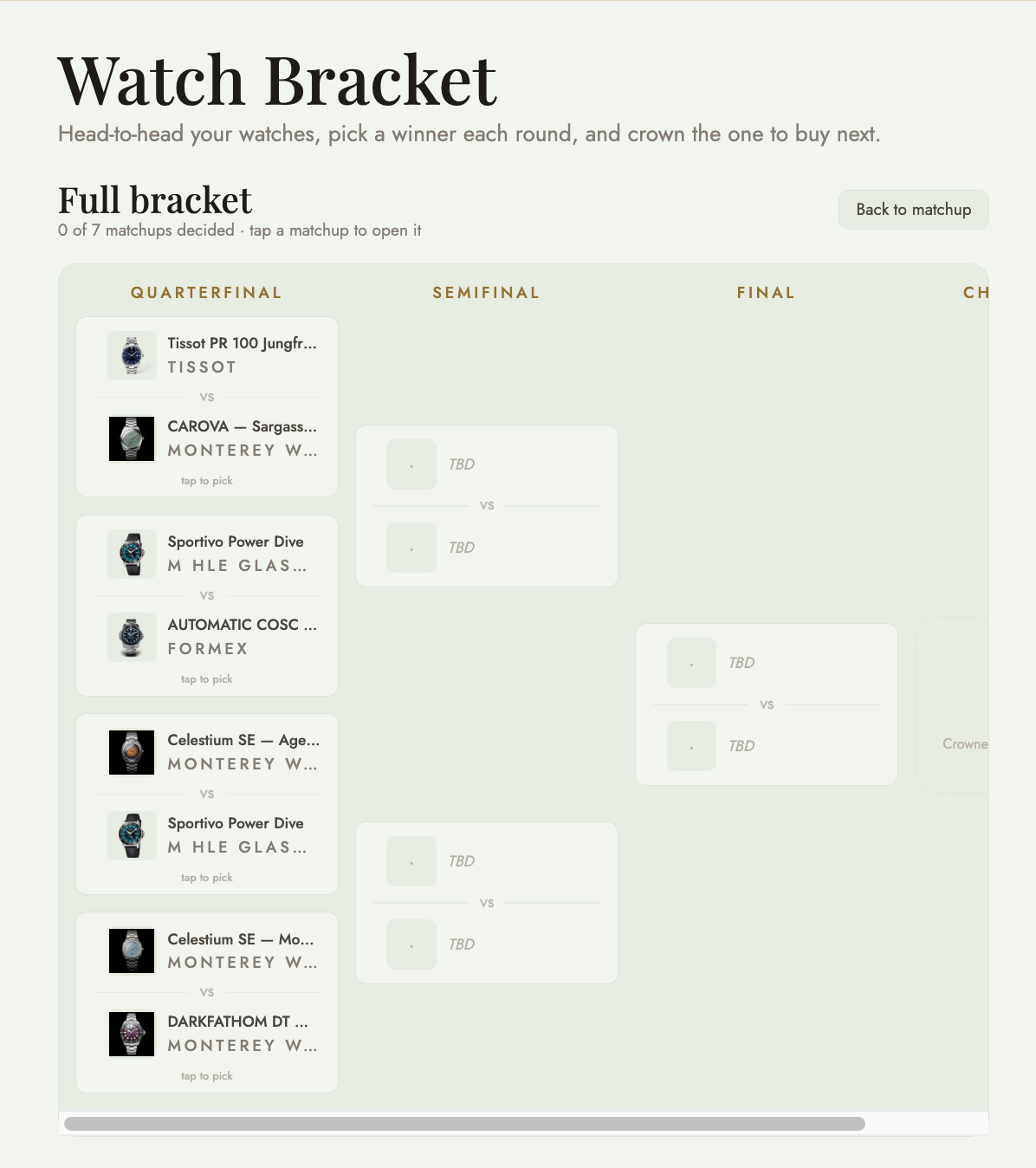
- Follow the full bracket. Watch the Quarterfinal → Semifinal → Final → Champion tree fill in as you decide each matchup.
- Crown your champion. The winner comes with quick actions (Add to Wishlist, Wrist It) and a “what this says about your taste” readout.
Stay informed — alerts & insight
New arrivals, restocks, price drops, and your own wear history — WristedWatch keeps you in the loop.
What's New feed iOS + Web
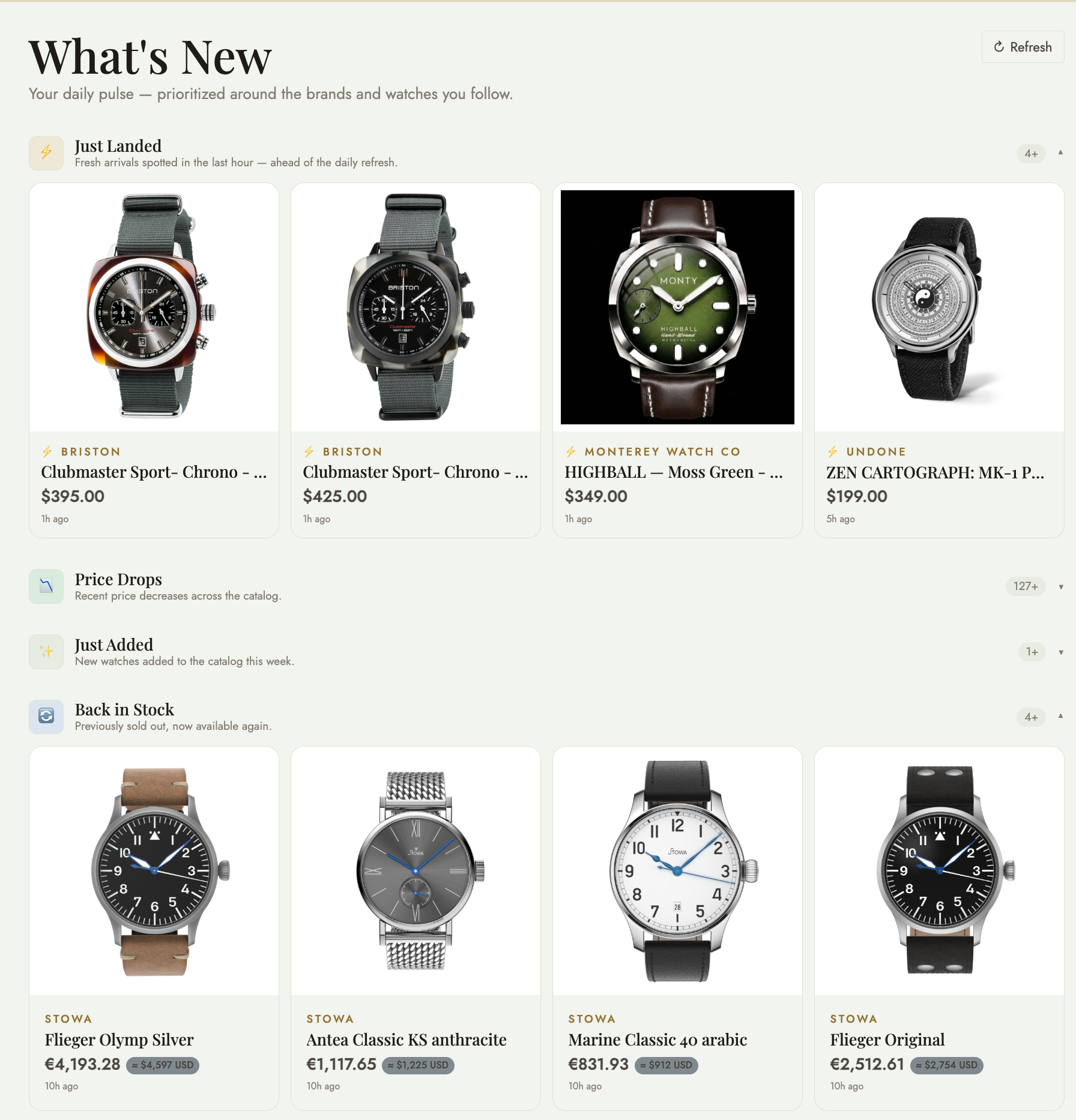
What's New is your daily pulse, prioritized around the brands and watches you follow. It's grouped into Just Landed (fresh arrivals in the last hour), Price Drops, Just Added (new to the catalog this week), and Back in Stock — each card showing the price change and how long ago it happened. Price drops and restocks on your radar and wishlist watches surface here automatically.
Wear calendar iOS + Web
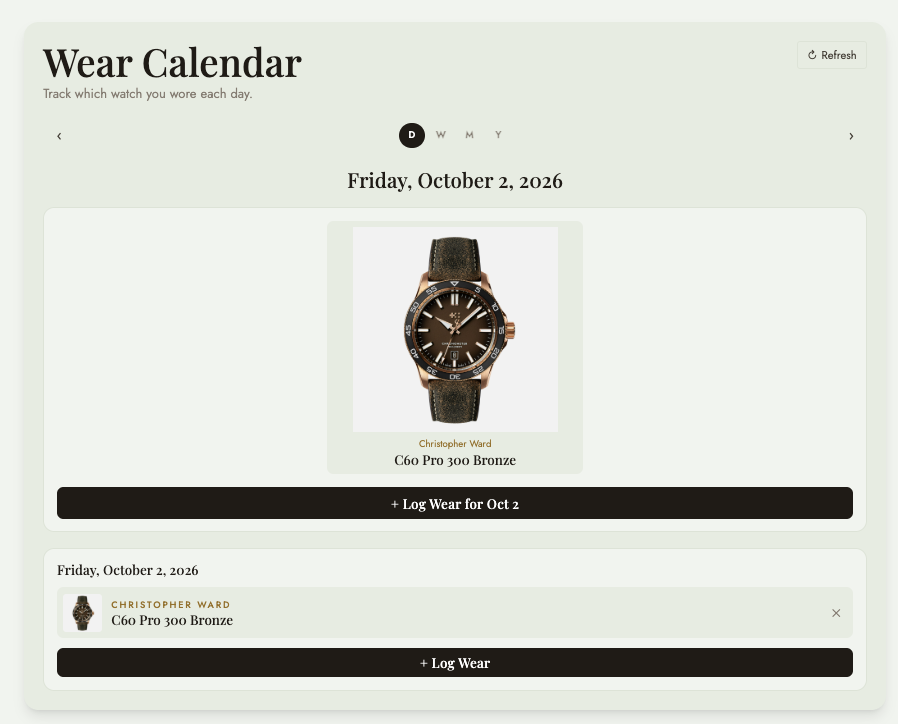
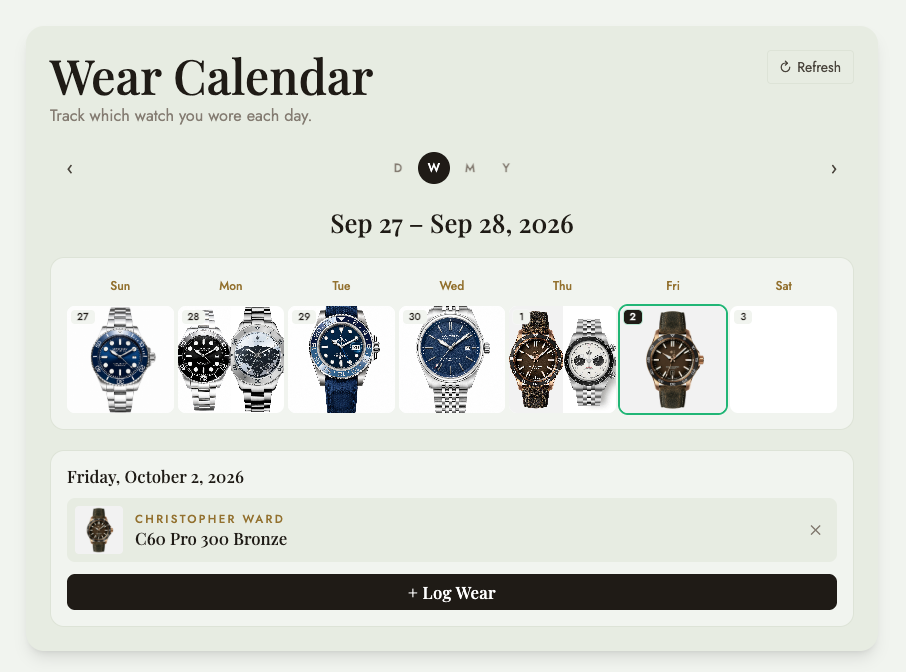
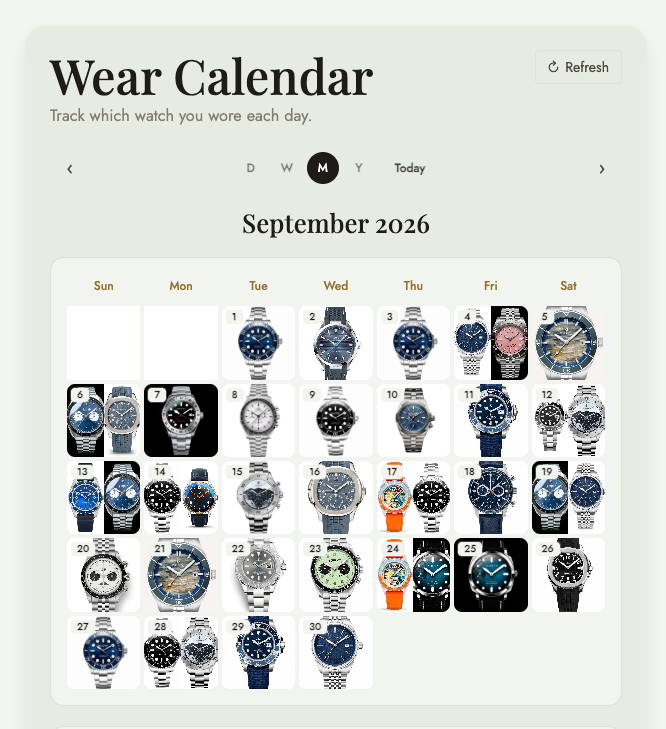
Log which watch you wore each day and build a picture of your rotation. Switch between Day, Week, Month, and Year views with the D / W / M / Y toggle, jump to Today, step through time with the arrows, pick a day, and record a watch with + Log Wear. Over time this feeds the wear insights on your Analyze dashboard — which pieces get wrist time and which sit in the box.
Alerts & notifications iOS + Web
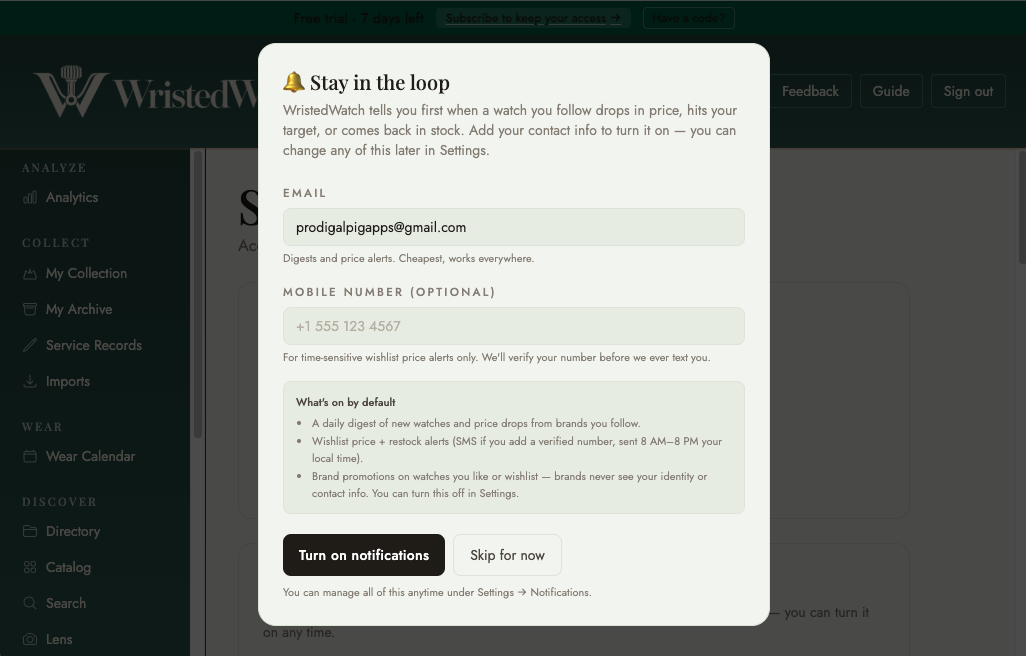
When you create your account, WristedWatch offers to turn on notifications so you hear first when a watch you follow drops in price, hits your target, or comes back in stock. Add your email (digests and price alerts) and, optionally, a mobile number (time-sensitive wishlist price alerts by SMS — verified before any text is sent). Choose Turn on notifications or Skip for now — either way you can manage all of it later under Settings → Notifications.
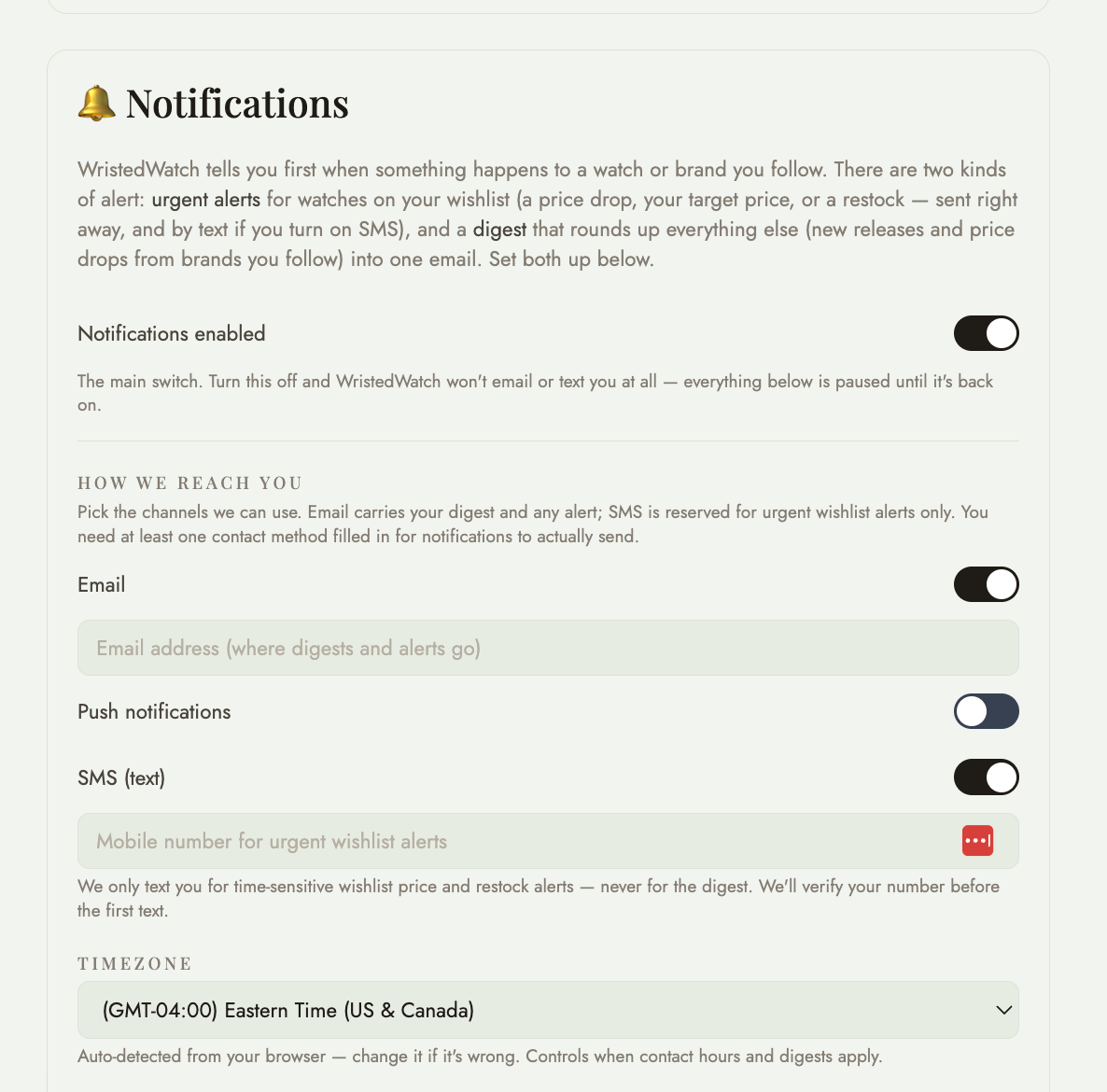
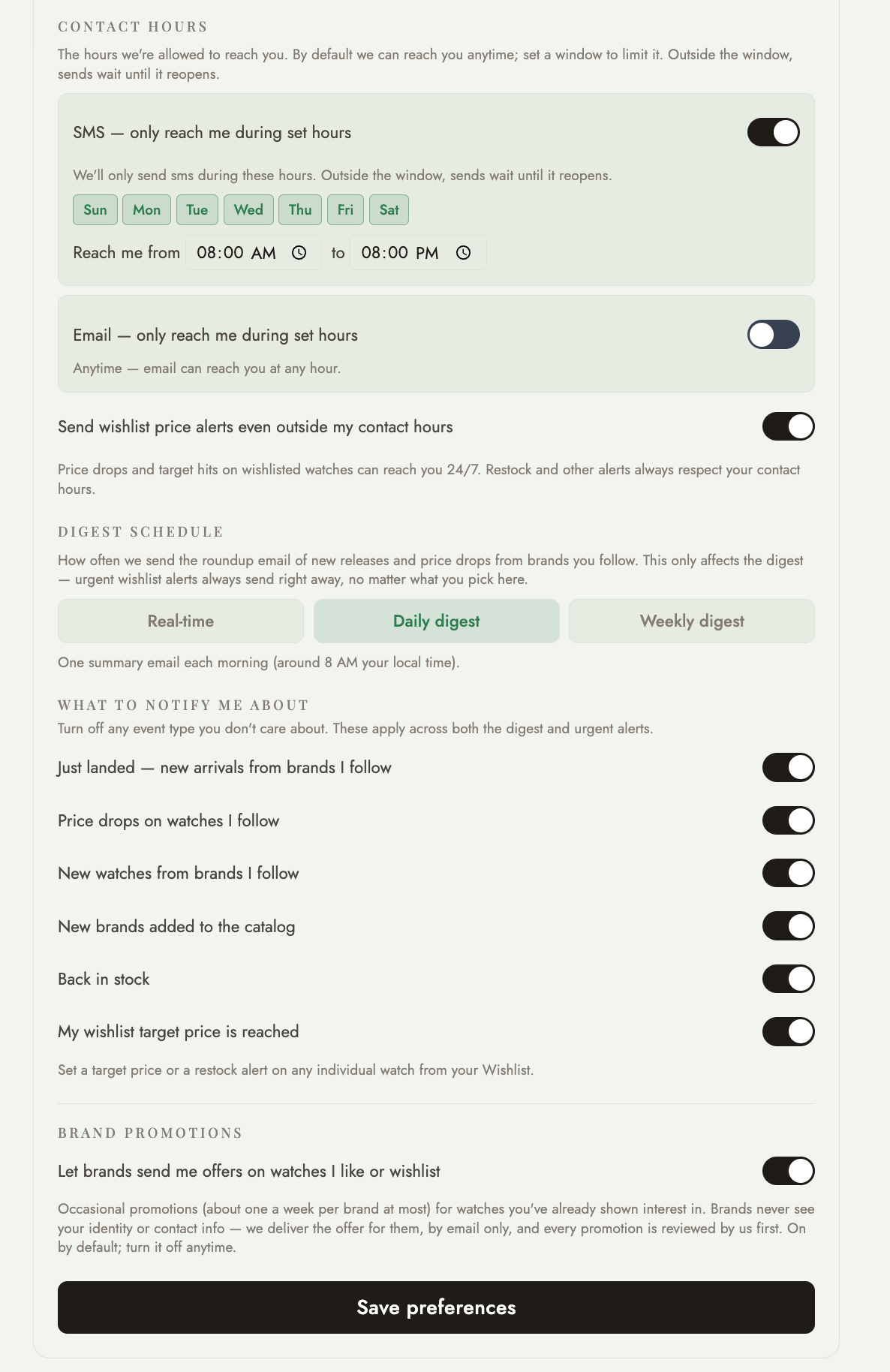
From Settings → Notifications you control exactly what you're alerted about — new arrivals, price drops, restocks, wishlist target hits — and how. Two kinds of alert: urgent alerts for wishlist watches (price drop, target price, or restock — sent right away, by text if you enable SMS) and a digest that rounds up everything else. Set contact hours and a digest schedule so alerts respect your day.
Your account & feedback
Settings Web
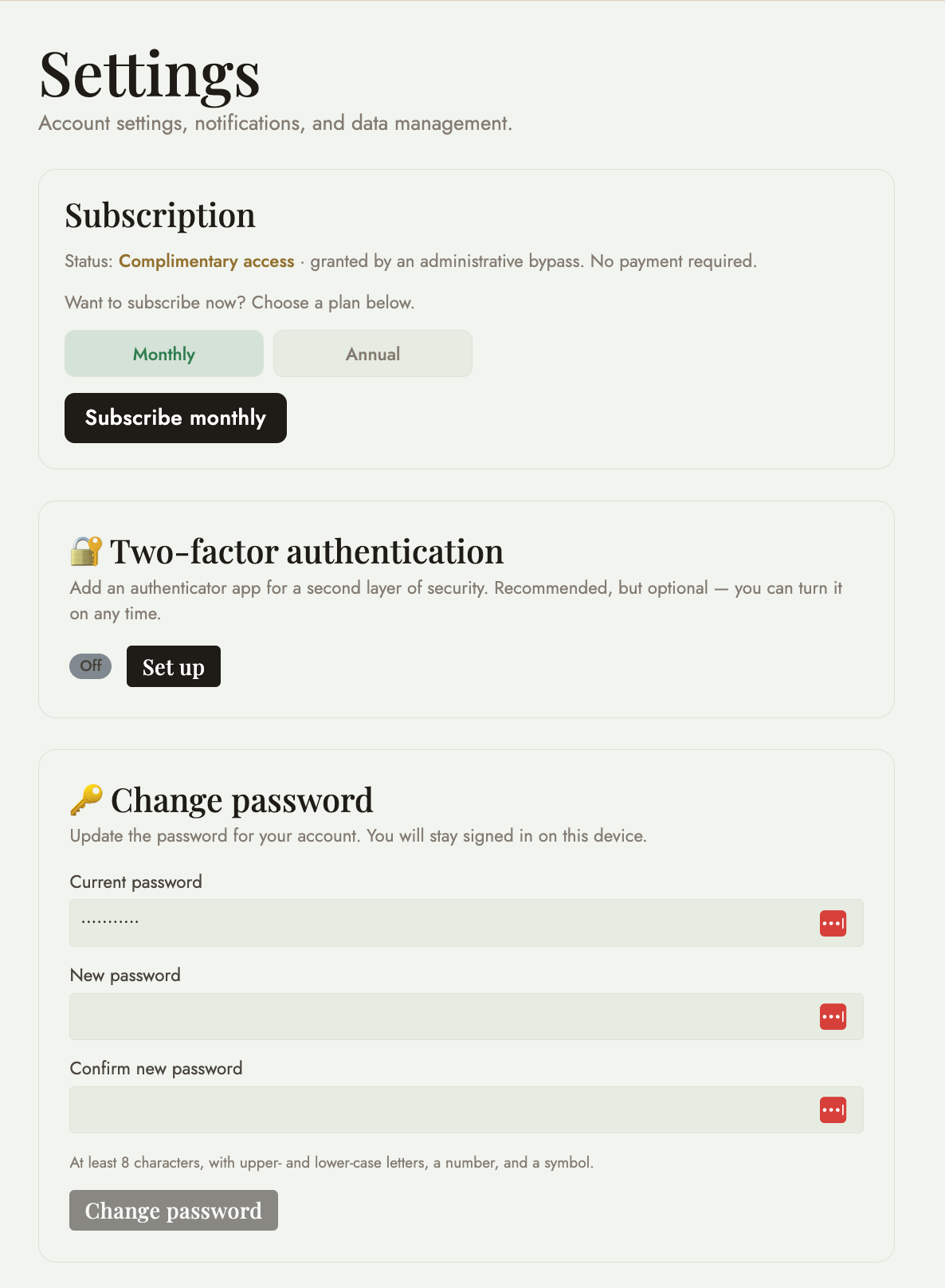
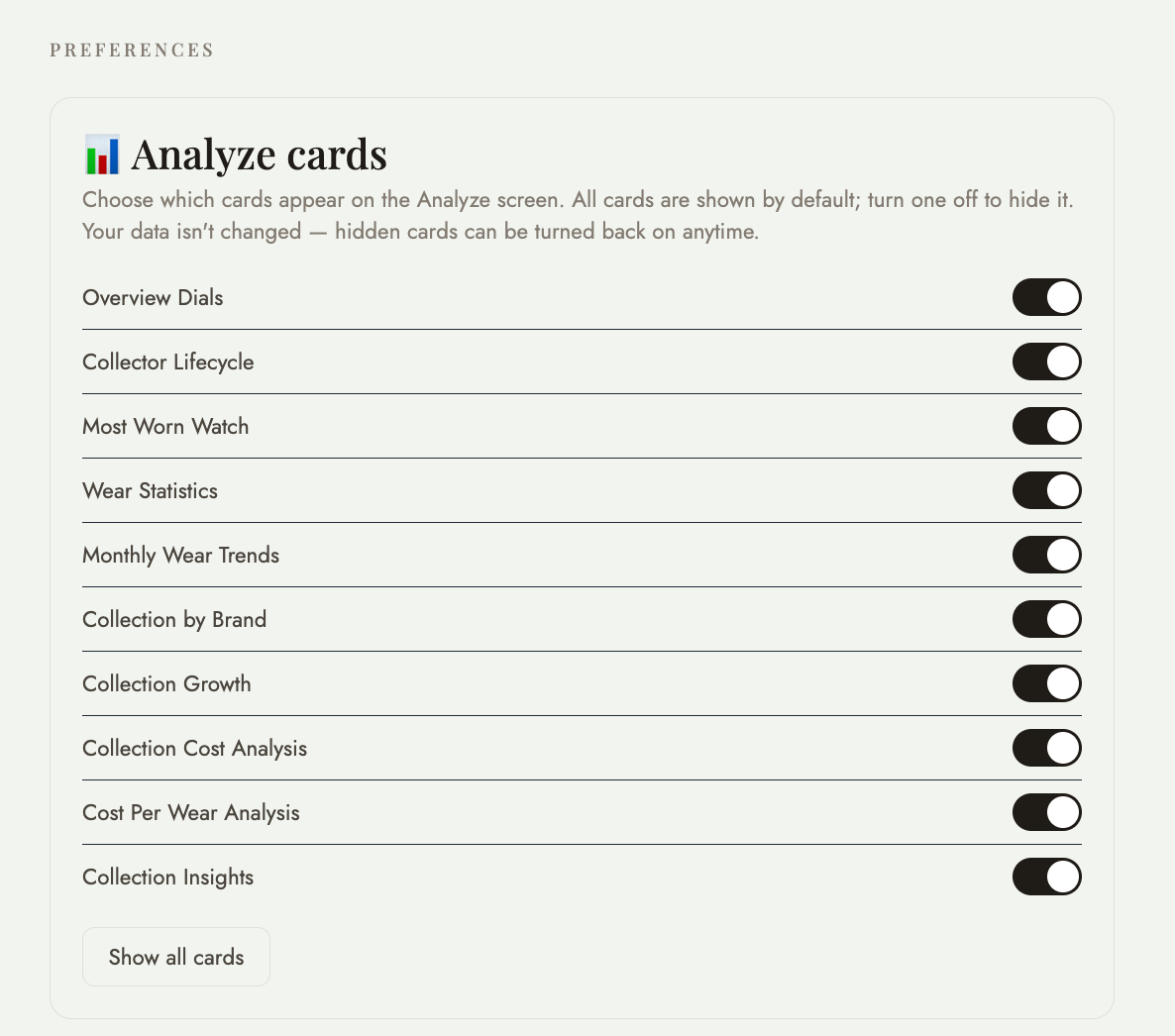
Settings is where you manage your account and preferences: your support (any monthly or yearly gift, with Manage), two-factor authentication, change password, notifications (see below), and Analyze cards — toggles that choose which cards appear on your Analyze dashboard. Reach Settings from the trial/subscription banner or your account links.
Feedback & suggesting brands Web
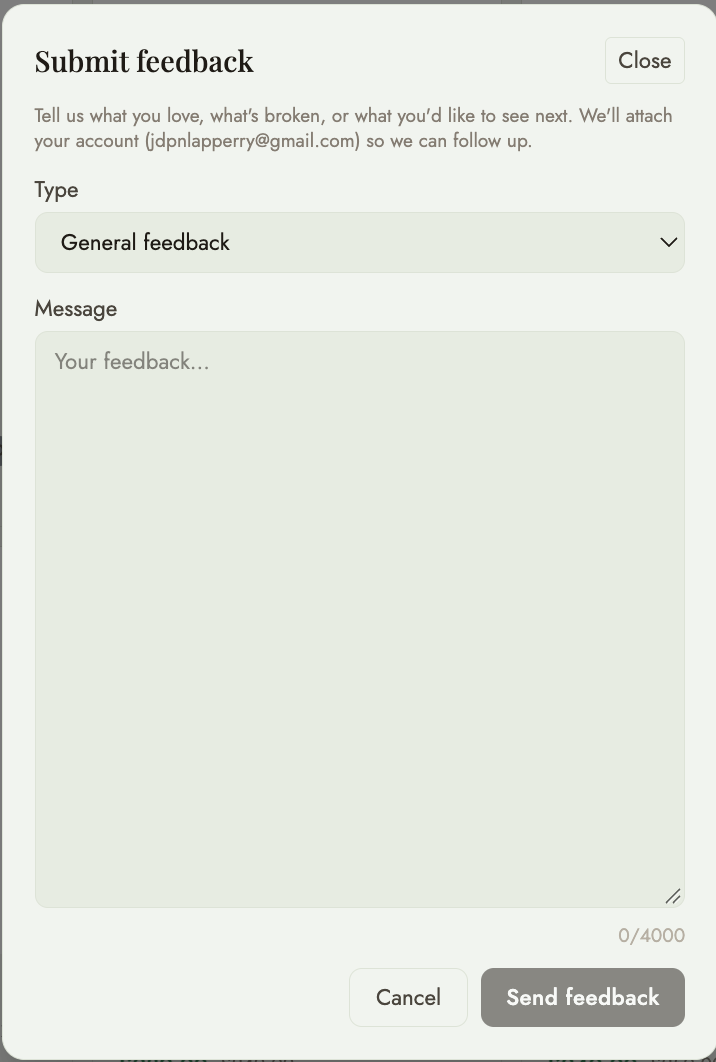
WristedWatch is being built with its community, and your input shapes it. There are three easy ways to help:
- Feedback button — in the header; tell us what works, what doesn't, and what's missing.
- + Brand button — in the header; suggest a brand we should add to the catalog.
- Email — reach the team directly at james@wristedwatch.com.
Best practices for getting the most out of WristedWatch
- Seed your data. Add a few watches to your collection, wishlist, and radar — For You and Analyze get better fast.
- Like brands you love. Likes personalize your feed and surface your favorites first in Browse everything.
- Set alerts on wishlist pieces. A target price + restock alert means you hear about the right watch at the right moment.
- Use Lens when you don't know what it is. Snap or upload a photo and let the app identify similar pieces.
- Log your wear. Over time the Wear calendar shows your real rotation — often a surprise.
- Tell us what's missing. Use + Brand and Feedback — this community shapes the roadmap.